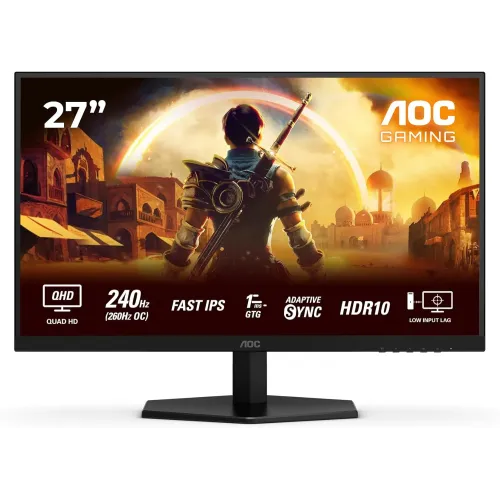
Verified model overview
AOC’s official Q27G42ZE product information describes a 27-inch flat QHD Fast IPS gaming monitor. It supports 2560 × 1440 at 240Hz native and up to 260Hz overclocked via DisplayPort. AOC lists 1ms GtG, 0.3ms MPRT, Adaptive-Sync, HDR10, 300 cd/m² brightness and anti-glare treatment. HDMI 2.0 supports up to 144Hz QHD while DisplayPort 1.4 supports the higher overclocked mode. Check the exact package and local warranty before purchase.
QHD 2560 × 1440 resolution
The native panel resolution is 2560 × 1440 in a 16:9 format. On a 27-inch screen, QHD provides a detailed image and more workspace than Full HD. Choose native resolution in the operating system and game. Text scaling can preserve comfortable reading while retaining the larger desktop. The graphics card, cable and input all affect the available resolution and refresh combination. Use DisplayPort for the highest supported refresh mode.
Fast IPS display
AOC specifies Fast IPS technology with a flat, anti-glare panel. IPS provides broad viewing angles, listed at 178 degrees horizontal and vertical. The rating does not mean color and brightness remain perfectly identical from every position. Fast IPS is tuned for quicker transitions, but results vary by color transition and overdrive mode. Sit centered for gaming and adjust the screen to reduce reflections. Calibrate the actual monitor for color-sensitive work.
240Hz native and 260Hz overclock
AOC’s product leaflet identifies 240Hz native refresh and 260Hz overclock through DisplayPort 1.4. The quick-start guide lists 2560 × 1440 at up to 260Hz on DisplayPort and 144Hz on HDMI 2.0. Enable overclock only if the system is stable; AOC advises lowering refresh to 240Hz if display errors occur. Confirm the active signal in system settings. A high refresh is most useful when the GPU supplies enough frames.
Response time: GtG and MPRT
AOC lists 1ms gray-to-gray and 0.3ms MPRT. These are different measurements: GtG measures pixel transition, while MPRT describes motion-picture response behavior. Neither value is input lag or a promise for every transition. Motion clarity depends on refresh, frame pacing and overdrive. Some blur-reduction modes may affect brightness. Test the available response settings and choose the cleanest image without inverse ghosting.
Adaptive-Sync and tearing control
The official listing specifies Adaptive-Sync and NVIDIA G-SYNC compatibility. Variable refresh can synchronize the display with compatible GPU output and reduce tearing across a supported range. Enable the setting in the OSD and graphics driver, then test games at their normal frame rates. Compatibility depends on the GPU, driver, input and frame range. Adaptive-Sync does not make the game render faster, and behavior can vary by system.
HDR10 signal support
AOC lists HDR10 support. This means the monitor can accept compatible HDR content; it does not by itself establish a VESA DisplayHDR certification tier or local dimming. Published brightness is 300 cd/m², so HDR impact may differ from higher-certified displays. Enable HDR for compatible games or media, then compare with SDR for desktop tasks. Source settings, game implementation and ambient light all affect the result.
Brightness, contrast and color
AOC lists 300 cd/m² brightness and 1000:1 static contrast. The official leaflet reports 16.7 million colors and regional color-space figures including 95.2% DCI-P3, 91.4% Adobe RGB and 123.6% sRGB using CIE 1976 values. Coverage is not calibration accuracy. Use a calibrated profile for design or photo work, and choose an sRGB mode when content should not appear oversaturated. Panel uniformity varies by unit.
HDMI and DisplayPort limits
The quick-start guide lists two HDMI ports and one DisplayPort. QHD refresh tops out at 144Hz over HDMI 2.0 and reaches up to 260Hz over DisplayPort 1.4. To use 240Hz or 260Hz, connect the computer through DisplayPort with a suitable cable and supported GPU. If a mode is missing, check the selected input, graphics output, driver and system display settings. HDMI can remain useful for consoles and secondary sources.
Audio and built-in speakers
AOC’s quick-start guide lists built-in 2W × 2 speakers, while the leaflet’s brief table may not detail them. A 3.5mm headphone output is listed. The small speakers can handle basic audio but are not a replacement for dedicated speakers. HDMI or DisplayPort can carry sound from the connected device; select the monitor as the playback device if needed. Confirm audio behavior for the exact regional package.
Stand, tilt and VESA mounting
The AOC leaflet lists tilt adjustment from approximately -3 to +21 degrees and 100 × 100mm VESA mounting. It does not list a height-adjustable stand in the excerpt, so verify stand movement and the carton contents for the exact regional edition. Position the screen at a comfortable height and use a compatible arm if more adjustment is required. Check arm capacity, screw depth and port access before mounting.
Flicker-free and Low Blue Mode
AOC lists Flicker-Free technology and Low Blue Mode. These picture features can help some users find a comfortable setting, but comfort is personal and depends on brightness, room lighting and viewing habits. Low Blue Mode may change color temperature; switch to a calibrated or standard mode for color work. Take breaks during long sessions. These display features are not medical treatment and do not guarantee prevention of eye strain.
G-Menu and on-screen controls
AOC G-Menu software and the monitor’s on-screen controls provide access to game modes, input, brightness, color and response options. Software support depends on the computer and connection. Change one option at a time and test in moving content. Keep sharpness and contrast enhancements moderate to avoid halos. Save a profile for competitive gaming and a separate profile for office or media use if the controls allow it.
PC gaming performance
QHD at 240Hz or 260Hz requires a capable graphics card and DisplayPort path. The GPU must render the game at a high frame rate to make full use of the refresh. Esports titles may reach high rates with tuned settings; demanding games may require lower quality or a frame cap. Focus on stable frame pacing and a clean response mode. The monitor cannot increase the computer’s rendering performance.
Console and laptop compatibility
AOC lists PS5 and Xbox compatibility at 2560 × 1440 and up to 120Hz. Consoles will not use the monitor’s full 240Hz or 260Hz modes. Laptops need a compatible external display output and enough GPU performance. USB-C video is not listed; use HDMI or DisplayPort through suitable outputs. Check dock and adapter limits, since they can restrict resolution and refresh even when the display supports a higher mode.
Power and package contents
The quick-start guide lists 100–240V AC, 50/60Hz input, 35W typical consumption and up to 56W maximum, with standby at or below 0.3W. The package may include stand, base, power cable, HDMI and DisplayPort cables, plus warranty documentation; contents vary by country. Check the carton and local seller listing. Use the supplied power cable and avoid obstructing ventilation.
Limitations to consider
The 260Hz mode is overclocked and requires DisplayPort; HDMI is limited to 144Hz at QHD. HDR10 support is not the same as DisplayHDR certification. Brightness is 300 nits, and the stand adjustment excerpt lists tilt but not height. QHD at very high refresh needs a capable PC. Confirm local warranty and included cables, and lower the refresh to 240Hz if overclocking causes errors.
Bangladesh warranty and purchase checks
AOC global product data does not determine warranty coverage for a specific Bangladesh serial. Ask the seller to confirm authorized channel, warranty length, service location, panel/dead-pixel policy and invoice requirements. Match model and serial on the monitor and packaging. Confirm current price, stock and included cables at checkout. Test the native 240Hz mode, DisplayPort overclock, HDMI input, speakers and pixel condition during the stated return period.
Setup and troubleshooting
Connect DisplayPort directly to a compatible GPU, select 2560 × 1440 and 240Hz, then enable 260Hz overclock only if needed. If an error appears, return to 240Hz as AOC recommends. For HDMI, expect up to 144Hz at QHD. If there is no audio, select the monitor playback device. If Adaptive-Sync flickers, test within its frame-rate range and compare with VRR disabled. Confirm the correct monitor input in the OSD.
Is Q27G42ZE right for your setup?
Choose this monitor if QHD detail and very high PC refresh are priorities. Check that your GPU and DisplayPort output support 240Hz or 260Hz at 2560 × 1440. Console users should expect the listed 120Hz compatibility rather than 260Hz. Compare stand adjustments, VESA requirements, HDR expectations and local warranty with alternatives. The best setup uses stable frame pacing, a well-selected response mode and a comfortable picture profile.