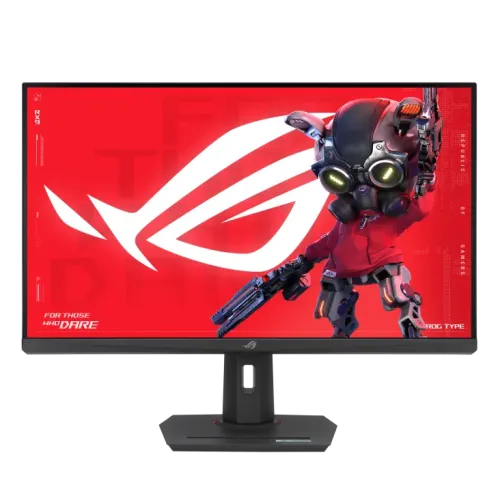
ASUS ROG Strix XG32UCG monitor overview
The ASUS ROG Strix XG32UCG is a 31.5-inch 4K gaming display built around a Fast IPS panel. Its defining feature is a selectable dual mode: UHD 3840 × 2160 at up to 160Hz for detailed play, or FHD 1920 × 1080 at up to 320Hz when prioritizing very high frame rates. ASUS lists Adaptive-Sync, HDMI 2.1, DisplayPort 1.4, USB-C DisplayPort Alt Mode, 15W USB-C power delivery and VESA DisplayHDR 400. It is an LCD monitor, not an OLED model. Setup outcomes depend on graphics hardware, cable capability, firmware, source content and selected display mode. Check the on-screen information page after changing inputs or Dual Mode, and use the manufacturer’s current regional documentation for final compatibility.
Identify the exact XG32UCG model
Check the model label carefully: this page concerns ROG Strix XG32UCG. Do not transfer details from XG32UCWMG, XG32UCWG or other similarly named OLED and gaming monitors. ASUS identifies this unit as 31.5-inch Fast IPS with 3840 × 2160 native resolution. Retail listings may round the panel size to 32 inches. The source product page does not establish a current Bangladesh price, stock status, bundle or local service commitment. Setup outcomes depend on graphics hardware, cable capability, firmware, source content and selected display mode. Check the on-screen information page after changing inputs or Dual Mode, and use the manufacturer’s current regional documentation for final compatibility.
31.5-inch 4K Fast IPS display
The 16:9 panel has a native 3840 × 2160 resolution and a stated 0.182mm pixel pitch. ASUS lists a typical brightness of 350 cd/m², a 1000:1 typical contrast ratio, 178-degree horizontal and vertical viewing angles, anti-glare surface and 95% DCI-P3 color-space coverage. These figures describe the panel specification; perceived contrast and color depend on room lighting, selected picture mode, content and individual unit variation. An IPS panel offers broad viewing angles, while dark-room black levels remain different from self-emissive OLED. Setup outcomes depend on graphics hardware, cable capability, firmware, source content and selected display mode. Check the on-screen information page after changing inputs or Dual Mode, and use the manufacturer’s current regional documentation for final compatibility.
Dual-mode 4K 160Hz and FHD 320Hz
Dual Mode lets the user switch between UHD at up to 160Hz and FHD at up to 320Hz. The second mode is 1920 × 1080, not 4K at 320Hz; it trades spatial detail for a higher refresh ceiling. That option can suit competitive games where high frame rates and motion response matter more than fine image detail. For cinematic games, desktop work and detailed textures, 4K at 160Hz is the higher-resolution mode. Confirm the selected resolution and refresh in the operating system and game after switching. Setup outcomes depend on graphics hardware, cable capability, firmware, source content and selected display mode. Check the on-screen information page after changing inputs or Dual Mode, and use the manufacturer’s current regional documentation for final compatibility.
Refresh rate, response and motion clarity
ASUS specifies 160Hz maximum in UHD mode and up to 320Hz in FHD mode. The stated response time is 1ms GTG and 0.3ms minimum; the minimum figure is a best-case manufacturer specification rather than a guarantee for every transition or setting. Fast response and high refresh can improve motion presentation when the computer supplies matching frames. They cannot make a game render faster by themselves. Overdrive, ELMB and ELMB Sync settings may affect brightness or artifacts, so compare them in the games you play. Setup outcomes depend on graphics hardware, cable capability, firmware, source content and selected display mode. Check the on-screen information page after changing inputs or Dual Mode, and use the manufacturer’s current regional documentation for final compatibility.
Adaptive-Sync, FreeSync and G-SYNC compatibility
The monitor supports Adaptive-Sync and carries ASUS-listed AMD FreeSync Premium and G-SYNC Compatible certifications. Variable refresh can synchronize the display with compatible GPU frame output over supported ranges, helping reduce tearing and judder when frame rate changes. Enable the feature in the monitor menu and graphics driver, then verify the active signal. Compatibility depends on GPU, driver, cable, input and selected mode. It does not imply that every game will reach 160 or 320 frames per second. Setup outcomes depend on graphics hardware, cable capability, firmware, source content and selected display mode. Check the on-screen information page after changing inputs or Dual Mode, and use the manufacturer’s current regional documentation for final compatibility.
Color, brightness and HDR400
ASUS lists 95% DCI-P3 color-space coverage, 350 cd/m² typical brightness and 400 cd/m² HDR peak brightness. VESA DisplayHDR 400 is the stated HDR certification. HDR can preserve highlight detail in compatible content, but the certification alone does not promise OLED-like blacks or advanced local dimming. For content creation, gamut coverage is not the same as measured color accuracy or factory calibration. Use an appropriate color mode and a calibrated workflow if color-critical work requires repeatable results. Setup outcomes depend on graphics hardware, cable capability, firmware, source content and selected display mode. Check the on-screen information page after changing inputs or Dual Mode, and use the manufacturer’s current regional documentation for final compatibility.
HDMI 2.1, DisplayPort and USB-C inputs
Available inputs are one HDMI 2.1, one DisplayPort 1.4 with HBR3, one USB-C input supporting DisplayPort Alt Mode and an earphone jack. ASUS publishes signal-frequency ranges for both UHD and FHD modes through HDMI and DisplayPort/Type-C. The host graphics output and connection must support the desired signal, and a suitable cable is necessary. For a PC, DisplayPort 1.4 or HDMI 2.1 can be selected according to the GPU and setup; check the monitor information screen to confirm resolution and refresh actually negotiated. Setup outcomes depend on graphics hardware, cable capability, firmware, source content and selected display mode. Check the on-screen information page after changing inputs or Dual Mode, and use the manufacturer’s current regional documentation for final compatibility.
USB-C video and 15W power delivery limits
USB-C carries DisplayPort video when connected to a compatible host and provides up to 15W power delivery. That modest output may power small accessories or provide limited charging, but it is not a full-power laptop dock and will not replace the charger for most notebooks. ASUS does not list an integrated USB hub or Ethernet dock among this model’s cited ports. Check the laptop USB-C port for DP Alt Mode support; the connector shape alone does not ensure video output. Setup outcomes depend on graphics hardware, cable capability, firmware, source content and selected display mode. Check the on-screen information page after changing inputs or Dual Mode, and use the manufacturer’s current regional documentation for final compatibility.
Gaming tools and DisplayWidget Center
Gaming features include GamePlus, GameVisual, Shadow Boost, Extreme Low Motion Blur, ELMB Sync, Adaptive-Sync, Aspect Control and DisplayWidget Center. The desktop utility can adjust supported monitor settings and shortcuts with a mouse; the on-screen display remains available for direct control. Use enhancement features selectively because visibility filters and motion modes can change image appearance. Aura Sync lighting is also listed. Menu names and software availability can vary by firmware, operating system and regional package. Setup outcomes depend on graphics hardware, cable capability, firmware, source content and selected display mode. Check the on-screen information page after changing inputs or Dual Mode, and use the manufacturer’s current regional documentation for final compatibility.
Stand movement, VESA mounting and dimensions
The listed stand supports +20 to -5 degrees of tilt and ±25 degrees of swivel. ASUS specifies a 100 × 100mm VESA wall-mounting pattern. Height adjustment is not listed on the cited official specification, so do not assume the stand raises or lowers the display. If desk height ergonomics matter, confirm the physical stand or plan a compatible VESA arm. Published dimensions with stand are approximately 71.7 × 57.4 × 24.6cm, and net weight with stand is about 9.9kg; regional packaging may vary. Setup outcomes depend on graphics hardware, cable capability, firmware, source content and selected display mode. Check the on-screen information page after changing inputs or Dual Mode, and use the manufacturer’s current regional documentation for final compatibility.
PC gaming setup and signal selection
For 4K high-refresh PC gaming, connect the discrete graphics card directly to the monitor, choose UHD mode, and select 3840 × 2160 at 160Hz in display settings. To prioritize competitive frame rate, switch to FHD mode and select 1920 × 1080 at up to 320Hz. If a mode is missing, check the input, graphics output limits, cable certification, GPU driver, monitor OSD mode and operating-system advanced display page. The game must separately be configured to use the intended resolution and refresh. Setup outcomes depend on graphics hardware, cable capability, firmware, source content and selected display mode. Check the on-screen information page after changing inputs or Dual Mode, and use the manufacturer’s current regional documentation for final compatibility.
Console, laptop and multi-device use
The HDMI 2.1 input can be useful for modern consoles, while actual console resolution and refresh depend on console generation, game output and supported timing. The monitor’s PC-oriented 320Hz mode does not mean a console will output 320Hz. A laptop can send video through USB-C only when its port supports DisplayPort Alt Mode; 15W delivery remains limited. The listed ports do not include a high-power charging dock, multiple HDMI inputs or a built-in speaker system. Use external audio equipment as needed. Setup outcomes depend on graphics hardware, cable capability, firmware, source content and selected display mode. Check the on-screen information page after changing inputs or Dual Mode, and use the manufacturer’s current regional documentation for final compatibility.
Everyday work, media and color tasks
The 4K pixel grid provides a detailed desktop canvas for text, photos and high-resolution video, while the anti-glare surface helps manage reflections in typical indoor lighting. At 31.5 inches, operating-system scaling may improve text comfort depending on viewing distance. Wide DCI-P3 coverage can present vivid content, but professional color grading should use calibration and known picture settings. For ordinary office work, consider desk depth, viewing distance, the panel’s power use and whether the large 4K desktop is more useful than a smaller, denser display. Setup outcomes depend on graphics hardware, cable capability, firmware, source content and selected display mode. Check the on-screen information page after changing inputs or Dual Mode, and use the manufacturer’s current regional documentation for final compatibility.
Cooling, power use and room setup
ASUS specifies power-on consumption below 30W, standby below 0.5W, and off-mode below 0.3W, with a 100–240V, 50/60Hz input range. Allow airflow around the monitor and keep the screen out of direct glare where possible. The official page lists a DisplayPort cable, power cord, quick-start guide, ROG pouch, sticker and warranty card as accessories, while noting accessories can vary by region. Confirm the actual box contents for the Bangladesh unit before purchase instead of assuming every regional bundle is identical. Setup outcomes depend on graphics hardware, cable capability, firmware, source content and selected display mode. Check the on-screen information page after changing inputs or Dual Mode, and use the manufacturer’s current regional documentation for final compatibility.
Main advantages for gaming
Key strengths are the sharp 4K panel, high 160Hz UHD refresh, optional 320Hz FHD mode, Fast IPS viewing angles, HDMI 2.1, Adaptive-Sync and a flexible set of game features. A single display can prioritize detail for story games or very high refresh for competitive titles. VESA mounting and swivel movement add setup flexibility. These benefits are most useful with a sufficiently capable graphics card and games that can deliver high frame rates at the selected mode. Setup outcomes depend on graphics hardware, cable capability, firmware, source content and selected display mode. Check the on-screen information page after changing inputs or Dual Mode, and use the manufacturer’s current regional documentation for final compatibility.
Trade-offs and who should compare alternatives
The dual-mode trade-off is explicit: 320Hz is available at FHD, while 4K tops out at 160Hz. USB-C power delivery is only 15W and does not make the display a laptop docking station. The official specification does not list height adjustment or integrated speakers, so those should not be promised. HDR400 is an entry-level VESA HDR class. Buyers seeking OLED contrast, built-in high-wattage charging, height-adjustable stand, or verified color calibration should compare those requirements with other models before deciding. Setup outcomes depend on graphics hardware, cable capability, firmware, source content and selected display mode. Check the on-screen information page after changing inputs or Dual Mode, and use the manufacturer’s current regional documentation for final compatibility.
Bangladesh purchase and warranty checklist
Before ordering in Bangladesh, confirm the exact XG32UCG model and regional part number, current stock, final delivered price, payment terms, sealed-box condition, dead-pixel policy, return window and included cables. Ask who handles the warranty, its duration, whether service is available locally, and whether coverage is tied to the product serial number. The old catalog claim of a three-year warranty is not established by the ASUS specification page used here; obtain written seller confirmation for the unit being offered. Manufacturer global specifications do not prove local stock or service. Setup outcomes depend on graphics hardware, cable capability, firmware, source content and selected display mode. Check the on-screen information page after changing inputs or Dual Mode, and use the manufacturer’s current regional documentation for final compatibility.
Frequently asked questions about XG32UCG
What is the native resolution? 3840 × 2160 (4K UHD). What is the maximum refresh at 4K? 160Hz. How does the 320Hz mode work? Dual Mode switches to 1920 × 1080 FHD for up to 320Hz. Is it OLED? No, ASUS specifies a Fast IPS LCD panel. Which video ports are listed? HDMI 2.1, DisplayPort 1.4 HBR3 and USB-C DP Alt Mode. How much power does USB-C provide? 15W. Does the stand have height adjustment? It is not listed in the cited ASUS specification. Is HDR certified? VESA DisplayHDR 400 is listed. Setup outcomes depend on graphics hardware, cable capability, firmware, source content and selected display mode. Check the on-screen information page after changing inputs or Dual Mode, and use the manufacturer’s current regional documentation for final compatibility.
Who should choose this monitor
Choose the ROG Strix XG32UCG if you want one large 4K Fast IPS screen with high refresh and value being able to change to a 320Hz FHD mode for competitive play. It is a stronger fit when the graphics system can drive demanding games and the user understands the mode-specific resolution change. Consider another model if OLED blacks, a height-adjustable stand, substantial USB-C charging, integrated speakers or confirmed local warranty terms are essential. Verify the exact offer and serial-specific service before paying. Setup outcomes depend on graphics hardware, cable capability, firmware, source content and selected display mode. Check the on-screen information page after changing inputs or Dual Mode, and use the manufacturer’s current regional documentation for final compatibility.