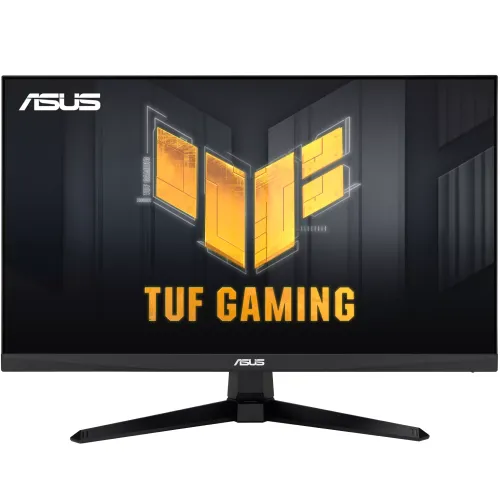
ASUS TUF Gaming VG246H1A 23.8-inch Full HD IPS monitor
The ASUS TUF Gaming VG246H1A is a 23.8-inch Full HD IPS display with up to 100Hz refresh, 0.5ms MPRT marketing response, Adaptive-Sync/FreeSync Premium and Extreme Low Motion Blur. ASUS lists two HDMI 1.4 inputs, no built-in speakers, tilt adjustment and 100 × 100mm VESA mounting. Product titles sometimes round the panel size to 24 inches; the technical specification says 23.8 inches. This description uses ASUS documentation for core specifications and flags local warranty or offer details for confirmation.
Display and everyday clarity
The ASUS TUF Gaming VG246H1A uses a 23.8-inch IPS panel and a 1920 × 1080 Full HD resolution. ASUS product headings may round the size to 24 inches, but the technical specification gives 23.8 inches. Its 16:9 shape suits games, videos and standard desktop layouts. IPS viewing angles are listed at 178 degrees horizontally and vertically; perceived brightness and colour can still vary with angle and room lighting.
Full HD at this size is a common fit for gaming and general computing. It is less detailed than QHD for fine text or a dense editing timeline, so consider your viewing distance and use. At a normal desk distance, scaling and text size can be adjusted in the operating system. The panel is not a substitute for a higher-resolution workstation display when detailed creative work is the priority.
100Hz refresh and source compatibility
ASUS lists a maximum refresh rate of 100Hz. When the source sends a compatible 100Hz signal, motion can appear more continuous than on a 60Hz display. The monitor does not make a game render more frames; the console, laptop or PC and the application must support the selected resolution and refresh combination. Check the operating system’s advanced display settings after connecting.
The official tech specification associates the digital signal frequency with HDMI and lists two HDMI 1.4 inputs. It does not list DisplayPort. A computer dock, adapter or older cable can restrict the available mode, so test a direct HDMI connection if 100Hz is missing. Console output depends on the console model and game. Verify its supported modes rather than assuming every game uses 100Hz.
Understanding the 0.5ms MPRT figure
ASUS markets a 0.5ms MPRT response figure. MPRT describes motion picture response time and is not interchangeable with a grey-to-grey pixel transition measurement. Real pixel changes vary by colour transition, temperature, picture mode and overdrive. The figure therefore should not be interpreted as a guarantee that every transition completes in half a millisecond or that all motion blur disappears.
The monitor also includes Extreme Low Motion Blur. Motion clarity features can change brightness or how the image looks, and combinations with variable refresh can depend on firmware and settings. Try the available modes with the games you play and choose the balance that looks clear without distracting flicker or artifacts. A higher refresh setting, stable frame pacing and appropriate response tuning all contribute to motion quality.
Adaptive-Sync, FreeSync Premium and gaming tools
ASUS lists Adaptive-Sync and AMD FreeSync Premium. Compatible variable refresh can reduce tearing by coordinating display updates with the graphics source. Enable the feature in the monitor menu or supported software when necessary, and check the graphics driver and connection. Support may differ by GPU and device; ASUS’s compatibility label does not mean every source has identical functionality.
GameVisual, GamePlus, Shadow Boost and GameFast Input technology are listed ASUS features. They provide picture modes or gaming overlays and processing options, but they do not replace a capable source device or improve the game’s underlying performance. Review the effect of each setting and return to a neutral mode if colours or shadows look unnatural. The best configuration depends on title, lighting and personal preference.
Brightness, contrast, colour and eye comfort
ASUS lists 300 cd/m² typical brightness and a 1300:1 typical contrast ratio. The product marketing page advertises 110% sRGB colour gamut; gamut coverage does not prove per-unit calibration accuracy. The display has an anti-glare surface and flicker-free operation listed in specifications. Keep brightness appropriate to the room, and avoid direct reflections from windows or lamps.
Low Blue Light and TÜV Flicker-free are listed features/certifications. They may support viewing comfort but cannot guarantee that long sessions prevent eye fatigue. Adjust text scaling, maintain a comfortable viewing distance, take breaks and use room lighting that is not dramatically different from screen brightness. For colour-critical tasks, use an appropriate calibrated monitor and measurement workflow rather than relying on gamut claims alone.
HDMI connections and audio setup
ASUS’s official tech specification lists two HDMI 1.4 inputs and does not list DisplayPort, USB or an analogue audio jack. HDMI can carry video and compatible digital audio from a source. The display’s official audio specification says there are no built-in speakers, so plan for headphones or external speakers connected to the source device. Do not rely on older seller copy that mentions an earphone jack unless the exact regional manual confirms it.
With two HDMI inputs, users can keep compatible devices attached and select the active source from the monitor menu. If a connected computer does not provide sound, check its audio-output selection. Because the screen has no built-in speakers in ASUS specifications, monitor audio settings alone do not create speaker playback. Confirm the input labels on the actual unit and use the manual for regional port details.
Stand, VESA and desk placement
The stand supports tilt from -5° to +23°. ASUS lists no height adjustment. A 100 × 100mm VESA mounting pattern is available for a compatible arm or wall bracket, and a Kensington lock slot can help secure the monitor in shared settings. Check the manual for screw size, length and clearance before attaching mounting hardware.
The listed net weight is approximately 3.42kg with stand and 2.87kg without; dimensions can vary by region. Measure desk width, depth and cable clearance before placement. Set the top of the screen near eye level if possible; since the included stand does not rise, a riser or VESA arm may be needed for ergonomic height. Confirm the desk or mount is stable before use.
Using the monitor with PC, laptop and console
For a PC, connect HDMI directly to the graphics output, select 1920 × 1080, then choose up to 100Hz in advanced display settings. Update the graphics driver if the mode is missing and test without an adapter or dock. On a laptop, the HDMI port’s own bandwidth and graphics configuration determine available modes. Choose the monitor as the active display and verify sleep/wake behaviour after setup.
For consoles, supported resolution and refresh depend on the device and game. HDMI input availability does not imply that every console can output 100Hz in every title. Check the console’s display settings and the game’s performance mode. When using more than one device, the two HDMI ports may be useful, but confirm your region’s exact hardware label before relying on a particular connector layout.
Care, setup and troubleshooting
Assemble the monitor according to the included guide and inspect the panel before the return window expires. Keep the carton and invoice. To clean, turn off the display and use a soft cloth as directed by ASUS; do not spray liquid on the panel or press hard. Keep ventilation areas clear and route cables so they cannot be pulled or trapped behind furniture.
If 100Hz is unavailable, confirm Full HD resolution, HDMI connection, source capability, operating system mode and graphics driver. If an image flickers after enabling a motion feature, return to a standard mode and check the manual. If there is no sound, use speakers or headphones connected to the source because the monitor has no built-in speaker. Document faults and contact the retailer promptly.
Bangladesh price, warranty and buying checks
The available listing name may say 24-inch even though ASUS specifies 23.8 inches. Match the VG246H1A model code on the carton and invoice. Before ordering, verify final cash/card price, delivery charge, live stock, included HDMI cable and warranty provider. Regional accessories can vary, and ASUS itself notes that dimensions and included items may differ by region.
Warranty duration and service eligibility are local seller/importer matters. Ask whether the serial is eligible for ASUS Bangladesh service, how to register, what dead-pixel threshold applies and whether replacement or repair is offered. Keep written terms and the invoice. Do not treat marketplace warranty text as confirmed coverage for a particular serial number. Current retailer pricing is not a BiponiBD offer unless separately shown in BiponiBD’s own live catalog.
Who should choose it
The VG246H1A is aimed at someone wanting a compact Full HD IPS display with up to 100Hz, Adaptive-Sync/FreeSync Premium, ELMB and ASUS gaming controls. Two HDMI inputs, VESA mounting and a Kensington lock add practical flexibility. It can suit entry-level PC gaming, console use and general desktop work when the Full HD resolution and tilt-only stand fit the desk.
Consider a QHD screen for greater workspace or finer text, a higher-refresh model for competitive play above 100Hz, or a monitor with built-in speakers and a height-adjustable stand if those features are essential. Compare measured response behaviour, local service, dead-pixel policy and exact port layout. Select on verified needs rather than assuming a marketing response number guarantees a particular real-world result.
Frequently asked questions
What is the panel size and resolution?
ASUS specifies a 23.8-inch IPS LED display at 1920 × 1080 Full HD, 16:9. The product title sometimes rounds this to 24 inches.
Does the VG246H1A support 100Hz?
Yes. ASUS lists a maximum 100Hz refresh rate through HDMI. Select the supported mode in your device display settings.
What does 0.5ms MPRT mean?
It is a motion-picture response-time claim. MPRT is not the same as a guaranteed grey-to-grey pixel transition for every colour and setting.
How many video inputs are included?
ASUS lists two HDMI 1.4 inputs. Its official specifications do not list DisplayPort.
Does this model have built-in speakers?
No. ASUS lists no built-in speakers. Use audio equipment connected to your computer or console.
Does it support FreeSync?
ASUS lists AMD FreeSync Premium and Adaptive-Sync support. Actual availability depends on the connected source, driver and display configuration.
Does it have ELMB?
Yes. ASUS lists Extreme Low Motion Blur; its effect depends on mode and may change perceived brightness or compatibility with other settings.
Can I mount it on a VESA arm?
ASUS lists 100 × 100mm VESA wall mounting. Check the manual for screw size and the mount’s load rating.
Can the stand adjust height?
No height adjustment is listed. The stand supports tilt from -5° to +23°.
What are local price and warranty terms?
Bangladesh prices and warranty depend on the seller, stock and serial. Confirm the current offer, authorised warranty provider, dead-pixel policy and return terms with the seller.