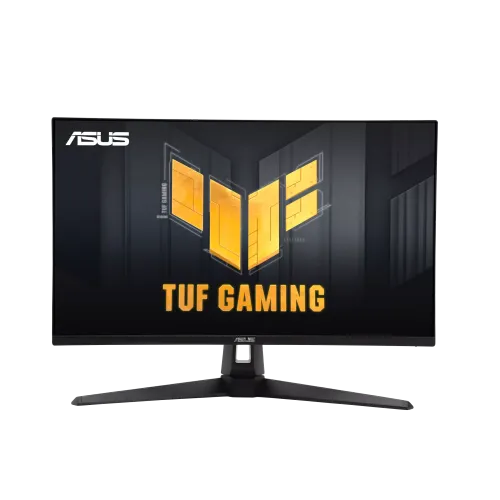
ASUS TUF Gaming VG27AQ5A overview
The ASUS TUF Gaming VG27AQ5A is a 27-inch QHD Fast IPS gaming monitor with a maximum 210Hz overclocked refresh rate. ASUS lists 2560 × 1440 resolution, 300 cd/m² typical brightness, 1300:1 contrast, HDR10, 1ms GtG and a minimum 0.3ms response specification. Its features include ELMB Sync, Adaptive-Sync, AMD FreeSync Premium, GameFast Input, GameVisual, GamePlus and Shadow Boost. The official India specification lists HDMI 2.0 × 2, DisplayPort 1.4 × 1 and a USB Type-C service port. Port-specific refresh is different: HDMI is listed to 144Hz and DisplayPort to 210Hz. Use DisplayPort for the maximum mode.
QHD resolution and 27-inch workspace
The panel measures 27 inches diagonally and has a native 2560 × 1440 QHD resolution with a 16:9 aspect ratio. QHD provides more detail and desktop room than Full HD at the same size, which can help keep game interfaces, chat, browser windows and documents visible together. ASUS lists a 0.233mm pixel pitch and approximately 596.74 × 335.67mm viewable area. Set the operating system to native resolution for sharp text and choose scaling based on viewing distance. Rendering QHD at very high frame rates demands a capable GPU; the display’s maximum is not a promise that every game will render at 210 frames per second.
Fast IPS panel and viewing angles
ASUS identifies a Fast IPS panel with 178-degree horizontal and vertical viewing angles and an anti-glare surface. IPS can maintain a consistent view when a player is not perfectly centered, while the Fast IPS design targets quick transitions for motion. ASUS lists 10-bit display output with 1.073 billion colors under supported conditions. Color depth at a particular refresh depends on the graphics card, input and signal format; check the manual timing table if 10-bit output matters at maximum refresh. The panel’s 95% DCI-P3 and 130% sRGB figures describe color-space size, not measured calibration accuracy on an individual unit.
210Hz overclock and connection limits
ASUS advertises a maximum 210Hz refresh rate reached through overclocking. Its official spec page lists DisplayPort 1.4 vertical frequency up to 210Hz, while HDMI 2.0 is listed up to 144Hz. Connect through DisplayPort to access the maximum advertised refresh. Overclock modes may require enabling a setting in the monitor menu and selecting the mode in the graphics driver. Confirm stable operation at QHD and return to a lower supported timing if there is flicker, blanking or artifacts. HDMI at 144Hz is expected from the documented timing range and does not indicate a fault. Cable, GPU and driver capabilities all matter.
QHD gaming and graphics requirements
QHD at 210Hz is demanding because the computer must render a large number of pixels at a high frame rate. Competitive games may approach the maximum with appropriate graphics settings, while demanding cinematic titles can run much lower. Use game settings, resolution scaling and frame limits that match the GPU. Adaptive-Sync can coordinate refresh with frame output when supported, but does not increase rendering speed. Console capabilities and HDMI output modes may not reach the PC-oriented DisplayPort maximum. Before buying for a specific game, check the computer’s GPU, connection, cable and expected frame rates at 2560 × 1440.
Response time, GtG and ELMB
ASUS lists 1ms GtG and 0.3ms minimum response time, with the feature description referring to the fastest minimum figure. These numbers describe pixel transition behavior under specified modes; they are not input-lag measurements or a guarantee for every transition. ELMB (Extreme Low Motion Blur) uses backlight strobing to improve perceived motion clarity, while ELMB Sync is listed as a simultaneous blur-reduction and variable-refresh feature. Strobing can reduce brightness and may have operating limits, so consult the manual for compatible refresh ranges. Compare Trace Free levels in real content; excessive overdrive can create inverse ghosting.
Adaptive-Sync and FreeSync Premium
The official ASUS tech specs list Adaptive-Sync, and the certificate section identifies AMD FreeSync Premium. Variable refresh helps align display updates with compatible frame output and can reduce tearing or stutter within the supported range. Enable the feature in the monitor and graphics driver as needed. FreeSync Premium certification adds defined AMD requirements, but system compatibility still depends on GPU, driver, port and refresh mode. Do not confuse this with guaranteed performance in every application. If variable refresh is missing, check the active input, supported display mode, driver version and monitor OSD configuration.
HDR10, brightness and contrast
ASUS lists HDR10 signal support, typical brightness of 300 cd/m² and typical contrast of 1300:1. HDR10 support does not by itself establish a VESA DisplayHDR tier or local-dimming backlight, and the reviewed ASUS specifications do not list a DisplayHDR certification. HDR appearance depends on source content, operating-system settings and the panel’s brightness and tone mapping. Compare HDR and SDR with the game or video you use and keep the mode that looks accurate. Set SDR brightness for the room; maximum brightness is not needed in every environment. The listed contrast ratio is typical and individual results can vary.
Color gamut and tuning
ASUS lists 130% sRGB and 95% DCI-P3 color-space figures. Gamut size and coverage are different metrics, so percentages above 100% should not be interpreted as complete coverage or calibration accuracy. Use GameVisual and the four color-temperature modes to select a presentation suited to games, video or reading. For design, photography or print work, use a calibrated profile and verify individual-unit measurements. The wide gamut can make colors appear vivid in unmanaged SDR content, so choose an appropriate color mode for natural output. The monitor provides on-screen controls as well as DisplayWidget Center for supported host systems.
Ports and signal compatibility
The official India specification lists two HDMI 2.0 inputs, one DisplayPort 1.4 input with HBR2 and one USB 3.2 Gen 1 Type-C service port. A 3.5mm earphone jack is also listed. Vertical timing ranges are 48–144Hz over HDMI and 48–210Hz over DisplayPort. The Type-C connection is explicitly identified as a service port, so do not treat it as a general USB-C video input or charging port. HDMI and DisplayPort include HDCP 2.2. Choose the connection based on the required refresh and source output. Remove adapters during diagnosis if they limit resolution, refresh or synchronization.
Stereo speakers and audio
ASUS lists two 2W speakers. They provide integrated stereo sound for basic game audio, system alerts and casual videos without an external speaker set. Their small rated output is not intended to replace dedicated headphones or room audio where deeper bass and higher volume matter. The 3.5mm earphone jack can connect headphones or compatible audio equipment. Digital audio routing depends on the selected HDMI or DisplayPort playback device in the computer. If there is no sound, select the monitor as the output device and check its volume and mute state. Confirm whether the regional package includes an audio cable; the specification does not imply one is bundled.
Gaming controls and OSD tools
GamePlus, GameVisual, Shadow Boost and GameFast Input are listed by ASUS. GamePlus offers optional gaming overlays and counters, while Shadow Boost adjusts darker scenes. GameVisual provides picture presets, and GameFast Input is designed to reduce processing delay. These functions can alter image appearance and are optional; use them only when they improve a particular game. On-screen controls also provide color temperature, Trace Free and input selection. Avoid leaving a crosshair overlay enabled in contexts where it is inappropriate. Reset to a neutral preset if color or shadow detail becomes unnatural.
Eye care and low blue light
ASUS lists Low Blue Light and Flicker-Free features and a TÜV low-blue-light certificate. Low blue light settings can shift the image warmer, which may be useful for reading but less suitable for color evaluation. Anti-glare treatment can reduce reflections, though it cannot eliminate bright light sources in the room. Adjust brightness to suit ambient lighting, position the screen at a comfortable distance and take breaks during long sessions. ASUS’s eye-care features are display modes and do not constitute medical treatment. Keep a neutral color setting for work where exact color appearance matters.
Stand adjustment, VESA and security
ASUS specifies tilt from -5 to +20 degrees and no height adjustment for the included stand. The monitor supports 100 × 100mm VESA mounting and includes a Kensington lock. The product is designed to tilt rather than raise, swivel or pivot on its standard base; use a compatible VESA arm if more ergonomic motion is needed. Confirm the arm’s weight rating and screw depth, and leave cable slack if the display will be tilted. The official dimensions are estimated and may vary by region. Do not rely on the retailer’s different stand claims for this exact model without verifying the rear label and manual.
Dimensions, weight and power
ASUS lists estimated dimensions of 615 × 455 × 214mm with stand and 615 × 367 × 54mm without stand. Net weight is about 5.0kg with stand and 4.2kg without; estimated gross package weight is 7.1kg. The monitor accepts AC 100–240V at 50/60Hz and ASUS lists consumption below 20.8W, power-saving below 0.5W and power-off below 0.3W. Values can vary by region and mode. Measure the available desk area and allow rear clearance for cables. Use a grounded outlet and disconnect safely before cleaning or repositioning the monitor.
Advantages for gaming and daily work
VG27AQ5A combines 27-inch QHD detail, a Fast IPS panel and a 210Hz DisplayPort overclock mode. Adaptive-Sync, AMD FreeSync Premium, ELMB Sync and GameFast Input provide options for smooth motion and gaming control. The monitor also lists HDR10, a wide color space, stereo speakers and 100 × 100mm VESA mounting. QHD workspace suits gaming and general desktop productivity. Its standard tilt stand is simple, while a VESA arm can add height movement. Buyers should verify that their graphics card can use the desired mode and that overclock, color depth and motion-blur settings behave as expected together.
Trade-offs and purchase checklist
The maximum 210Hz mode requires DisplayPort and is listed as an overclock; HDMI is limited to 144Hz in ASUS’s frequency table. The stand does not provide height adjustment, so an arm may be needed. HDR10 support is not a DisplayHDR certification, and gamut percentages do not prove calibration. QHD at high frame rates needs a strong GPU. Check the exact regional ASUS warranty, included cable and service coverage, and ensure the computer has DisplayPort 1.4 for the maximum mode. Confirm the actual monitor model suffix and the active OSD behavior before relying on 210Hz or simultaneous ELMB Sync and variable refresh.
Warranty and Bangladesh terms
The ASUS tech-spec page notes that specifications, accessories and availability may vary by region; it does not confirm the warranty for a particular Bangladesh serial. The catalog’s original three-year warranty wording should be checked with the seller and ASUS’s authorized local service channel. Ask which service provider handles the unit, when coverage starts, what panel and pixel defects qualify and what invoice is required. Current BiponiBD price, stock, delivery and return conditions must be checked on the live offer. Keep the purchase receipt, packaging and serial label to support any warranty claim.
Setup and troubleshooting
Connect the supplied power cord and use DisplayPort 1.4 when targeting QHD at 210Hz. Select 2560 × 1440 and the supported refresh in the computer’s display settings. If only 144Hz appears, confirm that the display is connected by HDMI; this is the documented HDMI ceiling. For missing 210Hz over DisplayPort, verify cable and GPU support, enable any required overclock option and update the graphics driver. Enable Adaptive-Sync in the OSD and driver. If ELMB causes dimming or artifacts, test another mode. Select the monitor as the audio output for its speakers or headphone jack.
Who should consider this model
VG27AQ5A suits PC gamers who want QHD detail and a very high refresh ceiling on DisplayPort, plus a Fast IPS panel and variable-refresh features. It can also serve general desktop work where a 27-inch QHD canvas is useful. It is less compelling if the computer cannot render high frame rates, if the user needs a height-adjustable included stand or if high-end HDR performance is essential. Competitive players should confirm the GPU, cable and preferred motion setting. Color-sensitive users should choose an appropriate mode and calibrate the panel rather than relying on gamut figures alone.
Product summary
ASUS TUF Gaming VG27AQ5A is a 27-inch QHD 2560 × 1440 Fast IPS monitor with 210Hz overclock via DisplayPort 1.4 and up to 144Hz via HDMI 2.0. ASUS lists 1ms GtG, 0.3ms minimum, HDR10, 300-nit typical brightness, 1300:1 contrast, Adaptive-Sync, AMD FreeSync Premium, ELMB Sync and stereo 2W speakers. The included stand tilts but has no height adjustment; 100 × 100mm VESA mounting is supported. Confirm local serial-specific warranty, live price and stock before purchase.