Product overview
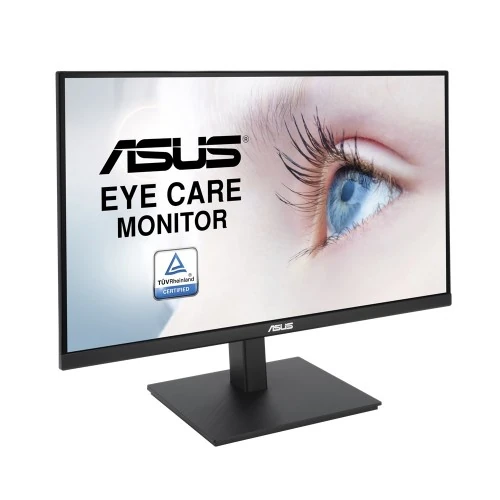
The ASUS VA27AQSB is a 27-inch QHD eye-care monitor built around a 2560 × 1440 IPS panel. ASUS lists a 75Hz refresh rate, 1ms MPRT, Adaptive-Sync, a height-adjustable stand, stereo speakers and a two-port USB hub. Its mix of screen detail and ergonomic adjustment suits office, study and general home use. This description uses the manufacturer’s product and technical information; check the precise model code, seller stock and serial-specific local warranty before ordering.
27-inch QHD resolution
The native 2560 × 1440 resolution places 3.68 million pixels across a 16:9, 27-inch screen. This QHD format shows more workspace and finer detail than 1920 × 1080 at a similar screen size, useful for documents, browser windows, spreadsheets and image review. ASUS lists a 596.74 × 335.66mm viewing area and approximately 0.233mm pixel pitch. Set the computer to the native resolution for clear text, then use operating-system scaling if interface elements look small.
IPS panel and viewing angles
ASUS specifies an IPS panel with 178-degree horizontal and vertical viewing angles. IPS technology is designed to retain a consistent view across normal seating positions, which helps when reading, collaborating or sharing screen content. The listed brightness is 350cd/m² and typical contrast is 1000:1. These are manufacturer ratings, not a promise of identical appearance on every unit; room lighting, picture mode and viewing position affect the perceived image.
75Hz refresh rate
The maximum listed refresh rate is 75Hz. It can make desktop scrolling and compatible motion a little smoother than a standard 60Hz screen, while remaining a general-purpose monitor rather than a high-refresh esports display. The computer, connection and selected display mode must all support the chosen timing. Confirm the active refresh rate in system settings after setup; a capable panel alone cannot make a source output a higher frame rate.
Response time and motion
ASUS lists 1ms MPRT response time. MPRT is a motion-picture-response measurement and should not be read as a guarantee of zero blur or as an input-lag value. Results depend on the image, refresh rate and monitor settings. Choose an appropriate overdrive or motion option for the task and avoid assuming that the quoted number represents every pixel transition under all conditions.
Adaptive-Sync compatibility
Adaptive-Sync is listed for compatible sources. Variable refresh can coordinate display updates with a supported graphics device over compatible modes and may reduce tearing. The GPU, driver, cable, connector and software must support the feature, and it should be enabled in the relevant display and graphics settings. Adaptive-Sync does not raise the VA27AQSB’s 75Hz maximum or guarantee compatibility with every console or graphics card.
Brightness and contrast
The manufacturer lists 350cd/m² brightness and a 1000:1 contrast ratio for the IPS panel. The anti-glare surface helps manage reflections in common indoor environments, but it does not eliminate bright windows or direct light. Adjust brightness for the room instead of leaving an unnecessarily high setting for long sessions. Panel uniformity and perceived black level vary with viewing conditions and individual units.
Color and image settings
The VA27AQSB supports 16.7 million colors and offers four color-temperature modes according to the existing product specification; refer to the current ASUS manual and OSD for available controls. Presets can shift white balance and color appearance. For everyday web and office work, choose a comfortable neutral mode. For color-critical tasks, use a calibrated workflow and inspect the result on the intended destination display rather than treating coverage or mode labels as proof of calibrated accuracy.
Ports and USB hub
Connectivity includes one HDMI 1.4 input, one DisplayPort 1.2 input, audio output and a USB hub with two downstream USB 2.0 ports. ASUS identifies a USB upstream connection for the hub; connect that upstream cable to the computer for the downstream ports to function. The listed interfaces do not include USB-C video or laptop charging. Check the box contents and cable requirements with the seller, then choose the input that matches the computer’s supported resolution and refresh rate.
Built-in speakers and audio
Two integrated 2W speakers provide basic sound for calls, alerts and casual video playback. An audio output is available for headphones or external speakers. Sound over HDMI or DisplayPort depends on selecting the monitor as the computer’s audio device; USB hub operation is separate from audio routing. Built-in speakers are convenient for everyday use but are not a replacement for a dedicated speaker system when richer sound or higher volume is needed.
Eye-care technology
ASUS lists Flicker-Free and Low Blue Light features, intended to offer display settings that can support comfortable viewing. The monitor also provides eye-care controls; choose a mode that suits the room and task because low-blue-light settings can alter color temperature. These functions do not replace sensible breaks, suitable viewing distance, ambient lighting or a comfortable screen position. For color evaluation, return to a neutral mode and validate the actual display.
Ergonomic stand adjustments
The stand supports tilt from approximately -5 to +35 degrees, swivel up to ±180 degrees, pivot up to ±90 degrees and height adjustment from 0 to 150mm according to the model specification. This range allows users to align the screen for seated work, portrait reading or shared viewing. Adjust the stand on a stable surface while holding the display securely. Verify that nearby walls and desk objects leave enough clearance for rotation and cable movement.
VESA mounting and security
A 100 × 100mm VESA mounting pattern allows use with a compatible arm or wall mount. Check the mount’s load rating, screw size and permitted depth before installation, and follow the monitor manual. The product also lists a Kensington security lock slot. Keep the panel supported while fitting hardware, avoid pressing the LCD and route cables so they do not pull when the monitor pivots or changes height.
Computer compatibility
A computer with HDMI 1.4 or DisplayPort 1.2 output can connect to the monitor, subject to the source’s resolution and refresh support. Use a suitable cable and select 2560 × 1440 in the operating system. If 75Hz is not offered, check the chosen port, cable, graphics driver and display mode. USB hub functions require the upstream USB connection. Audio output and speakers require the computer to route sound through the selected display.
Office and study use
For office and study, QHD resolution can show long documents, multiple windows and detailed spreadsheets on one 27-inch screen. The IPS viewing angles are useful when sharing work, while the adjustable stand helps position the panel around desk and chair height. Use scaling to balance readable text with workspace. A monitor alone does not determine eye comfort; tune brightness and posture to the user and work environment.
Photo and creative workflows
The QHD panel and 16.7-million-color specification can support general photo sorting, web graphics and creative previews. Color-temperature settings allow a choice of image tone, but the available data does not establish factory calibration or a particular professional gamut coverage. For print or color-critical delivery, calibrate the actual unit, use a managed workflow and compare against a trusted reference. Avoid describing general-purpose capabilities as a guarantee of color accuracy.
Casual gaming and media
The 75Hz display and Adaptive-Sync can be useful for casual PC gaming and everyday video. Response-time figures depend on their measurement method and do not make this a dedicated high-refresh gaming screen. Confirm the graphics source can output QHD at the desired rate and that the selected input is configured accordingly. Console features vary by device; check supported resolution and refresh rather than assuming every game uses the monitor’s maximum mode.
Setup and maintenance
Place the monitor on a firm, level desk and connect power and signal cables without forcing the plugs. Adjust height, tilt, swivel or pivot gradually and make sure cords have slack. Clean the screen with a soft, dry microfiber cloth; do not spray liquids onto the panel or use abrasive chemicals. Keep ventilation openings clear and retain packaging until the delivery and return checks are complete.
Warranty and Bangladesh purchase
The catalog’s existing “3 years” wording is not independently confirmed here for a particular Bangladesh serial number. Before payment, ask the seller to confirm the warranty provider, duration, service location, dead-pixel terms, invoice requirements and whether the serial is locally covered. Match serials on the unit and carton to the invoice. Also verify current price, stock, delivery, included cables and return terms on the live offer; manufacturer specifications do not establish those retailer details.
Who should choose VA27AQSB
Choose the ASUS VA27AQSB if a 27-inch QHD IPS monitor with a 75Hz ceiling, Adaptive-Sync, built-in speakers, USB hub and a broad ergonomic stand adjustment range fits the desk and workflow. It is well matched to productivity, study, general media and casual gaming. Consider another model if USB-C docking, laptop charging, a higher refresh rate or verified factory color calibration is essential. Confirm the exact model, accessories and Bangladesh warranty with the seller before purchase.