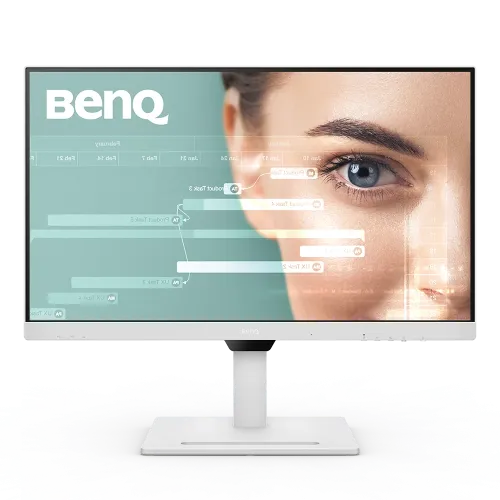
Product overview
The BenQ GW2790QT is a 27-inch QHD IPS monitor with 2560 × 1440 resolution, 75Hz refresh, USB-C connectivity and an ergonomic stand. BenQ lists 65W USB-C Power Delivery with DisplayPort Alt Mode, built-in noise-filter speakers, a noise-cancelling microphone, MST daisy chain and eye-care features. It targets productivity, coding, video calls and general home use. Confirm local warranty and package contents. Check the on-screen display and host settings after connecting to confirm the active resolution, refresh, input and USB device routing.
27-inch QHD resolution
The display presents 2560 × 1440 pixels at 27 inches in a 16:9 aspect ratio, with 109 pixels per inch. QHD gives more desktop workspace and detail than Full HD while keeping text legible at typical desk distances. Set the source to native resolution and choose an operating-system scaling level suited to your eyesight and application layout. Check the on-screen display and host settings after connecting to confirm the active resolution, refresh, input and USB device routing.
IPS panel and viewing angles
BenQ specifies an IPS panel with 178-degree horizontal and vertical viewing angles, 350-nit typical brightness and 1000:1 native contrast. The anti-glare coating reduces distracting reflections in common office environments. Viewing angle and brightness values do not guarantee identical appearance for every unit; room lighting, setup and picture mode influence perceived contrast and color. Check the on-screen display and host settings after connecting to confirm the active resolution, refresh, input and USB device routing.
75Hz refresh rate
The maximum refresh rate is 75Hz. This can make scrolling and everyday desktop motion somewhat smoother than 60Hz, while the display remains a productivity monitor rather than a high-refresh gaming model. Select 2560 × 1440 and the available refresh rate in system settings. The source, cable and application determine delivered frame rate. Check the on-screen display and host settings after connecting to confirm the active resolution, refresh, input and USB device routing.
5ms GTG response
The manufacturer lists 5ms gray-to-gray response time. GTG is a pixel-transition measurement and does not equal input lag or MPRT. Motion appearance depends on refresh rate, content and AMA/response settings. The 75Hz ceiling is the main limit for high-speed gaming; users prioritizing competitive motion should compare higher-refresh models. Check the on-screen display and host settings after connecting to confirm the active resolution, refresh, input and USB device routing.
USB-C one-cable connectivity
USB-C supports DisplayPort Alt Mode, data and up to 65W Power Delivery. A compatible notebook can send video, use the integrated USB devices and receive charging over one cable. Confirm that the laptop USB-C port supports video and that 65W meets its power requirement. Some laptops may charge slowly or continue using their own adapter under heavy load. Check the on-screen display and host settings after connecting to confirm the active resolution, refresh, input and USB device routing.
MST daisy chain
DisplayPort input and output support MST daisy-chain technology. A compatible computer and downstream monitor can form a multi-display chain, reducing direct cable runs from the source. Supported resolution and refresh depend on GPU bandwidth, operating system, cable and the downstream display. Check source MST capability and use the manual’s connection diagrams before configuring a chain. Check the on-screen display and host settings after connecting to confirm the active resolution, refresh, input and USB device routing.
Microphone and noise-filter speakers
The monitor includes a noise-cancelling microphone and two 2W noise-filter speakers, plus a headphone jack. These features can simplify video calls and desk audio. Microphone processing does not replace a separate room microphone in every environment, and speakers are intended for basic communication rather than high-fidelity listening. Select the correct audio input/output devices in the operating system. Check the on-screen display and host settings after connecting to confirm the active resolution, refresh, input and USB device routing.
Ports and USB hub
Connectivity includes one HDMI 1.4, one DisplayPort 1.2, one USB-C with 65W PD/DP Alt Mode/data, USB-C downstream, three USB 3.2 downstream ports and DisplayPort out for MST. The hub requires the correct upstream connection. Confirm cable capability and the port used for QHD/75Hz. An HDMI 1.4 port should not be mislabeled as HDMI 2.0. Check the on-screen display and host settings after connecting to confirm the active resolution, refresh, input and USB device routing.
Eye-care features
BenQ lists Flicker-Free, Low Blue Light Plus, Brightness Intelligence Gen2, Eye Reminder, ePaper and Color Weakness modes, with TÜV certifications for EyeSafe, flicker-free and low blue light. These options can support a comfortable workflow but do not replace appropriate brightness, posture and breaks. Some modes shift color, so use neutral settings for color review. Check the on-screen display and host settings after connecting to confirm the active resolution, refresh, input and USB device routing.
Color modes and M-Book mode
Color gamut is listed as 99% sRGB, with 16.7 million colors and gamma adjustment from 1.8 to 2.6. M-Book mode is designed to coordinate appearance with compatible Apple systems. These specifications support everyday web, document and media work but do not establish factory calibration for color-critical production. Use a suitable profile and calibrate when accuracy is required. Check the on-screen display and host settings after connecting to confirm the active resolution, refresh, input and USB device routing.
Coding and ePaper modes
Coding and ePaper modes are among the available color modes. Coding mode can tune the display for code text, while ePaper offers a reading-oriented appearance. Care mode and Movie mode provide additional presets. Modes can change contrast, color temperature or brightness; choose one that suits the task and verify text remains readable in the room. Check the on-screen display and host settings after connecting to confirm the active resolution, refresh, input and USB device routing.
Ergonomic stand
The stand adjusts height by 110mm, tilts from -5° to +20°, swivels ±20° and pivots 90°. This flexibility supports seated positioning, portrait reading and shared viewing. Support the display while adjusting it and allow cable slack during rotation. BenQ lists dimensions with stand of approximately 614mm wide and up to 534.3mm tall. Check the on-screen display and host settings after connecting to confirm the active resolution, refresh, input and USB device routing.
VESA mounting
BenQ lists a 100 × 100mm VESA mount. Confirm arm capacity and screw compatibility before installation. The monitor weighs about 8.4kg with its base and 5.5kg without base. Keep the panel supported while attaching an arm and avoid pressing the screen. Check the mounting surface and clearances for connectors, microphone placement and cable routing. Check the on-screen display and host settings after connecting to confirm the active resolution, refresh, input and USB device routing.
Laptop and desktop compatibility
For a notebook, USB-C can carry QHD video, data and up to 65W charging when the host supports DP Alt Mode and Power Delivery. Desktop computers can connect by DisplayPort or HDMI and use USB upstream for the built-in hub. Verify the computer port’s capabilities; a USB-C-shaped socket may support charging only or data only on some systems. Check the on-screen display and host settings after connecting to confirm the active resolution, refresh, input and USB device routing.
Video calls and audio setup
The integrated microphone, speakers and headphone jack support everyday video calls. Set GW2790QT as the audio device, check microphone permission and input level, and test noise cancellation in the conferencing application. Placement and room acoustics still affect call clarity. Connect headphones for private listening and check the monitor and system volume controls. Check the on-screen display and host settings after connecting to confirm the active resolution, refresh, input and USB device routing.
Console and media use
HDMI and DisplayPort can connect consoles or streaming devices, subject to their QHD output support. The monitor’s maximum refresh is 75Hz and it is not designed for 120Hz console gaming. Some consoles may output 1080p or use scaling. Confirm the console’s resolution, audio route and supported refresh before purchase if gaming is the primary use. Check the on-screen display and host settings after connecting to confirm the active resolution, refresh, input and USB device routing.
Power and physical dimensions
QHD resolution, USB-C docking, MST, KVM-oriented connectivity and portrait pivot can support multitasking, coding, documentation and video meetings. Arrange input and USB paths for each computer, then switch sources using OSD controls. The monitor is designed for daily work, not high-refresh gaming. Keep scaling consistent across displays for smooth window movement. Check the on-screen display and host settings after connecting to confirm the active resolution, refresh, input and USB device routing.
Care and setup
BenQ lists a built-in power supply, 20W normal consumption, maximum 150W, sleep below 0.5W and 100–240V input. Maximum draw can reflect USB-C power delivery load or other operating conditions rather than typical screen use. Package items vary by market; confirm included cables, quick-start guide and local warranty paperwork at delivery. Check the on-screen display and host settings after connecting to confirm the active resolution, refresh, input and USB device routing.
Warranty and Bangladesh purchase
Place the monitor on a stable desk and keep vents unobstructed. Clean with a soft microfiber cloth and do not spray liquid directly on the panel or use abrasive cleaners. Support the display during height, swivel or pivot adjustments. Keep serial, invoice, box and supplied cables until delivery and return checks are complete. Check the on-screen display and host settings after connecting to confirm the active resolution, refresh, input and USB device routing.