Product overview
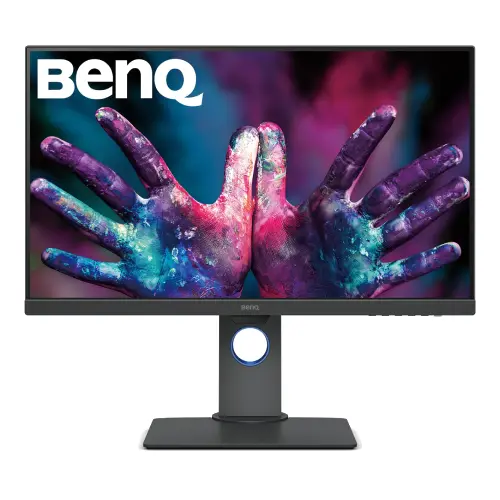
The BenQ PD2705Q is a 27-inch QHD IPS designer monitor with 2560 × 1440 resolution and 100% sRGB/Rec.709 coverage. BenQ specifies HDR10, 65W USB-C Power Delivery with DisplayPort Alt Mode, KVM, DisplayPort MST daisy chain, factory calibration, Calman Verified and Pantone Validated credentials. Its feature set targets design, office and creative workflows. Confirm local warranty and accessories with the seller. For configuration details, use BenQ's PD2705Q manual and confirm the active mode through the OSD. The source, selected input and cable determine available signal and USB functions.
27-inch QHD resolution
The 27-inch display uses a native 2560 × 1440 resolution in a 16:9 aspect ratio, with 109 pixels per inch. QHD provides a large detailed workspace for design canvases, documents, timelines and multiple windows. Select the native resolution for clear output; adjust operating-system scaling if interface elements are too small. Source hardware and cable capability determine whether full-resolution output is available. For configuration details, use BenQ's PD2705Q manual and confirm the active mode through the OSD. The source, selected input and cable determine available signal and USB functions.
IPS panel and viewing angles
BenQ specifies an IPS panel with 178-degree horizontal and vertical viewing angles, 250-nit typical brightness and 1000:1 native contrast. The matte screen coating helps reduce reflections. Viewing angles support shared review, but image appearance can vary by seating position and room light. Individual units can still differ; factory calibration data and color profile help establish a more consistent baseline. For configuration details, use BenQ's PD2705Q manual and confirm the active mode through the OSD. The source, selected input and cable determine available signal and USB functions.
100% sRGB and Rec.709 color
The monitor lists 100% sRGB and 100% Rec.709 color gamut, suitable for common web and video color workflows. Display output depends on selecting an appropriate picture mode and color profile. Gamut coverage indicates the range of colors the display can reproduce; it does not alone describe accuracy. Use the supplied calibration report and choose sRGB or Rec.709 modes to match the target content. For configuration details, use BenQ's PD2705Q manual and confirm the active mode through the OSD. The source, selected input and cable determine available signal and USB functions.
Factory calibration and validation
BenQ lists factory calibration, a calibration report, Calman Verified and Pantone Validated credentials, with average Delta E ≤3. These provide evidence of color consistency for the product line and shipped calibration workflow, but calibration can shift with time, settings and environment. Retain the included report, use a suitable color profile and recalibrate when a production workflow requires tighter current-unit verification. For configuration details, use BenQ's PD2705Q manual and confirm the active mode through the OSD. The source, selected input and cable determine available signal and USB functions.
HDR10 and picture modes
HDR10 input support is listed alongside HDR, CAD/CAM, Animation, Darkroom, M-book, Rec.709 and sRGB picture modes. The 250-nit typical brightness is modest compared with high-brightness HDR displays; HDR10 signal support should not be mistaken for a VESA DisplayHDR certification. Use HDR mode for compatible content and return to a calibrated SDR mode for standard design work. For configuration details, use BenQ's PD2705Q manual and confirm the active mode through the OSD. The source, selected input and cable determine available signal and USB functions.
USB-C one-cable connectivity
USB-C provides DisplayPort Alt Mode, data and up to 65W Power Delivery through one cable. A compatible laptop can send video and data while receiving power, subject to its own charging requirements. Connect the included USB-C cable and confirm the computer port supports video output. USB-C does not guarantee every laptop can operate at full power or bandwidth from one port. For configuration details, use BenQ's PD2705Q manual and confirm the active mode through the OSD. The source, selected input and cable determine available signal and USB functions.
DisplayPort MST daisy chain
The monitor includes DisplayPort 1.4 input and DisplayPort out with MST daisy-chain technology. A compatible computer and downstream monitor are needed to build a multi-display chain. Supported resolution and refresh depend on the graphics output, MST configuration and displays. Use direct HDMI or DisplayPort connections if a daisy-chain setup is not supported by the source system. For configuration details, use BenQ's PD2705Q manual and confirm the active mode through the OSD. The source, selected input and cable determine available signal and USB functions.
KVM, ICCsync and workflow tools
An integrated KVM switch can share a connected keyboard and mouse between compatible computers; USB-C and USB upstream connections are part of the device setup. ICCsync aligns color profiles between supported BenQ software and display modes. Display Pilot 2, Palette Master Ultimate and Display ColorTalk are listed software tools. Availability and workflow compatibility depend on OS, cables and software versions. For configuration details, use BenQ's PD2705Q manual and confirm the active mode through the OSD. The source, selected input and cable determine available signal and USB functions.
Inputs and audio
Connections include one HDMI 2.0, one DisplayPort 1.4, one USB-C with 65W PD/DP Alt Mode/data, one USB-B upstream, four USB 3.1 downstream ports and DisplayPort out for MST. A headphone jack is also listed. Check the BenQ manual for upstream/downstream routing and which input supports each workflow. The USB hub requires an upstream host connection. For configuration details, use BenQ's PD2705Q manual and confirm the active mode through the OSD. The source, selected input and cable determine available signal and USB functions.
Integrated speakers
Two integrated 2W speakers and a headphone jack are specified. The speakers can provide basic sound for calls, editing previews and everyday media, while external speakers or headphones may be preferable for detailed listening. Sound over HDMI, DisplayPort or USB-C depends on the computer’s audio routing. Select the monitor as output and adjust both system and OSD volume. For configuration details, use BenQ's PD2705Q manual and confirm the active mode through the OSD. The source, selected input and cable determine available signal and USB functions.
Ergonomic stand
The stand provides tilt from -5° to +20°, swivel ±45°, 90° pivot and 140mm height adjustment. Auto Pivot can rotate supported content when moving between landscape and portrait. Adjust the monitor to a comfortable eye line and make sure cables have enough slack during pivot or height changes. The display footprint with stand is about 614 × 231mm. For configuration details, use BenQ's PD2705Q manual and confirm the active mode through the OSD. The source, selected input and cable determine available signal and USB functions.
VESA mounting
A 100 × 100mm VESA mounting pattern is listed. Verify the mount’s load capacity and screw fit before installation. The monitor weighs approximately 8.5kg with its stand and 5.7kg without. Support the panel during mounting, avoid pressure on the screen and follow BenQ installation guidance. Retain stand hardware in case the display is later returned to its original configuration. For configuration details, use BenQ's PD2705Q manual and confirm the active mode through the OSD. The source, selected input and cable determine available signal and USB functions.
Computer setup and compatibility
Connect through USB-C for supported one-cable laptop video, data and up to 65W charging, or use HDMI 2.0/DisplayPort 1.4. For daisy-chain, connect a compatible PC to DP input then DP out to the downstream screen and enable MST as required. Check OS display settings, source resolution and USB routing. Supplied cables may differ by region; confirm local package contents. For configuration details, use BenQ's PD2705Q manual and confirm the active mode through the OSD. The source, selected input and cable determine available signal and USB functions.
Creative design and color work
The 100% sRGB/Rec.709 gamut, factory calibration, Calman Verified and Pantone Validated credentials are intended for color-aware design work. Use the supplied calibration report, select the correct color mode and keep ambient conditions stable. For print or broadcast, validate the complete workflow and output device; monitor certification does not replace proofing or calibration checks required by a production pipeline. For configuration details, use BenQ's PD2705Q manual and confirm the active mode through the OSD. The source, selected input and cable determine available signal and USB functions.
Animation, CAD and darkroom modes
Animation, CAD/CAM, Darkroom, DualView and HDR modes are among the listed picture tools. Select a mode for the task; each can change brightness, gamma or color. DualView can present two color modes side by side for comparison. Consult the manual for controls and software support, and return to a calibrated standard profile when evaluating color-sensitive work. For configuration details, use BenQ's PD2705Q manual and confirm the active mode through the OSD. The source, selected input and cable determine available signal and USB functions.
Office productivity and multitasking
QHD resolution, PIP/PBP and multiple computer inputs support desk work with more than one source. USB-C can reduce cable clutter on supported laptops, while KVM can share keyboard and mouse between devices. Configure each input and USB upstream path deliberately. Screen space and 60Hz refresh are suited to productivity and creative work rather than high-refresh competitive gaming. For configuration details, use BenQ's PD2705Q manual and confirm the active mode through the OSD. The source, selected input and cable determine available signal and USB functions.
Eye care and anti-glare surface
BenQ lists Flicker-Free, Low Blue Light and Brightness Intelligence features, with TÜV certifications for flicker-free and low blue light. Adjust brightness and viewing position for the room. Low-blue-light modes can alter color temperature, so use a calibrated neutral mode for color assessment. Comfortable viewing also depends on breaks, ergonomics and ambient lighting. For configuration details, use BenQ's PD2705Q manual and confirm the active mode through the OSD. The source, selected input and cable determine available signal and USB functions.
Power, dimensions and accessories
The official specifications list 24W normal consumption, maximum 155W, sleep below 0.5W and built-in power supply with 100–240V input. Maximum figures can reflect USB-C power delivery load and operating conditions rather than typical panel use. Dimensions are about 614 × 428.5–549.22 × 230.7mm with stand; package includes a calibration report, power cable and signal cables subject to regional variation. For configuration details, use BenQ's PD2705Q manual and confirm the active mode through the OSD. The source, selected input and cable determine available signal and USB functions.
Warranty and buying checks
BenQ’s warranty terms vary by market. The catalog’s three-year warranty line does not independently confirm coverage for a specific Bangladesh unit or serial. Ask the seller to confirm provider, term, service location, dead-pixel policy, invoice requirements and whether local support honors calibration or USB-C features. Match serials on unit, carton and invoice, and verify current offer and package contents before purchase. For configuration details, use BenQ's PD2705Q manual and confirm the active mode through the OSD. The source, selected input and cable determine available signal and USB functions.