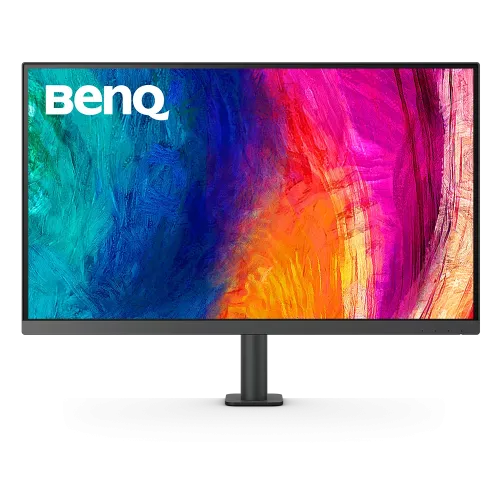
BenQ DesignVue PD3205UA overview
The BenQ DesignVue PD3205UA is a 31.5-inch 4K UHD IPS monitor for design, editing and office workflows. It combines 3840 × 2160 resolution, 99% sRGB and Rec.709 color coverage, HDR10 input, a factory calibration report and a 90W USB-C connection with video, data and laptop charging. Its integrated Ergo arm, KVM, PIP/PBP, DualView and Hotkey Puck G2 support a flexible creative desk. The maximum refresh rate is 60Hz and the typical brightness is 250 nits, so it is a color-oriented work display rather than a high-refresh gaming monitor. Actual color and connection behavior depend on the host, profile, cable, software and selected OSD mode. Check BenQ support documentation and the delivered regional package before setup.
Identify PD3205UA and Ergo Arm configuration
The exact model is PD3205UA, a PD-series monitor supplied with an Ergo arm. Do not confuse it with PD3205U, which has a different stand arrangement, or with newer PD models that add wider color gamut, Thunderbolt or higher refresh. BenQ identifies the panel as 31.5 inches, often rounded to 32 inches. Confirm the product label and region-specific package. The calibration report and Hotkey Puck G2 are listed accessories, but the seller should confirm that these items are present in the delivered box. Actual color and connection behavior depend on the host, profile, cable, software and selected OSD mode. Check BenQ support documentation and the delivered regional package before setup.
31.5-inch 4K UHD IPS display
The display uses an IPS panel with a native 3840 × 2160 UHD resolution, 16:9 aspect ratio, 140 PPI, 178-degree viewing angles and 1000:1 native contrast. Matte coating reduces reflections in many desk environments. The high pixel density supports detailed layouts, fine text and high-resolution imagery; adjust operating-system scaling to make interfaces comfortable. IPS viewing angles help shared review sessions, while 1000:1 LCD contrast is not equivalent to OLED blacks in a dark room. Actual color and connection behavior depend on the host, profile, cable, software and selected OSD mode. Check BenQ support documentation and the delivered regional package before setup.
Color coverage and factory calibration
BenQ lists 99% sRGB and 99% Rec.709 coverage, 1.07 billion colors and average Delta E ≤3. Calman Verified and Pantone Validated certifications are listed on BenQ’s specification page, and a factory calibration report is included. These features support predictable color in common web, video and design workflows, but they do not establish coverage of DCI-P3 or Adobe RGB. Use the correct color mode and a color-managed application. For work requiring tighter tolerances, measure and calibrate the individual unit. Actual color and connection behavior depend on the host, profile, cable, software and selected OSD mode. Check BenQ support documentation and the delivered regional package before setup.
HDR10 and brightness behavior
The monitor accepts HDR10 and supports an HDR mode. BenQ lists typical brightness at 250 nits and peak HDR brightness at 350 nits. No VESA DisplayHDR tier is listed on the specification page. HDR10 compatibility does not guarantee strong highlight brightness or advanced local dimming; the 1000:1 IPS contrast remains a key limit in dark scenes. Treat HDR as a supported input/picture mode and evaluate its appearance with the actual content rather than expecting a high-brightness HDR mastering reference display. Actual color and connection behavior depend on the host, profile, cable, software and selected OSD mode. Check BenQ support documentation and the delivered regional package before setup.
USB-C 90W video and laptop charging
The main USB-C port supports DisplayPort Alt Mode, data and up to 90W Power Delivery. A compatible laptop can send 4K video, use the monitor’s USB hub and receive power through one cable. Confirm that the computer’s USB-C port supports DP Alt Mode and that its charging needs fit within 90W. High-performance laptops may need their own adapter during demanding tasks. A separate downstream USB-C connection is also listed; it should not be confused with the full-featured main video/charging input. Actual color and connection behavior depend on the host, profile, cable, software and selected OSD mode. Check BenQ support documentation and the delivered regional package before setup.
DisplayPort, HDMI and USB hub
Video inputs include one HDMI 2.0, one DisplayPort 1.4 and one USB-C DP Alt Mode input. The hub includes USB downstream ports, two USB Type-B upstream connections and a side USB-C downstream port; port roles matter for the integrated KVM. BenQ lists USB 3.2 connectivity and a headphone jack. Connect each host’s upstream path if the monitor is expected to switch attached peripherals between computers. Use a certified cable and choose 3840 × 2160 at 60Hz in the operating system. Actual color and connection behavior depend on the host, profile, cable, software and selected OSD mode. Check BenQ support documentation and the delivered regional package before setup.
KVM, PIP/PBP and DualView workflow
Integrated KVM can switch a shared keyboard and mouse between two connected computers, while PIP/PBP can show multiple sources and DualView can present alternate color modes in split views. These features help compare layouts, review assets or switch between a workstation and laptop. Correct USB upstream wiring and OSD mapping are required. Confirm which USB-B or USB-C upstream path belongs to each host. KVM does not automatically guarantee that every peripheral, operating system or docking arrangement will switch without additional configuration. Actual color and connection behavior depend on the host, profile, cable, software and selected OSD mode. Check BenQ support documentation and the delivered regional package before setup.
Hotkey Puck G2 and OSD controls
The Hotkey Puck G2 provides quick access to monitor controls and saved color modes from the desk. BenQ OSD modes include sRGB, Rec.709, HDR, M-Book, DICOM, CAD/CAM, Animation, Darkroom, Low Blue Light and User. Select a mode that fits the intended task; a creative preset may change luminance or contrast. BenQ also lists ICCsync and Display Pilot 2 for supported color-profile management. Firmware and host software compatibility should be checked on BenQ’s current support page. Actual color and connection behavior depend on the host, profile, cable, software and selected OSD mode. Check BenQ support documentation and the delivered regional package before setup.
Ergo arm, height and VESA setup
The PD3205UA Ergo arm provides height adjustment, tilt, swivel and pivot; BenQ lists a 150mm height range and 100 × 100mm VESA mounting. Published tilt range is -5 to +30 degrees, and the panel can rotate 90 degrees. The arm helps position a large panel without a wide traditional base, but desk edge and clamp compatibility should be checked. Keep cables slack during extension or pivot and support the display during installation. Use a compatible VESA mount if the Ergo arm is not being used. Actual color and connection behavior depend on the host, profile, cable, software and selected OSD mode. Check BenQ support documentation and the delivered regional package before setup.
Color modes for design and editing
The sRGB and Rec.709 modes support web graphics and video workflows that target those color spaces. CAD/CAM and Animation modes can emphasize edge contrast or shadow detail, while Darkroom and Low Blue Light target particular viewing conditions. DICOM mode should only be used for appropriate non-diagnostic viewing; this monitor is not a substitute for a certified medical display. Factory calibration is a starting point, not a guarantee of the same measurement over time, after settings changes or across every unit. Actual color and connection behavior depend on the host, profile, cable, software and selected OSD mode. Check BenQ support documentation and the delivered regional package before setup.
MacBook and Windows compatibility
On a compatible MacBook or Windows laptop, connect USB-C for DisplayPort video, data and up to 90W charging. The M-Book mode is intended to approximate a MacBook color appearance, while ICCsync can synchronize supported profiles. A desktop can connect through HDMI or DisplayPort and use USB upstream for the KVM and hub. Check computer support for 4K 60Hz and scaling. If USB-C does not display an image, verify DP Alt Mode, input selection, cable capability and graphics driver. Actual color and connection behavior depend on the host, profile, cable, software and selected OSD mode. Check BenQ support documentation and the delivered regional package before setup.
Audio, speakers and headphones
Two built-in 2.5W speakers and a headphone jack are listed. The speakers can handle basic system audio and calls, while headphones or external speakers may provide clearer monitoring for editing or music. Select the correct audio output device on the host. The monitor is not designed as a high-power sound system. For video conferences, an external microphone may be preferable if the computer and room acoustics require clearer voice pickup. Actual color and connection behavior depend on the host, profile, cable, software and selected OSD mode. Check BenQ support documentation and the delivered regional package before setup.
Refresh rate and gaming limits
The maximum refresh rate is 60Hz and response time is 5ms GTG. This supports general office work, photo editing, animation and video review, but it is below gaming displays designed for 120Hz or higher. Casual games can run at the monitor’s supported timing, though fast competitive play may look less fluid than on a high-refresh screen. The 4K pixel count also demands more from a GPU than QHD when gaming at native resolution. Actual color and connection behavior depend on the host, profile, cable, software and selected OSD mode. Check BenQ support documentation and the delivered regional package before setup.
Software, ICCsync and calibration tools
BenQ lists Display Pilot 2, Palette Master Ultimate, Display ColorTalk and Display Quickit support, plus ICCsync and firmware updating by USB. Color-management software can simplify profile selection, while Palette Master workflows may require compatible calibration equipment and specific display functions. Keep host software and graphics drivers current, then validate that the correct profile is active in the operating system and target application. A calibration report does not replace periodic recalibration when color accuracy matters. Actual color and connection behavior depend on the host, profile, cable, software and selected OSD mode. Check BenQ support documentation and the delivered regional package before setup.
Desk placement and cable management
The 31.5-inch panel and Ergo arm require adequate desk depth, strong mounting edges and space for rotation. The monitor weighs about 10.1kg with its base/arm and measures approximately 714.7mm wide, with a height range around 581.2–731.2mm. Route the power and signal cables to avoid pinching when raising, swiveling or pivoting. If using the 100 × 100mm VESA mount, verify arm load rating and screw length. Keep the Hotkey Puck within reach without obstructing the keyboard or drawing tablet. Actual color and connection behavior depend on the host, profile, cable, software and selected OSD mode. Check BenQ support documentation and the delivered regional package before setup.
Advantages for creative work
Strengths include a detailed 4K IPS workspace, calibrated sRGB/Rec.709 modes, factory report, KVM, 90W USB-C docking and a flexible Ergo arm. The Hotkey Puck G2 and DualView can streamline repeated creative tasks. These features suit designers and editors who work in standard web/video color spaces and switch between a desktop and laptop. The built-in speakers and USB hub reduce the number of separate accessories needed at the desk. Actual color and connection behavior depend on the host, profile, cable, software and selected OSD mode. Check BenQ support documentation and the delivered regional package before setup.
Limitations and buyer checks
The panel is limited to 60Hz, 250 nits typical brightness and 99% sRGB/Rec.709 gamut; DCI-P3 coverage is not listed. HDR10 is supported without a VESA DisplayHDR certification. USB-C charging is capped at 90W, which may not fully power some workstations. KVM setup requires upstream cables and mapping. Color modes and calibration software have host/device requirements, and a 31.5-inch 4K screen needs scaling adjustments for comfortable text. Actual color and connection behavior depend on the host, profile, cable, software and selected OSD mode. Check BenQ support documentation and the delivered regional package before setup.
Bangladesh warranty and purchase checklist
Before purchasing in Bangladesh, confirm the exact PD3205UA regional part number, sealed/new condition, calibration report, Hotkey Puck G2, USB-C and video cables, final delivered price, dead-pixel terms and local BenQ warranty. BenQ specifications may vary by region and package. Ask the seller whether service is authorized, what duration applies to the serial, and how panel or pixel issues are handled. Confirm that the Ergo arm is included and that the desk can safely support its clamp. Actual color and connection behavior depend on the host, profile, cable, software and selected OSD mode. Check BenQ support documentation and the delivered regional package before setup.
Frequently asked questions
What is the resolution? 3840 × 2160 UHD 4K. What is the refresh rate? 60Hz. Which color spaces are covered? BenQ lists 99% sRGB and 99% Rec.709. How much USB-C power? Up to 90W. Does it include KVM? Yes, KVM, PIP/PBP and DualView are listed. What is the stand? An Ergo arm with 150mm height adjustment, tilt, swivel and pivot. What is the HDR certification? HDR10 is supported, but no VESA DisplayHDR tier is listed. Is the monitor suitable for high-refresh gaming? It is limited to 60Hz. Actual color and connection behavior depend on the host, profile, cable, software and selected OSD mode. Check BenQ support documentation and the delivered regional package before setup.