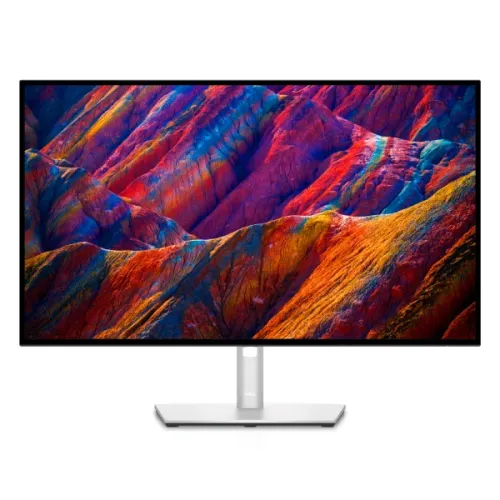
Dell UltraSharp U2723QE overview
The Dell UltraSharp U2723QE is a 27-inch 4K USB-C hub monitor built around IPS Black technology. Dell specifies 3840 × 2160 at 60Hz, 400 cd/m² brightness, 2000:1 typical contrast, 100% sRGB/Rec.709 and 98% DCI-P3. Its connectivity hub includes USB-C video with up to 90W Power Delivery, Ethernet, multiple USB ports, DisplayPort output and a KVM-friendly second upstream connection. The monitor is designed for productivity, multi-device desks and color-conscious work rather than high-refresh gaming. Actual hub performance depends on host compatibility, port mapping, cable and selected display mode; verify the regional SKU, seller offer and Bangladesh serial warranty before purchase.
Exact model and UltraSharp positioning
The precise model is U2723QE, a Dell UltraSharp 27-inch 4K USB-C hub display. Do not confuse it with the P2723QE, U2725QE or U3223QE, which have different panel and port specifications. The QX designation in some regional packages may include different supplied cable or packaging; verify the exact model code on the rear label. Dell’s published values identify this unit as IPS Black, not OLED or a conventional 1000:1 IPS panel. Actual hub performance depends on host compatibility, port mapping, cable and selected display mode; verify the regional SKU, seller offer and Bangladesh serial warranty before purchase.
27-inch 4K IPS Black panel
Dell lists a 27-inch diagonal LED-backlit TFT active-matrix panel with 3840 × 2160 native resolution at 60Hz, 16:9 aspect ratio, 0.1554mm pixel pitch and 163.18 pixels per inch. The high pixel density supports sharp text and detailed 4K assets. Operating-system scaling may help make interface controls comfortable. The panel uses anti-glare treatment with 3H hard coating, and 178-degree horizontal and vertical viewing angles support shared desk viewing. Actual hub performance depends on host compatibility, port mapping, cable and selected display mode; verify the regional SKU, seller offer and Bangladesh serial warranty before purchase.
Contrast, brightness and color coverage
IPS Black technology provides a typical 2000:1 contrast ratio, twice the typical ratio Dell lists for many conventional IPS panels, while keeping wide viewing angles. Brightness is rated at 400 cd/m². These specifications improve perceived dark-scene separation for an IPS monitor but do not create OLED-level per-pixel black. Dell lists 1.07 billion colors and the color gamut figures below. Room light, panel settings and the selected preset still affect the appearance of dark tones. Actual hub performance depends on host compatibility, port mapping, cable and selected display mode; verify the regional SKU, seller offer and Bangladesh serial warranty before purchase.
Factory calibration and supported color modes
Dell specifies 100% sRGB, 100% Rec.709 and 98% DCI-P3 coverage, plus average Delta E below 2 in sRGB, Rec.709 and DCI-P3 modes in its product information. These are manufacturer specifications and do not replace calibration of the particular delivered unit when strict tolerances apply. Choose a color mode that matches the project, manage ICC profiles and keep viewing light stable. HDR and vivid presets may behave differently from the calibrated modes used for SDR content. Actual hub performance depends on host compatibility, port mapping, cable and selected display mode; verify the regional SKU, seller offer and Bangladesh serial warranty before purchase.
USB-C 90W single-cable laptop connection
The primary USB-C upstream connection carries DisplayPort 1.4 video, data and up to 90W Power Delivery. A compatible laptop may send a 4K display signal, access the monitor’s hub and receive charging over one cable. The host must support USB-C DisplayPort Alt Mode. Ninety watts covers many laptops but may be below the needs of some high-performance workstations at full load. Connect the supplied or rated USB-C cable and keep the laptop’s adapter available if charging is insufficient. Actual hub performance depends on host compatibility, port mapping, cable and selected display mode; verify the regional SKU, seller offer and Bangladesh serial warranty before purchase.
KVM, USB-C upstream and hub roles
Dell lists a second USB-C upstream port for data-only KVM use, separate from the video-and-90W-PD connection. Connect each computer to its assigned upstream path and map the active video input to the correct USB port through the OSD. Downstream devices attached to the monitor can then switch between hosts. This wiring is essential: video input switching by itself does not guarantee that keyboard, mouse or storage follows the active computer. Actual hub performance depends on host compatibility, port mapping, cable and selected display mode; verify the regional SKU, seller offer and Bangladesh serial warranty before purchase.
HDMI, DisplayPort and daisy chaining
The monitor provides one HDMI 2.0 input, one DisplayPort 1.4 input, one DisplayPort output for daisy chaining, and the USB-C upstream video connection. Dell lists HDCP 2.2 support. DisplayPort output can connect a compatible secondary display where source resolution and bandwidth permit. The U2723QE remains a 60Hz 4K display; daisy-chain configuration and output capability depend on the host, cable and monitor settings. Verify the required MST workflow before deployment. Actual hub performance depends on host compatibility, port mapping, cable and selected display mode; verify the regional SKU, seller offer and Bangladesh serial warranty before purchase.
Ethernet, audio and accessory connectivity
Connectivity includes one RJ45 Ethernet port, 4× USB-A 10Gbps downstream, a USB-A downstream port with Battery Charging 1.2, a USB-C 10Gbps downstream port supplying up to 15W, an additional USB-A quick-access port and a 3.5mm audio line-out. Ports have different roles and power levels. The hub is useful for keyboard, mouse, storage and network devices, but the 15W downstream USB-C is not the same as the 90W upstream laptop-charging port. Actual hub performance depends on host compatibility, port mapping, cable and selected display mode; verify the regional SKU, seller offer and Bangladesh serial warranty before purchase.
PIP/PBP multitasking and KVM setup
Picture-in-Picture and Picture-by-Picture support multi-source viewing, and the integrated KVM can share attached peripherals between two computers. Connect both hosts to their correct upstream ports, choose the video layout and configure USB switching in the OSD. PIP/PBP does not automatically guarantee every input combination supports full native resolution or identical refresh. Consult the user guide’s timing and layout tables, especially when one host is using the high-bandwidth USB-C video path. Actual hub performance depends on host compatibility, port mapping, cable and selected display mode; verify the regional SKU, seller offer and Bangladesh serial warranty before purchase.
Ergonomic stand and VESA mounting
The stand supports up to 150mm height adjustment, tilt from -5 to +21 degrees, swivel and pivot from -90 to +90 degrees. Dell lists a 100 × 100mm VESA mounting pattern. Adjust the panel to eye level and rotate only after allowing clearance for the base and cables. If replacing the stand with an arm, verify load rating and VESA fit. Leave the monitor’s vents unobstructed and secure the display during installation. Actual hub performance depends on host compatibility, port mapping, cable and selected display mode; verify the regional SKU, seller offer and Bangladesh serial warranty before purchase.
USB-C bandwidth and display trade-offs
USB-C video uses DisplayPort Alt Mode and can share bandwidth between display and USB data depending on lane configuration. Dell describes 2/4-lane switching for the upstream connection; available USB data speed can depend on the chosen display mode. If 4K output, hub speed or charging does not match expectations, check the selected USB-C mode, cable capability, host support and OSD settings. For demanding storage transfers, a direct host connection may be preferable to a shared hub path. Actual hub performance depends on host compatibility, port mapping, cable and selected display mode; verify the regional SKU, seller offer and Bangladesh serial warranty before purchase.
Office, coding and color workflows
The U2723QE suits office documents, coding, spreadsheets and color-aware SDR work with its sharp 4K panel, adjustable stand, Ethernet and comprehensive hub. PIP/PBP and KVM help users operate two computers from one display and shared peripherals. A laptop can dock with one USB-C connection, although port mapping and charging needs should be checked. Its 27-inch resolution offers a dense workspace, so scaling and text size may need adjustment for prolonged reading. Actual hub performance depends on host compatibility, port mapping, cable and selected display mode; verify the regional SKU, seller offer and Bangladesh serial warranty before purchase.
HDR400 capability and realistic limits
Dell lists VESA DisplayHDR 400 support and HDR capability in product materials, alongside 400 cd/m² brightness. DisplayHDR 400 is an entry-level HDR tier and does not imply local dimming or OLED contrast. This monitor’s IPS Black technology and 2000:1 typical contrast are useful for SDR, but HDR mastering and bright highlight performance are limited compared with higher-tier displays. Treat HDR as a supported format and mode; do not assume it is a professional HDR reference monitor. Actual hub performance depends on host compatibility, port mapping, cable and selected display mode; verify the regional SKU, seller offer and Bangladesh serial warranty before purchase.
Gaming and motion suitability
The monitor is specified at 60Hz and response times of 5ms GtG in Fast mode or 8ms in Normal mode. It can display casual games and general motion, but it is not a high-refresh gaming monitor. No variable refresh gaming technology is listed in the Dell product spec reviewed. For fast competitive play, compare 120Hz-plus alternatives. Its strengths are desktop image detail, color coverage, USB-C docking and multi-host productivity. Actual hub performance depends on host compatibility, port mapping, cable and selected display mode; verify the regional SKU, seller offer and Bangladesh serial warranty before purchase.
Power, cable and desk setup
The Dell datasheet lists normal active power around 25.9W and maximum consumption up to 220W, with standby and off-mode figures also specified. Actual consumption varies with brightness, USB device load and connected laptop charging. A 90W laptop connection and multiple peripherals add load beyond the panel alone. Route cables through the stand, use the rated power cable and keep the USB hub’s total device requirements within Dell’s guidance. Actual hub performance depends on host compatibility, port mapping, cable and selected display mode; verify the regional SKU, seller offer and Bangladesh serial warranty before purchase.
What the monitor does not provide
This display is not 4K 120Hz, not OLED and not a high-powered Thunderbolt dock. Dell lists USB-C Power Delivery up to 90W, but not Thunderbolt certification. It has no built-in speakers; the audio line-out is for external audio. HDR400 does not mean local dimming. Daisy chaining and PIP/PBP require compatible source timing and settings. Confirm these distinctions if comparing it with newer UltraSharp models that may add 120Hz or Thunderbolt 4. Actual hub performance depends on host compatibility, port mapping, cable and selected display mode; verify the regional SKU, seller offer and Bangladesh serial warranty before purchase.
Bangladesh warranty and purchase verification
Before purchase in Bangladesh, verify exact U2723QE SKU, condition, included USB-C/DisplayPort cables, power cable, serial number and return terms. Ask the authorized Dell service provider to confirm warranty duration and coverage for the specific serial in writing. Dell’s global product specifications do not establish the BiponiBD live offer or local warranty. Check that the laptop supports USB-C DP Alt Mode and that 90W is adequate for the planned workload. Actual hub performance depends on host compatibility, port mapping, cable and selected display mode; verify the regional SKU, seller offer and Bangladesh serial warranty before purchase.
Setup and troubleshooting checklist
Connect the power cable, select HDMI, DisplayPort or USB-C, then set 3840 × 2160 at 60Hz in the host’s display settings. For a laptop hub setup, connect the video-capable USB-C upstream cable and the data-only upstream for the second host if KVM is needed. Configure USB switching in the OSD. If Ethernet or peripherals do not appear, check the host USB connection and port role. If charging is slow, confirm the correct 90W upstream port and cable. Actual hub performance depends on host compatibility, port mapping, cable and selected display mode; verify the regional SKU, seller offer and Bangladesh serial warranty before purchase.
Frequently asked questions
What is the native resolution? 3840 × 2160 at 60Hz. What panel technology is used? IPS Black. How much contrast does Dell specify? 2000:1 typical. How much laptop charging is available? Up to 90W through USB-C upstream. Does it include Ethernet? Yes, 1GbE RJ45 is listed. Can it switch keyboard and mouse between two computers? Yes, with the second USB upstream and correct OSD mapping. Does it have speakers? No built-in speakers are listed; it has an audio line-out. What is its color gamut? 100% sRGB/Rec.709 and 98% DCI-P3. Is it a gaming high-refresh display? No, it is 60Hz. What warranty applies in Bangladesh? Confirm local Dell service and serial eligibility with the seller. Actual hub performance depends on host compatibility, port mapping, cable and selected display mode; verify the regional SKU, seller offer and Bangladesh serial warranty before purchase.