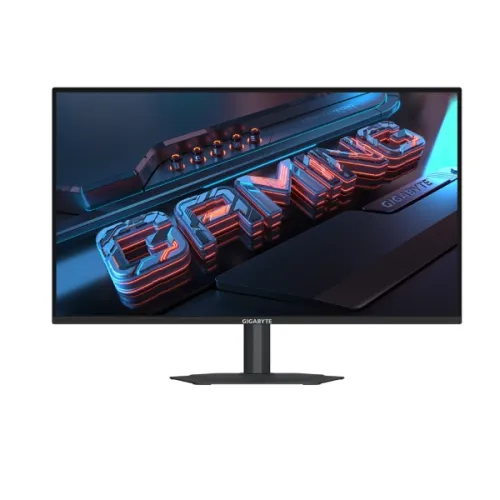
GIGABYTE G25F2 is a 24.5-inch Full HD Super Speed IPS gaming monitor with 200Hz refresh, adaptive-sync support and a four-way ergonomic stand. Its official user guide lists two HDMI 2.0 inputs, DisplayPort 1.4, a headphone jack and stereo 2W speakers. This record is for G25F2; check the exact model suffix before purchase because the related GS25F2 has different physical specifications.
24.5-inch Full HD Super Speed IPS
GIGABYTE G25F2 combines a 24.5-inch Super Speed IPS panel with Full HD 1920 × 1080 resolution. The 16:9 format fits common desktop games, streaming content and office applications. The official guide lists 178-degree horizontal and vertical viewing angles and an 8-bit colour depth. IPS viewing angles support shared viewing, although the appearance can still vary with position, lighting and panel settings.
Full HD is less demanding to render than QHD, which may help a gaming PC reach higher frame rates. On a 24.5-inch panel, text and small details are less dense than on a similarly sized QHD display. Choose it for refresh and gaming responsiveness if that is the priority; compare a higher-resolution screen when design detail, fine text or larger desktop workspace matters more.
200Hz refresh and supported input timing
GIGABYTE markets the G25F2 as a Full HD 200Hz monitor. The official user guide’s timing table lists 1920 × 1080 at 200Hz on HDMI 1, HDMI 2 and DisplayPort. A high refresh rate can make supported motion feel smoother, but the PC still needs to render frames at a matching rate. The CPU, graphics card, game engine, settings and frame pacing affect the result.
Connect the gaming PC directly, set 1920 × 1080 and then choose 200Hz in Windows or the graphics control panel. If the option does not appear, verify the active input, cable, adapter or dock and graphics driver. For consoles, check the console’s specific output modes; do not assume every console supports 200Hz.
Understanding the 1ms claim
GIGABYTE advertises a 1ms response-time feature. A response-time number depends on the measurement method and selected overdrive behavior. It is not a guarantee that every colour transition completes in exactly one millisecond. Motion clarity also depends on refresh rate, frame rate, frame pacing, sample-and-hold blur and the selected picture settings.
If moving objects show trails or bright overshoot, compare Smart OD or response settings with the games you play. Stronger overdrive is not always better at every refresh rate. A high-refresh source and stable frame pacing help the monitor show its capabilities. Users especially sensitive to motion artifacts should seek independent measurements in addition to headline response claims.
Brightness, contrast and colour
The official guide lists 300 nits typical SDR brightness, 1000:1 typical contrast, 8-bit colour and 178-degree viewing angles. GIGABYTE describes the display as wide gamut; retailer listings may give different gamut percentages, so this description does not promise a specific coverage figure. These specifications support general gaming and media viewing but do not establish professional calibration or colour accuracy.
Adjust brightness for your room and avoid reflections from direct lighting. Use a neutral picture mode for colour-sensitive work, and consider a calibrated workflow if matching print or client output is important. A gamut label alone does not indicate Delta E, factory calibration, uniformity or every panel’s measured result.
HDMI 2.0 and DisplayPort 1.4
The official manual identifies two HDMI 2.0 ports and one DisplayPort 1.4 input. It also lists 1920 × 1080 at 200Hz for each of the three video inputs. Keep a PC, console or secondary computer connected and switch the source through the monitor control. For maximum refresh, use an appropriate direct cable and confirm that the source output and graphics settings support the mode.
The user guide also shows a headphone jack. Package contents can vary across retailers; verify which video cable is included. If a dock or adapter prevents 200Hz, test a direct connection first. Check the selected HDMI input, graphics driver and operating-system display menu before changing hardware.
Built-in speakers and headphone connection
Unlike many gaming panels that omit speakers, the G25F2 manual lists two built-in 2W speakers. They can provide basic system alerts, voice or casual media audio without separate desktop speakers. Their small rated output is intended for convenience rather than deep bass or room-filling sound. The manual also lists a headphone jack for private listening or external audio equipment.
For HDMI audio, select the monitor as the computer’s audio output and check the operating-system volume and on-screen settings. If a source is connected over a different path, audio routing may differ. Users who want stronger music or game sound should use a dedicated headset, soundbar or powered speakers.
Ergonomic stand adjustments
GIGABYTE’s product page lists a 130mm height range, tilt from -5 to +21 degrees, swivel from -15 to +15 degrees and counter-clockwise pivot from 0 to 90 degrees. These adjustments let users align the screen with seated eye level, turn it toward a second seat or rotate it for portrait documents. Keep the base on a stable surface and leave cable slack as the panel moves.
Adjust height and tilt before tightening the desk layout. When rotating to portrait, make sure the screen clears nearby shelves and that software orientation changes as expected. Do not force the stand beyond the listed range. The swivel and pivot features are more flexible than a basic tilt-only stand, but users should still compare arm or desk clearance before purchase.
VESA mount and installation
The GIGABYTE manual specifies a 100 × 100mm VESA pattern and recommends a compatible wall-mount kit using four M4 × 10mm minimum screws. Confirm screw depth and hardware with the exact unit and mount instructions. The arm or bracket must support the monitor’s mass and the wall or desk must be suitable. Avoid over-tightening screws or hanging the display from an unverified surface.
Keep power and video leads clear of moving joints so they do not snag when the monitor swivels or pivots. If replacing the stand, follow the monitor guide’s removal steps and support the panel during installation. VESA compatibility enables mounting choices; it does not mean every arm includes the right screws or safely supports this model.
Gaming tools and Adaptive-Sync
GIGABYTE lists Adaptive-Sync support and gaming tools such as Smart OD, OSD Sidekick, Game Assist timer and crosshair, Aim Stabilizer and Black Equalizer. These controls provide optional ways to tune motion, input display and dark-scene visibility. Features depend on the connected graphics system, software and monitor settings. A crosshair overlay, for example, is a display aid and does not change the game’s internal mechanics.
Use the OSD joystick to review settings and install OSD Sidekick only from GIGABYTE’s official support resources when it is compatible with the computer. Try one setting at a time so that changes are easy to evaluate. Adaptive-Sync behavior depends on graphics hardware, driver, supported range and cable; verify the current compatibility details for the GPU and game.
Eyesafe, low blue light and Flicker-Free
GIGABYTE advertises Eyesafe 2.0, TÜV Rheinland-certified Low Blue Light and Flicker-Free technology for this display. These features can offer viewing options and are not medical advice or a promise that screen use will never cause eye fatigue. Comfort also depends on brightness, reflections, viewing distance, font size and breaks. Colour-sensitive work may call for a neutral setting rather than a warmer comfort mode.
Set brightness to a comfortable level for the room and avoid glare across the panel. Use low-blue-light settings according to the manual and return to a colour-appropriate mode when accurate image review matters. Certification and feature claims do not replace professional eye care or healthy workstation ergonomics.
Power, ports and placement
The user guide specifies AC 100–240V at 50/60Hz, with 18W on-mode consumption, 0.5W standby and 0.3W off-mode under the guide’s stated test conditions. Actual power draw changes with brightness, refresh and connected state. Use the supplied power cable and keep ventilation unobstructed. The manual dimensions distinguish the G25F2 stand from the separate GS25F2 version, so check model suffix when comparing physical measurements.
The G25F2 guide gives approximately 556.9 × 498.3 × 187.5mm with its stand and 556.9 × 321.5 × 51.3mm without. It lists about 4.34kg with stand and 2.73kg without, with stated tolerances. Leave desk clearance for height, pivot and swivel movement. Package or shipping dimensions are larger and should be checked separately for delivery planning.
Choosing G25F2 for your setup
The G25F2 is a fit for gamers who value Full HD at up to 200Hz, adaptive-sync support, a full adjustment stand and basic built-in audio. It can also serve as a general computer display when smooth scrolling and flexible positioning are useful. Its ports support multiple attached sources, and the official guide documents 200Hz timing on HDMI and DP inputs.
Choose a QHD model if sharper text or more workspace is more important than rendering speed. Choose a larger wattage speaker setup for better audio, USB-C docking for a single-cable laptop desk, or a display with a specific validated colour gamut for creative work. Verify the exact model code: G25F2 differs from GS25F2 in stand and size details despite the related series name.
Bangladesh price and warranty verification
Local seller snapshots vary: Skyland showed ৳22,900, Tech Land showed ৳23,000 and in stock, Monarch listed ৳23,800, and TechValley showed ৳24,000. Listings can change in price, stock and accessories. This range is a market comparison snapshot, not a BiponiBD offer. Confirm the exact final price, sealed package, delivery and return policy with the seller before purchase.
Warranty information is region- and distributor-specific. Do not assume that an international warranty page establishes Bangladesh service coverage. Ask which local distributor or service channel covers the serial number, how long the warranty lasts, what exclusions apply and how a claim is handled. Keep the invoice and serial number for future support.
Setup, maintenance and inspection
Place the monitor on a stable desk, keep vents clear and use a soft dry cloth for routine dust. Follow the GIGABYTE guide for cleaning and installation; do not spray liquid directly onto the screen. Hold the frame when moving the display and avoid pressure on the LCD surface. Keep the adjustable base secured and route cables so that height, swivel and pivot do not pull on connectors.
After delivery, inspect the panel, ports, speakers, stand movement and power cable promptly. Test 1920 × 1080 at 200Hz using each intended source, then record the serial number and keep the invoice and packaging. If a mode is missing, check the cable, selected input and driver before requesting service. Follow seller return instructions within their stated period.
Source and price notes
Core model details were checked against the GIGABYTE G25F2 product page and official GS25F2/G25F2 user guide. Local retailer listings on 2026-11-08 showed approximate prices of ৳22,900–৳24,000. Seller price and stock are subject to change and are not a BiponiBD offer. Bangladesh warranty coverage, distributor and serial eligibility must be confirmed with the seller.