Pros
- QHD resolution and high refresh suit gaming and desktop work.
- KVM can share connected peripherals between computers.
- USB-C video input adds a laptop connection option.
- Height-adjustable stand and VESA mounting are listed regionally.

All categories
 New condition
Monitors
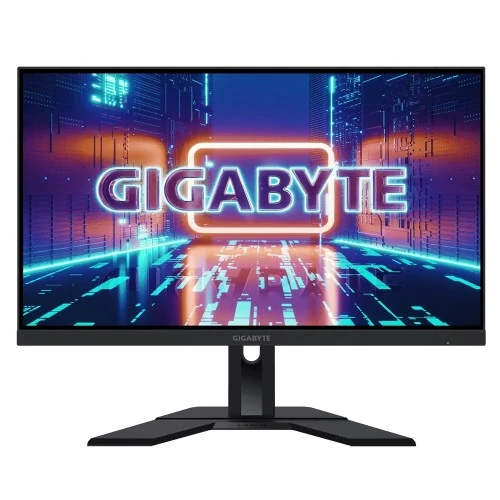
Gigabyte · M27Q 27-inch QHD KVM IPS Gaming Monitor
27-inch QHD SS IPS gaming monitor with KVM, USB-C video, Adaptive-Sync and revision-dependent refresh up to 170Hz.
Price unavailable
Price range updating
No verified price is available yet. Store offers will appear when merchants publish them.
Compare store prices
No live offers for this variant
Offers will appear when merchants publish them.
Loading history…
Product story
The catalog listing identifies the GIGABYTE M27Q, a 27-inch QHD gaming monitor with KVM. GIGABYTE has published multiple hardware revisions. Revision 2.0 specifies a 165Hz base refresh with an overclocked 170Hz option; the earlier M27Q guide describes a 170Hz mode. The catalog item does not state a revision, so the exact refresh and detailed panel specifications must be matched to the product label. The M27Q is distinct from M27QA and M27QA ICE, which are separate model names.
The monitor uses a 27-inch, 16:9 QHD panel at 2560 × 1440. QHD offers a detailed desktop image and more workspace than Full HD. Use native resolution for crisp text, then choose operating-system scaling that keeps applications readable. Confirm the connected computer and cable can deliver QHD at the refresh rate supported by the specific hardware revision. A dock or adapter can reduce available modes.
GIGABYTE describes the M27Q with an SS IPS panel. IPS technology provides broad viewing angles and gaming-oriented response tuning. Revision and panel details can differ, so confirm exact specifications using the monitor’s suffix or revision label. Viewing angle ratings do not guarantee uniform color from every position. Sit centered for consistent appearance, and calibrate the actual unit if color accuracy matters for work.
The M27Q refresh depends on revision. GIGABYTE Rev. 2.0 specifies 165Hz maximum with an overclock option to 170Hz, while the original M27Q user guide lists 170Hz. Do not present 170Hz as native for every version. Check the unit label, OSD and supported timing table. Select the mode in the operating system only after verifying stability. A high refresh rate feels smooth when a game or application supplies enough frames.
The M27Q is advertised with a 0.5ms MPRT response mode on its user guide and some regional specs. MPRT is a motion-picture response measurement, not GtG and not input lag. Motion clarity depends on refresh, frame rate, pixel transitions and any blur reduction behavior. Some strobing options can affect brightness or flicker perception. Test the response setting at your usual refresh and choose the cleanest image without distracting artifacts.
GIGABYTE lists Adaptive-Sync support for the M27Q family. Variable refresh can synchronize compatible display updates with GPU output and reduce tearing over a supported range. Enable it in both monitor and graphics settings, then test with the games you play. Compatibility depends on GPU, drivers, connection and frame rate. It does not make the GPU render faster. Check exact certification claims for the specific revision.
The original M27Q specifications commonly list 92% DCI-P3 and 140% sRGB area coverage; the Rev. 2.0 page lists its own color saturation data and may differ. These values should not be merged across revisions. Gamut coverage describes color range, not calibration accuracy. For photo, video or design work, verify the revision-specific color specification and calibrate the actual monitor. For general play, select a neutral preset and avoid excess saturation.
The M27Q specifications vary by revision and region. The older guide lists 350 nits typical brightness and 1000:1 contrast, while HDR behavior and certification should be verified for the exact unit. HDR signaling does not guarantee local dimming or a premium contrast experience. Use HDR for supported content and compare with SDR in desktop tasks. Adjust brightness for ambient light, and do not use maximum brightness as a default.
KVM is a core M27Q feature. It can route a keyboard and mouse connected to the monitor between supported source devices. The user guide describes binding HDMI input to USB-B and USB-C input to the USB-C upstream path, then switching through the KVM control. Connect video and USB data links for each computer as shown in the guide. KVM switches peripherals; it does not combine the computers or share their files automatically.
The M27Q includes USB-C input for video and data; GIGABYTE Rev. 2.0 specifications list Power Delivery up to 10W. This is not a high-wattage laptop charger. USB-C DisplayPort Alt Mode and source support are required for video, and the cable must support the needed functions. Keep the laptop’s own power adapter for normal charging. Check the revision-specific USB-C power figure instead of assuming a one-cable dock experience.
The M27Q family documentation lists HDMI, DisplayPort, USB-C and USB ports. The original guide includes two HDMI inputs, DisplayPort, USB-C, USB-A downstream and USB upstream connections. Exact connector versions and timing support may vary by revision. Connect a USB upstream cable to activate the hub and KVM path. Check the monitor label and manual before relying on a specific port for high-refresh QHD.
M27Q regional specifications commonly describe height adjustment and tilt, with 100 × 100mm VESA compatibility. Verify stand movement and mount requirements for the exact revision. Adjust the top edge to a comfortable eye level and tilt to control glare. For an arm, confirm the VESA pattern, screw length and monitor weight. The stand and ports should remain accessible when the screen is mounted.
GIGABYTE OSD Sidekick software can adjust supported monitor settings with a keyboard and mouse. Some M27Q revisions also include gaming overlays or motion tools. Software and features depend on revision, firmware and the USB connection. Change one setting at a time and compare results in games and text. A crosshair, timer or frame counter is an overlay only; it does not improve rendering performance.
The M27Q uses an external power adapter according to the user guide. Check the monitor nameplate and use the specified adapter for the correct revision. Assemble the base on a stable desk, connect video, and add the USB upstream or USB-C path for KVM and hub use. Select the appropriate input in the OSD. Keep cables from pulling on connectors when raising or adjusting the display.
The M27Q’s QHD panel, high refresh and KVM make it suitable for PC gaming and multi-computer desks. A 27-inch screen gives room for games and productivity applications, while KVM can reduce the need for a separate peripheral switch. Use an appropriate mode for each host. The KVM experience depends on correct USB routing and can be confusing if video and upstream links are assigned to different computers.
Place the monitor at a comfortable viewing distance and use a centered position for consistent panel appearance. Clean the screen with a soft lint-free cloth following GIGABYTE guidance. Power off before cleaning, and do not spray liquid directly on the panel. Avoid pressing the LCD when adjusting the stand. Keep the adapter ventilated and prevent cables from being pinched or pulled during desk movement.
The monitor revision is not present in the catalog title, yet refresh, color, ports and power behavior can differ among M27Q revisions. The 170Hz value may be an overclock option. USB-C provides only limited laptop charging on Rev. 2.0, and KVM requires correct USB connections. HDR claims should be matched to the unit. Do not confuse M27Q with M27QA or M27QA ICE.
GIGABYTE’s global specifications do not establish coverage for a specific Bangladesh serial. Confirm the revision, authorized channel, warranty length, service location, pixel policy and invoice requirements with the seller. Match the serial and revision label on the monitor, carton and purchase record. Verify included cables and adapter. If the monitor is imported, ask how local service is provided before buying.
If the desired refresh is missing, check the hardware revision, GPU output, cable, adapter, OSD and system display settings. For Rev. 2.0, verify that overclock is enabled before expecting 170Hz. If KVM does not switch peripherals, confirm USB-B and USB-C upstream links are assigned to the correct video sources, then review KVM settings. Test one source at a time and avoid changing multiple cables during diagnosis.
Choose the M27Q if QHD gaming, KVM and a USB-C video input suit your desk. Ask the seller for the revision number and a photo of the rear label, then compare it with the matching GIGABYTE support page. Check the refresh mode, response method, USB-C power, ports, stand and warranty. A complete setup needs compatible host graphics, cables and the right upstream USB connections for KVM. Also confirm whether the maximum refresh requires an overclock menu option and which input supports it. Decide whether 10W USB-C power is enough for your accessories; it will not replace a laptop charger. Check the return window and run a basic setup test while it is active: display QHD, test the expected refresh, switch KVM sources and verify that the USB peripherals follow the selected computer. Keep the box, serial label and invoice for service. If your work depends on a precise color space, obtain the revision-specific gamut specification and calibrate the monitor before using it for production. These practical checks make sure the exact M27Q revision fits your graphics card, multi-host setup and local support needs.
Helpful answers
Product-specific answers maintained with the catalog information.
The M27Q is a 27-inch QHD monitor with 2560 × 1440 resolution.
No. Rev. 2.0 lists 165Hz with a 170Hz overclock option; verify the unit.
Yes, the M27Q supports KVM switching for compatible host and USB connections.
Rev. 2.0 lists up to 10W power delivery, which is not laptop charging power.
GIGABYTE identifies SS IPS technology for the M27Q family.
Adaptive-Sync is listed for the M27Q family; verify the exact revision support.
The user guide lists 0.5ms MPRT; this is not GtG or input lag.
Check the monitor label and box; the catalog listing does not specify revision.
Confirm local serial-specific warranty and service terms with the seller.
Customer community
Become a merchant
Join BiponiBD, publish accurate offers and start free.