Pros
- QHD resolution and 180Hz combine detail with smooth gaming.
- Adaptive-Sync supports compatible variable-refresh setups.
- IPS viewing and wide DCI-P3 coverage suit games and media.
- USB-C and USB hub add peripheral connectivity.

All categories
 New condition
Monitors
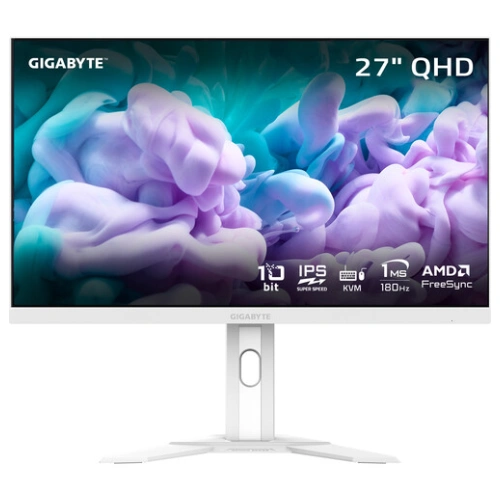
Gigabyte · M27QA ICE 27-inch QHD 180Hz Gaming
27-inch QHD SuperSpeed IPS gaming monitor with 180Hz, Adaptive-Sync, HDR400 and USB-C connectivity.
Price unavailable
Price range updating
No verified price is available yet. Store offers will appear when merchants publish them.
Compare store prices
No live offers for this variant
Offers will appear when merchants publish them.
Loading history…
Product story
GIGABYTE M27QA ICE is a 27-inch flat gaming monitor with QHD 2560 × 1440 resolution and up to 180Hz refresh. GIGABYTE lists SuperSpeed IPS technology, 1ms response, Adaptive-Sync and 10-bit color with 95% DCI-P3 coverage. The user guide identifies HDMI 2.0, DisplayPort 1.4, USB-C, USB-A, USB upstream and headphone connections. SDR brightness is listed at 350 nits typical, with HDR 400 nits in the guide. Confirm the exact regional package and warranty; the white ICE variant should not be confused with the black M27QA.
The native resolution is 2560 × 1440 pixels in a 16:9 format. QHD shows more detail and workspace than Full HD at the same size. Set the operating system and game to native resolution for sharp text and imagery. Scaling can make desktop text comfortable without losing the extra workspace. The graphics output, cable, dock and selected monitor input determine whether QHD at the target refresh is available.
GIGABYTE describes the panel as SuperSpeed IPS. It is intended to combine broad IPS viewing with faster transitions for gaming. The manual lists 178-degree horizontal and vertical viewing angles. Viewing-angle values do not guarantee perfectly uniform colors from every position. Sit centered for consistent viewing and use a neutral picture mode for office work. Response and uniformity still vary with settings and individual panels.
The maximum refresh rate is 180Hz. Use QHD at the highest mode supported by the connected input and GPU. Select 180Hz in the operating system and verify the active signal, since adapters and docks can limit refresh. A high refresh rate helps motion appear smoother when the graphics system generates enough frames. The monitor does not render frames itself, so demanding games may require adjusting settings to reach high frame rates.
GIGABYTE advertises 1ms response, while the official product page calls it response time without the short summary stating the test method. Regional technical data identifies 1ms MPRT. This is not input lag and should not be treated as a universal pixel-transition guarantee. Use OSD response tuning to find a clean balance. Aggressive overdrive can create inverse ghosting, and motion-reduction features may alter brightness.
The official product page lists Adaptive-Sync support. When enabled with a compatible graphics card, variable refresh can synchronize display updates to source frame timing and reduce tearing over a supported range. Enable the feature on both the monitor and GPU, then test the games you use. Compatibility depends on GPU, driver, connection and frame rate. Adaptive-Sync does not increase game performance or guarantee identical behavior on every system.
The user guide lists 350-nit typical SDR brightness and 400-nit HDR brightness. Regional product materials identify VESA DisplayHDR 400. HDR quality depends on source content, mode and display behavior; certification does not by itself promise local dimming. Use HDR with compatible games or media and compare with SDR for desktop tasks. Set brightness to suit room light rather than leaving it at maximum.
GIGABYTE lists 10-bit color and 95% DCI-P3 coverage on the product page. The user guide specifies 1.07 billion colors using 8-bit plus FRC. Gamut coverage is not a measure of factory accuracy or calibration consistency. For color-critical photography and design, calibrate the actual unit and use color-managed software. For everyday gaming and office use, select a comfortable preset and avoid over-saturated modes.
The user guide lists two HDMI 2.0 inputs and one DisplayPort 1.4 input. Select the source in the OSD and use a suitable cable for QHD at high refresh. HDMI and DisplayPort capabilities can differ by source device and timing. If the 180Hz mode is missing, connect directly to the graphics card, update drivers and verify the cable and monitor input. The product documentation should guide any maximum timing by input.
The guide lists one USB Type-C connection at 5V/2A and two USB 3.2 downstream ports, plus a USB upstream connection. USB-C on this monitor should not be assumed to provide laptop charging; the listed output is not a high-wattage USB-PD laptop supply. To use the USB hub, connect upstream to the computer. Confirm USB-C display support and cable capability for video.
GIGABYTE markets KVM-related functionality on the M27QA family. Check the M27QA ICE OSD and guide for the supported input and USB routing combination before setting up multiple computers. Connect each source’s video and USB upstream path as directed, then assign the KVM switch. KVM routes a keyboard and mouse between host devices; it does not merge computer performance. Port or KVM behavior can depend on firmware and connection path.
The official product material identifies a gaming stand, and regional specifications describe height and tilt adjustment. Consult the M27QA/M27QA ICE user guide for exact stand movement and VESA mount requirements. Do not assume that the black M27QA and white ICE version share every stand detail. Check the mounting pattern, screw depth, arm capacity and desk clearance before attaching a third-party mount. Adjust height and tilt for a relaxed posture.
GIGABYTE provides OSD Sidekick software for supported systems to adjust monitor settings with a keyboard and mouse. Monitor OSD controls remain available for input, picture and game settings. Software compatibility and connection requirements depend on the computer and firmware. Avoid changing several image enhancements at once; test the result in both games and text. Save a balanced profile for general work and another for gaming if useful.
The M27QA ICE family includes gaming-oriented display controls and Adaptive-Sync. Use game overlays or timing tools only if they help your setup; they do not improve rendering speed. Set a suitable frame cap, enable VRR if supported and tune response mode carefully. For fast competitive play, stable frame pacing and a clean image can matter more than the highest menu setting. The monitor’s QHD panel also supports detailed single-player gaming and general content.
The official guide lists a headphone output. It does not list built-in speakers in the cited specifications, so plan for external audio or headphones. Audio over HDMI or DisplayPort must be routed to the monitor from the source, and the operating system may need the correct playback device selected. USB-C audio support depends on the connected device. Confirm which cable carries the signal when diagnosing missing sound.
The guide lists AC 100–240V, 50/60Hz input, a 19V DC 4.74A adapter rating, 23W on-mode consumption, 0.5W standby and 0.3W off-mode. Use the supplied or manufacturer-approved adapter. Do not substitute a power supply based only on connector fit. USB-A/USB-C charging in standby can be enabled or disabled in the OSD according to the manual; charging current is limited and does not imply laptop charging.
The guide lists dimensions of about 615.11 × 535.66 × 193.68mm with stand and 615.11 × 367.35 × 42.22mm without. Weight is approximately 5.2kg with stand and 3.5kg without, within stated tolerance. Leave enough depth for the base and tilt. Handle the display by its frame and protect the screen during assembly. Confirm the desk and monitor arm can support the complete display.
The white M27QA ICE suits users who want a light-colored QHD gaming setup with 180Hz, Adaptive-Sync and USB connectivity. It can also serve for office work, coding and general media thanks to IPS viewing and adjustable controls. Its 27-inch QHD canvas balances detail and GPU requirements. Check whether the USB-C implementation matches your laptop setup; it is not equivalent to a high-wattage one-cable docking monitor.
The 180Hz QHD mode requires a capable GPU and correct cable. HDR400 is an entry-level certification and does not promise local dimming. USB-C is not listed as high-power laptop charging. The USB hub requires upstream connectivity. Regional stand and accessory details can vary. The ICE white variant and standard M27QA may share a manual but differ in appearance and regional SKU; verify the exact suffix and service coverage before buying.
GIGABYTE global pages do not confirm warranty for a specific Bangladesh serial. Ask the seller for local authorization, warranty duration, service location, dead-pixel policy and invoice requirements. Match the model and serial on the monitor, carton and invoice. Check price, stock, included cables and return terms at checkout. Test dead pixels, refresh, USB-C, video inputs, hub ports and stand functions during the return period.
Helpful answers
Product-specific answers maintained with the catalog information.
The M27QA ICE supports QHD 2560 × 1440 resolution.
GIGABYTE lists a maximum refresh rate of 180Hz.
It uses GIGABYTE SuperSpeed IPS display technology.
Yes, Adaptive-Sync support is listed by GIGABYTE.
The guide lists HDMI, DisplayPort, USB-C, USB-A, USB upstream and headphone output.
The guide lists USB-C at 5V/2A; it is not a high-wattage laptop charger.
Built-in speakers are not listed in the cited official guide specifications.
Regional specifications identify DisplayHDR 400; confirm the local SKU documentation.
Confirm serial-specific local warranty, service and panel policy with the seller.
Customer community
Become a merchant
Join BiponiBD, publish accurate offers and start free.