Pros
- Large curved screen provides an immersive centered view.
- QHD resolution and 165Hz native refresh support gaming and work.
- High 3000:1 VA contrast and HDR400 support are listed.
- USB-C video and KVM add multi-device flexibility.

All categories
 New condition
Monitors
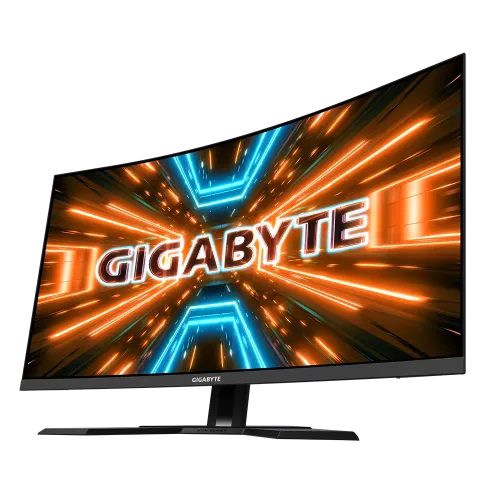
Gigabyte · M32QC 31.5-inch QHD Curved 165Hz
31.5-inch 1500R curved QHD VA gaming monitor with 165Hz native refresh, 170Hz OC, HDR400 and USB-C.
Price unavailable
Price range updating
No verified price is available yet. Store offers will appear when merchants publish them.
Compare store prices
No live offers for this variant
Offers will appear when merchants publish them.
Loading history…
Product story
GIGABYTE M32QC is a 31.5-inch curved gaming monitor with a 1500R VA panel and QHD 2560 × 1440 resolution. GIGABYTE lists 165Hz refresh with a 170Hz overclock option, 350 cd/m² typical brightness, 3000:1 contrast, 1ms MPRT and VESA DisplayHDR 400. Connectivity includes HDMI 2.0, DisplayPort 1.2, USB-C with up to 18W Power Delivery, USB hub and headphone output. It supports Adaptive-Sync. Verify the unit’s region and serial warranty before purchase.
The native resolution is 2560 × 1440 pixels in a 16:9 format. At 31.5 inches this provides a large desktop canvas, though pixel density is lower than on a 27-inch QHD monitor. Set native resolution for sharp output and adjust scaling to suit viewing distance. A larger panel makes split-screen work and game interfaces spacious. Source device, input and cable determine whether the selected resolution and refresh are supported.
The M32QC uses a 1500R curved VA panel. The curve wraps the edges toward a centered viewer and can make the broad 31.5-inch screen feel more immersive. VA technology and the listed 3000:1 static contrast support deeper perceived blacks than many IPS displays, although dark transitions and uniformity vary. Sit near the center for consistent geometry. A curved display is less suitable when several viewers need the same view from the sides.
GIGABYTE specifies 165Hz with an overclock option to 170Hz. Treat 170Hz as an overclocked mode, not the standard native setting. Check the OSD and timing menu, then select the supported refresh in the operating system. If the screen shows artifacts or instability, return to 165Hz. High refresh can improve smoothness when the game provides enough frames; the display does not increase rendering performance.
GIGABYTE lists 1ms MPRT. MPRT describes motion-picture response and differs from gray-to-gray measurement and input lag. Actual motion clarity depends on refresh, frame rate, pixel transitions and any blur-reduction setting. Some motion modes can reduce brightness or introduce flicker. Compare available response and overdrive settings in games and choose a clear picture without inverse ghosting. Do not expect every transition to complete in exactly one millisecond.
The official specification lists Adaptive-Sync. With a compatible GPU and supported frame-rate range, variable refresh can synchronize the display with game output and reduce tearing. Enable it in the monitor and graphics driver, then test your games. Compatibility depends on GPU, driver, connection and input timing. It cannot make the computer render faster, and behavior may vary among systems.
GIGABYTE lists VESA DisplayHDR 400 and typical brightness of 350 cd/m². HDR can preserve highlights in compatible games and video, but HDR400 does not guarantee local dimming or premium black levels. Choose HDR for suitable content and compare with SDR for desktop use. Room lighting, picture mode and source configuration affect the result. Avoid assuming that the HDR certification means every scene reaches peak brightness.
GIGABYTE lists 94% DCI-P3 and 123% sRGB color saturation figures. The panel supports 8-bit color according to the official specification. Color saturation percentages describe gamut coverage and may use different calculation methods, so they do not establish color accuracy. For photo and design work, calibrate the actual monitor and use color-managed software. For general content, use a natural mode to avoid oversaturated skin tones and desktop graphics.
The M32QC includes two HDMI 2.0 inputs and one DisplayPort 1.2 input according to GIGABYTE. The available refresh depends on the source and connection. Use a suitable DisplayPort cable for PC high-refresh modes and check the manual timing table. If 165Hz or the 170Hz overclock is missing, connect directly to the GPU, verify the selected input, update drivers and remove bandwidth-limiting adapters.
The official page lists USB-C with DisplayPort Alternate Mode and up to 18W Power Delivery. This can provide video and limited power to a compatible laptop, but 18W is not a full laptop charger. A laptop needing more power should remain connected to its own adapter. Use a full-featured USB-C cable and confirm the host supports video over USB-C. USB-C power behavior is distinct from the monitor’s separate AC supply.
GIGABYTE describes a USB hub and KVM features on the M32QC. Connect the upstream cable paths as the guide shows, then assign each video source to its USB input. The KVM can route a keyboard and mouse connected to the monitor between supported devices; it does not share files or combine computing resources. Hub and KVM behavior depends on correct upstream connections and the selected input.
The M32QC lists a headphone output; the official specification does not list integrated speakers. Plan to use headphones or external speakers. Audio can be sent over HDMI, DisplayPort or supported USB-C video, depending on the source. Select the monitor as the operating system’s playback device when using the headphone jack. Check volume and input routing in both the computer and monitor if sound is absent.
Regional product documentation lists a height-adjustable stand and tilt features; check the included guide for exact ranges and safe adjustment. The 31.5-inch curved panel needs adequate desk width and depth. Verify the VESA pattern, screw length and arm weight capacity before mounting. Move the display by holding its frame, not pressing the LCD. Keep cables clear of the stand’s motion and maintain access to the rear ports.
GIGABYTE OSD Sidekick can provide software control of supported display settings. The OSD also manages input, picture, refresh, response and game options. Software availability depends on host connection and operating system. Change one setting at a time and observe the result in games and normal desktop content. Use conservative image enhancements to avoid halos around text. Keep a comfortable preset for work and a separate profile for gaming.
The 31.5-inch panel offers a large view for spreadsheets, editing timelines, coding and games. Curvature supports a centered single-user desk. QHD gives a broad canvas, while 165Hz native refresh can make scrolling and action games smoother. The lower pixel density compared with 27-inch QHD may make small text less crisp at the same viewing distance. Adjust scaling and seat position to suit the larger screen.
QHD at high refresh places substantial demand on a graphics card. Competitive games may approach 165 frames per second with tuned settings; demanding titles may require reduced image quality or a lower cap. Enable Adaptive-Sync if the system supports it and select a stable frame limit. A 170Hz overclock is useful only if the complete graphics and cable path remains stable. The monitor does not determine the game’s frame rate.
The 170Hz setting is overclocked, and HDMI/DisplayPort capabilities differ. HDR400 is entry-level HDR and does not promise local dimming. USB-C provides up to 18W, which is limited for laptop charging. The 31.5-inch QHD format has lower pixel density than 27-inch QHD. Curvature favors centered viewing. Check exact stand range, package, firmware and local support before relying on a particular setup.
GIGABYTE’s global specification does not establish local coverage for a particular Bangladesh serial. Ask the seller to confirm authorization, warranty length, service location, panel policy and invoice requirements. Match the M32QC model and serial on the monitor, carton and invoice. Verify included HDMI, DisplayPort and USB cables. Test the inputs, USB-C, high refresh, stand and pixels during the return period.
Connect a compatible PC over DisplayPort, select 2560 × 1440 at 165Hz, then enable 170Hz overclock only if desired. For HDMI sources, check supported timing in the manual. If USB-C video fails, verify DisplayPort Alt Mode on the host and cable. If the USB hub or KVM is inactive, connect the upstream path. If image flickers at OC refresh, return to 165Hz and test again.
Choose M32QC if you want a large 31.5-inch curved QHD gaming display with high refresh and USB-C video. Consider whether 1500R curvature fits your desk and whether 18W charging is enough for your laptop accessories. Verify the host GPU, input, cable, stand and VESA details. Compare 27-inch QHD if sharper text is more important, or a higher-resolution panel if you need denser desktop detail. Before checkout, confirm which inputs support the desired refresh, whether the local package contains HDMI, DisplayPort and USB cables, and what warranty is attached to the serial. Test the monitor at native resolution during the return period, including USB-C video, KVM switching and Adaptive-Sync if you plan to use them. If the overclocked 170Hz mode produces errors, revert to the stable 165Hz setting. For HDR media, check both source settings and monitor mode; HDR400 is a useful compatibility tier but does not make every picture brighter or add local dimming automatically. A clear understanding of these limits helps match the large curved panel to your space and graphics hardware.
Helpful answers
Product-specific answers maintained with the catalog information.
The M32QC uses QHD 2560 × 1440 resolution.
GIGABYTE lists 165Hz with an overclock option to 170Hz.
It uses a 31.5-inch VA panel with a 1500R curve.
VESA DisplayHDR 400 support is listed by GIGABYTE.
USB-C Power Delivery is up to 18W, which is limited for laptop charging.
KVM and USB hub features are listed; correct upstream wiring is required.
Built-in speakers are not listed; a headphone output is included.
The official specification lists two HDMI 2.0, one DisplayPort 1.2 and USB-C.
Confirm serial-specific GIGABYTE warranty and service terms with the seller.
Customer community
Become a merchant
Join BiponiBD, publish accurate offers and start free.