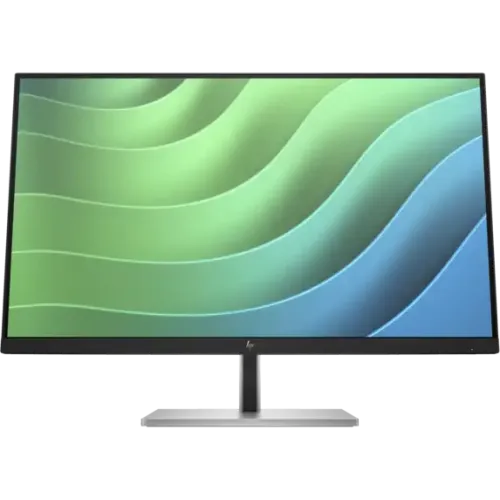
HP E27 G5 overview
The HP E27 G5 FHD Monitor is a 27-inch IPS display for office, study and everyday desktop work. HP’s exact-model datasheet lists Full HD 1920 × 1080 resolution, 16:9 aspect ratio, 75Hz maximum refresh, 300 nits brightness, 99% sRGB, 5ms GtG response with overdrive, and a three-sided borderless design. It includes one HDMI 1.4, one DisplayPort 1.2, four USB-A ports, one USB-B upstream port and an internal power supply. Its ergonomic stand provides height, tilt, swivel and pivot adjustment. This review distinguishes the E27 G5 FHD from similarly named E27q G5 QHD products and uses HP documentation for the exact FHD model.
27-inch Full HD workspace
The 27-inch (68.6cm) screen has a native 1920 × 1080 Full HD resolution and a 16:9 aspect ratio. It is a familiar format for office applications, browser work, documents, video meetings and general media. Select 1920 × 1080 in the computer display settings for the panel’s native pixel mapping. HP lists a pixel density of about 82 pixels per inch, so text and icons may appear larger than on a higher-resolution 27-inch screen at the same operating-system scaling. Users needing more vertical workspace or finer text detail at 27 inches may prefer a QHD model such as E27q G5; these two model names describe different resolutions.
IPS image and viewing angles
HP identifies an IPS LCD panel with 178-degree horizontal and vertical viewing angles. The broad viewing specification is useful when the monitor is viewed slightly off center or when colleagues share a screen. HP lists 16.7 million colors and an 8-bit panel depth implemented as 6-bit plus FRC. These published specifications do not mean each panel is individually factory calibrated for a particular color workflow. Ambient light, image mode, operating-system profile and individual unit characteristics can affect what appears on screen. The flat edge-lit display is designed for a conventional desk setup and includes on-screen color and image adjustment controls.
Refresh rate and supported modes
The E27 G5 supports up to 75Hz at 1920 × 1080 according to HP. A 75Hz refresh can present updates more frequently than 60Hz when the computer provides suitable frames. HP lists vertical scan frequency from 50 to 75Hz and a range of supported lower resolutions. Actual mode availability depends on the computer graphics output, selected connection, cable and driver. The monitor does not create additional rendered frames. If the operating system only shows 60Hz, check that the connection is direct, update the graphics driver, choose Full HD resolution and inspect the advanced display mode. Select a stable supported setting rather than forcing an unsupported timing.
Response time and motion
HP lists a 5ms gray-to-gray response time with overdrive. This is a typical pixel transition specification and is distinct from input lag, refresh frequency and total motion clarity. Overdrive applies additional voltage to transition pixels more quickly; its effect depends on the selected mode and scene. The product documentation does not claim a 1ms response for this model. For routine office scrolling, video and casual gaming, the 75Hz refresh and IPS response may be adequate, while users seeking fast competitive performance should compare 75Hz and 5ms GtG with their needs. Evaluate actual motion and avoid assuming every pixel transition behaves identically.
Brightness, contrast and color
HP specifies 300 nits typical brightness, a 1000:1 static contrast ratio and 99% sRGB color gamut. HP also lists an 8,000,000:1 dynamic contrast figure, which is a dynamic specification and should not be compared directly with static contrast. The 99% sRGB figure is a gamut coverage specification, not by itself a calibration certificate or a guarantee of color accuracy on every unit. For general business and web content, sRGB is a common color space. For design, photography or print tasks, use a calibrated workflow and verify an individual monitor profile. Adjust brightness for the room and use the on-screen controls to avoid an unnecessarily bright image during long sessions.
HP Eye Ease and comfort features
The E27 G5 includes HP Eye Ease, which HP describes as a TÜV-certified hardware low-blue-light solution. HP lists flicker-free operation, anti-glare treatment and a 3H hard coating. Eye Ease is designed to reduce blue light while maintaining a color presentation suitable for everyday work; the available mode may still affect color-sensitive tasks, so use a calibrated or neutral setting when judging color. Anti-glare treatment can reduce reflections but cannot remove every reflection in a bright room. Set monitor height, distance, brightness and room lighting to suit the user and take breaks during extended screen sessions.
Ergonomic stand adjustments
The supplied stand supports 150mm of height adjustment, tilt from -5 to +20 degrees, swivel of ±45 degrees and pivot of ±90 degrees. This range helps position the display for seated work, reduce glare and rotate the screen to portrait orientation when an application benefits from it. When pivoting, allow cable slack and rotate the image through the computer settings. The stand has a black and silver finish according to HP’s spec sheet. Adjust the display on a stable desk and keep objects clear of its movement path. If using a separate arm, verify its load rating and compatibility with the monitor’s VESA pattern.
Ports and connectivity
HP lists one HDMI 1.4 input, one DisplayPort 1.2 input, four SuperSpeed USB Type-A ports rated for 5Gbps signaling (one supports charging), and a USB-B upstream connection. The USB-A ports function as a hub when the upstream USB-B connection is linked to the computer; without that upstream cable, do not expect the downstream ports to operate as a connected computer hub. HDMI and DisplayPort both support HDCP according to HP. Select an input from the on-screen controls. The best connection depends on the computer’s available output and cable. Docks and adapters may limit refresh or USB features, so check the complete signal path when troubleshooting.
Using the USB hub
The four USB-A ports can connect peripherals such as a keyboard, mouse, webcam or storage device. One port is specified for charging. Connect the monitor’s USB-B upstream port to a USB port on the computer to establish the data link. The display’s USB hub is separate from the video connection; HDMI or DisplayPort alone does not activate the upstream USB data path. Transfer speed also depends on the connected computer, peripheral and cable. Avoid using the monitor as the only copy of important data, and safely eject external storage through the operating system. Check the manual for port placement and charging limits before attaching power-hungry devices.
Mounting, dimensions and weight
The monitor supports a 100 × 100mm VESA mount and has a detachable stand. HP lists physical dimensions of about 613.4 × 545.4 × 227mm with the stand at its largest configured position, with panel body dimensions varying by stand position; the datasheet also lists a net weight around 5.4kg with stand and 3.7kg without stand. Packaging dimensions and gross weight differ. These measurements help with desk or arm planning, but check the exact regional datasheet and product in hand if a shelf clearance is tight. Use correctly sized mounting screws and an arm rated above the display weight. Follow HP’s installation guidance to avoid damage.
Speakers, camera and privacy
HP specifies no integrated camera and does not list built-in speakers for the E27 G5 FHD model. Plan to use a USB or computer-connected camera and separate audio equipment if those functions are required. The USB hub may provide a convenient connection point for some peripherals once its upstream connection is active, but power and compatibility vary by device. The product has no camera privacy shutter to account for because a camera is not integrated. Confirm the package contents before purchase; the exact cable bundle can vary by region or SKU. The display is intended as a monitor and does not replace a laptop, webcam, speakerphone or conferencing system.
Power use and operating setup
The E27 G5 uses an internal power supply with AC input from 100 to 240V, 50/60Hz. HP lists maximum power of 53W, typical use of 22W and standby consumption of 0.5W in the reviewed regional datasheet. Actual energy consumption changes with brightness, USB charging, selected mode and activity. Connect the monitor to a suitable grounded outlet and keep its ventilation clear. Avoid placing liquids near the display or routing cables where a chair or desk mechanism can pinch them. Turn the device off and disconnect power before cleaning or moving it, and follow the user guide for approved cleaning materials.
On-screen controls and management
HP’s on-screen display provides controls for brightness, color, image, input, power, menu, management and information. Four assignable function buttons can be mapped to preferred options. HP Display Center and HP Client Management Script Library are listed management tools, with host-system and software requirements that can vary. Use the physical controls to select HDMI or DisplayPort and make basic adjustments. If a setting creates an unexpected image, return to the previous mode or use the on-screen reset option described in the manual. Keep the graphics driver and management utility appropriate to the host operating system.
Advantages for office and study
A 27-inch Full HD panel offers broad compatibility with standard desktop applications and common video content. The stand’s height, tilt, swivel and pivot adjustments provide more ergonomic flexibility than a basic tilt-only stand. Four USB-A ports and an upstream USB-B link make it practical to keep everyday peripherals near the display. HP Eye Ease, flicker-free operation and anti-glare treatment support long work sessions, while 99% sRGB is suitable for typical web-oriented tasks when color is configured appropriately. The 75Hz refresh and 300-nit typical brightness round out a business-focused package for offices, classrooms and home workstations.
Limitations and what to confirm
This is the FHD E27 G5, not the QHD E27q G5; both are 27-inch IPS displays but have different native resolution and brightness specifications. At 27 inches, Full HD provides less pixel density than QHD. The refresh ceiling is 75Hz, and HP lists 5ms GtG with overdrive rather than a one-millisecond gaming mode. HP’s product datasheet gives a 3/3/0 warranty for listed markets and indicates select countries have different terms; that does not confirm Bangladesh coverage. Check the exact SKU, included cables, warranty provider and local service terms before ordering. Verify that the computer and any dock support the desired mode and that USB peripherals are connected through USB-B upstream.
Warranty and Bangladesh purchase terms
HP’s global/regional quick specifications list market-dependent warranty terms: 3/3/0 in certain regions and 3/3/3 in select APJ countries. Those codes do not establish the warranty for a particular Bangladesh sale. Confirm whether local coverage is HP authorized or seller provided, its duration, start date, panel policy, service location and exclusions against the monitor serial number and invoice. The record’s original “3 year” wording should not be treated as confirmation without seller documentation. Current BiponiBD price, inventory, delivery and return terms also need a live offer check at checkout; this content review does not claim those commercial details.
Setup and troubleshooting
Attach the stand or a suitable VESA mount, connect AC power, and connect the computer using HDMI 1.4 or DisplayPort 1.2 as documented in HP’s specification sheet. Select 1920 × 1080 and up to 75Hz in the operating system if supported by the source. For USB accessories, link USB-B upstream to the computer before using the monitor’s USB-A hub. If no image appears, check the selected input, cable seating, source output and sleep state. If the USB hub is missing, inspect the upstream USB-B connection and computer detection. For an unexpectedly soft image, choose native resolution and review display scaling. Use the on-screen controls to restore a known-good picture mode.
Who should consider the E27 G5
The HP E27 G5 FHD fits buyers looking for a business-oriented 27-inch IPS display with an ergonomic stand, USB hub, low-blue-light feature and familiar Full HD resolution. It can suit office applications, online study, dashboards, browser work and general home use. Buyers needing sharper text at the same size, extra vertical room or more detailed creative work may prefer a QHD alternative. Gamers who prioritize refresh rate should compare its 75Hz ceiling with higher-refresh options. Organizations should confirm management-software compatibility, regional warranty coverage and the exact port configuration for their computer fleet before standardizing on this model.
Product summary
HP E27 G5 is a 27-inch FHD 1920 × 1080 IPS monitor with a 75Hz maximum refresh rate, 300-nit typical brightness, 99% sRGB, 5ms GtG with overdrive, HP Eye Ease, flicker-free operation and an adjustable stand with 150mm height range. Connectivity includes HDMI 1.4, DisplayPort 1.2, four USB-A ports and USB-B upstream. It supports 100 × 100mm VESA mounting and has an internal power supply. Confirm that the product is the FHD E27 G5, not E27q G5, and verify the local serial-specific warranty, included accessories, current price and availability before purchase.