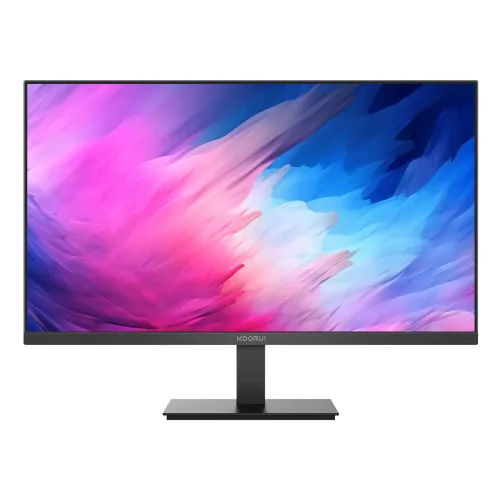
KOORUI E2721H is a 27-inch QHD (2560 × 1440) IPS monitor with a listed 120Hz refresh rate, HDR10 signal support, Adaptive Sync and HDMI/DisplayPort connectivity. Bangladesh listings specify 250 cd/m² brightness, 1000:1 contrast, 99% sRGB / 95% DCI-P3, two HDMI 2.0 ports, one DisplayPort 1.4, audio out and 100 × 100mm VESA. The stand is listed as tilt-only and built-in speakers are not specified. This editorial description separates seller-listed claims from verified BiponiBD offer and serial-specific warranty information.
27-inch QHD panel and desktop clarity
The E2721H pairs a 27-inch flat IPS panel with 2560 × 1440 QHD resolution in a 16:9 aspect ratio. Compared with a 27-inch Full HD display, QHD places more pixels into the same physical area. Fine interface text, spreadsheets, browser windows and image details can therefore appear more defined when the operating system uses a sensible scaling setting. The benefit is particularly noticeable when arranging two applications side by side or viewing a dense timeline. A 27-inch QHD panel is a practical middle ground for users who want more room than Full HD without moving to a large 4K screen.
Clarity also depends on viewing distance, scaling, source quality and application rendering. If text looks too small, adjust display scaling rather than lowering the panel to a non-native resolution. Lower resolutions may look softer because the monitor must scale them to its pixel grid. Video and games rendered below QHD can still be displayed, but the final result depends on the source and scaling. The panel is flat, so it does not curve the image around the viewer; this can be useful for general desktop work, browsing and documents.
IPS viewing angles and everyday colour
KOORUI identifies this model as IPS and lists 178-degree horizontal and vertical viewing angles. IPS technology is commonly chosen where the viewer may sit off-centre or share the screen, because perceived colour and brightness tend to remain more consistent than on narrow-viewing-angle panels. The 99% sRGB and 95% DCI-P3 figures are stated coverage claims in retailer specifications; they can help describe the intended colour range for games, video and everyday creative tasks. The 16.7-million-colour listing corresponds to an 8-bit class output in retailer spec tables.
A coverage percentage does not establish calibration quality, uniformity or colour accuracy unit by unit. If work requires reliable colour matching, use a calibrated workflow and verify the individual display with appropriate measurement equipment. Factory picture modes may trade brightness or saturation for a particular appearance. Avoid relying on a vivid demo mode for print or client work. For ordinary office use, web content, streaming and gaming, the listed gamut offers a broad stated range, but the final look depends on source content and settings.
120Hz refresh and motion expectations
The 120Hz refresh specification means the panel can refresh up to 120 times each second under a supported mode. Compared with 60Hz, compatible motion can look smoother while scrolling, moving windows or playing games. The computer must actually render and send frames at a higher rate to show the full benefit; the monitor cannot create frames that the graphics device does not produce. Make sure the operating system’s advanced display settings show the desired refresh rate after installation. The selected resolution, input, graphics hardware and cable all affect available modes.
The 1ms headline is specified as MPRT by local listings, while the same product tables also show 5ms GTG. These figures use different measurement methods and should not be compared as if they mean the same thing. MPRT often describes a motion-picture response condition and may use a strobing or blur-reduction mode; GTG describes pixel transitions between shades. Actual transition behaviour can vary with the overdrive setting, colour transition and panel sample. A fast headline is useful context, but it is not a promise that every pixel changes in exactly one millisecond.
Adaptive Sync and gaming setup
The E2721H is marketed with Adaptive Sync; Bangladesh listings also state FreeSync and G-Sync support. Variable refresh technology can synchronize display refresh with compatible graphics output to reduce tearing within a supported operating range. Enable the feature in the monitor menu if required and in the graphics driver. Connect the computer using a suitable HDMI or DisplayPort cable, install current GPU drivers, and confirm that the driver control panel recognizes the display and offers the desired variable-refresh option. Exact behaviour varies with graphics card, operating system, port and mode.
A compatibility label does not mean every GPU and every input combination will work identically. Some configurations need DisplayPort, a specific HDMI mode, or a supported refresh range. Test the setup in the games and software you use. If flicker or unstable brightness appears, try a different cable, update drivers, reduce the refresh rate temporarily or disable variable refresh to isolate the cause. Frame-rate limiters and in-game settings can also affect smoothness. Keep expectations tied to the actual rendered frame rate and monitor mode rather than the maximum label alone.
HDR10 signal support and image limits
HDR10 support means the monitor is listed as accepting HDR10 content or signal modes. The local specifications and KOORUI product page indicate 250 cd/m² brightness and approximately 1000:1 contrast. Those values help set expectations: HDR playback may be supported, but this is not the same class of experience as a high-brightness display with local dimming and very high contrast. An HDR signal can still look different from SDR, yet its visual impact depends on the panel’s brightness, contrast, tone mapping, source mastering and the operating system.
If HDR looks washed out or too dark, check both the source device and the monitor’s picture settings. Some operating systems apply HDR globally, which can change SDR appearance; enable HDR for compatible content and adjust calibration if needed. Streaming services, games and video players also need actual HDR content. Do not interpret the HDR10 label as a guarantee of a particular peak-brightness rating, a wide local-dimming system or a premium cinema effect. For predictable desktop work, compare HDR and SDR modes with the content you normally view.
Ports, devices and audio output
The product specifications list two HDMI 2.0 inputs, one DisplayPort 1.4 input and one 3.5mm audio output. This makes it possible to leave more than one source connected, such as a desktop and a console, then select the active input through the monitor’s controls. DisplayPort is often convenient for a PC high-refresh setup; HDMI is common for consoles and other devices. The precise resolution and refresh combinations are determined by the source, firmware, cable and chosen port. Review the device output settings when the monitor does not expose 120Hz.
The audio connector is an output rather than a built-in speaker system. The E2721H specifications show no integrated speakers, so connect headphones, powered speakers or another appropriate audio device. Depending on the source, audio may be carried over HDMI or DisplayPort and passed through the monitor’s headphone output. If there is no sound, confirm that the computer has selected the display as its audio output, set a usable volume level and check that the external device is powered. Check what cables and adapters are included with the seller before purchase.
Stand, ergonomics and VESA installation
Retailer specifications list a tilt range of approximately -5° to +15° and a 100 × 100mm VESA mounting pattern. Tilt helps angle the screen to reduce reflections and align the viewing surface with the user. The stand does not list height adjustment, swivel or pivot, so position the monitor on a suitably sized desk or use a stable riser when more vertical adjustment is needed. A separate arm can provide broader movement if it supports the monitor’s weight and uses the correct VESA interface. Confirm the exact screw length from the product guide before mounting.
Place the monitor on a rigid, level surface and leave room for the stand and connectors. When using an arm, support the display while attaching the bracket, route cables so they do not pull during movement and verify that the mount is rated for the monitor. A VESA pattern alone does not confirm that every arm is suitable. Avoid overtightening screws or using fasteners that are too long. Because the stand is tilt-only, users who need frequent height changes should plan the desk setup around an adjustable mount from the start.
Eye-comfort settings and viewing habits
Local product specifications list Flicker-Free and Low Blue Light features. These modes can change how the backlight or colour balance is presented and may be useful for personal preference during long study or work sessions. They do not guarantee that eye fatigue will be prevented. Room lighting, reflections, viewing distance, font size, brightness and posture also shape comfort. Set brightness to suit the room instead of leaving the display at maximum, and position the screen to avoid direct glare from windows or lamps.
Low-blue-light modes can shift whites and other colours toward warmer tones, which may be unsuitable for colour-sensitive work. Compare the available options and use a neutral picture mode when colour judgement matters. Regularly look away from the screen, adjust text size to a comfortable level and keep the top of the display near eye level if practical. If persistent discomfort occurs, take breaks and consult a qualified professional. These are general display-use suggestions, not medical claims about the product.
Work, study, streaming and multitasking
A 27-inch QHD screen provides space for documents, browser tabs, code editors and media playback. The 16:9 format is widely supported by computers and streaming content. QHD can show more of a long document or larger timeline than Full HD at a comparable scaling level. The IPS viewing angles are helpful when the screen is shared, while HDMI and DisplayPort inputs allow a desktop and another device to remain connected. For productivity, choose scaling that keeps text readable and use the native resolution so fine details remain sharp.
For spreadsheets and side-by-side work, window snapping can make use of the extra pixels; for reading, increase the application font rather than moving away from the native mode. For streaming, playback quality depends on the service, subscription, network and source resolution. A monitor’s QHD resolution does not upgrade an HD video to native QHD detail. The 120Hz refresh can make pointer movement and scrolling feel smooth, but it does not alter video frame rate unless the source material and playback path provide additional frames.
PC and console compatibility checks
Before purchase, compare the monitor’s input ports and supported modes with the outputs on the intended PC, laptop, console or dock. A QHD 120Hz mode needs a compatible graphics output, driver and cable. Some laptops route external display signals through a dock with its own limitations; USB-C connectors do not imply that this monitor has USB-C video or charging. The product is listed with HDMI and DisplayPort rather than USB-C. For a console, confirm whether the specific game and console can output the requested resolution and refresh combination.
If the screen initially shows a lower rate, update graphics drivers, use the correct input, inspect the cable, and review advanced display options. A cable supplied by a retailer may not always support every advertised mode, especially if it is damaged or unusually long. Try the included or a certified cable and test one configuration at a time. The monitor can display the source’s supported image modes; it does not provide laptop charging, a USB hub, a webcam or console-specific processing unless those features are separately listed.
Physical setup, care and delivery inspection
Unpack the display on a clean, soft surface and follow the assembly instructions so the panel is supported by its frame rather than pressed on the LCD area. Keep the vents clear and route power and signal cables away from walkways and moving chair wheels. Clean the screen with a soft dry microfiber cloth; avoid spraying liquid directly on the panel or applying strong pressure. Keep packaging and purchase documents during the seller’s return window, and note the serial number before discarding the carton.
After delivery, inspect the panel, stand, ports, power adapter or cable, included accessories and physical condition before the return period ends. Test a native QHD image, check the 120Hz selection, try each video input you expect to use, and verify audio through the headphone output and connected device. Record any issue promptly with photos and contact the seller under its return and warranty process. The included accessories may vary by regional package, so confirm the box contents rather than assuming every online listing describes the same bundle.
Warranty and Bangladesh purchase notes
Star Tech and Tech Buy product pages listed a three-year warranty when checked on 2026-11-08; the seller terms and exact distributor coverage need confirmation for the individual serial. Warranty duration alone does not establish whether a seller is an authorized service route, whether the panel has specific exclusions or whether transit damage is covered. Ask for the warranty provider’s name, coverage period, dead-pixel policy, service location, required documents and process for an exchange or repair. Keep the original invoice, warranty card and serial details together.
Prices also vary across seller pages and availability can change quickly. On the review date Star Tech showed ৳21,999 in stock, Tech Buy showed ৳22,000 in stock and Monarch showed ৳21,500 while marked out of stock. These are independent seller observations, not a BiponiBD offer, and taxes, delivery, payment discounts or EMI can affect final payable cost. Confirm stock, final price, delivery coverage and warranty in writing before ordering.
Who should consider the E2721H
The E2721H can fit a buyer who wants 27-inch QHD detail, IPS viewing angles and a 120Hz refresh rate for mixed office work, study, media and gaming. Its HDMI and DisplayPort inputs, VESA compatibility, stated wide colour coverage and variable-refresh claims offer practical flexibility for a desktop setup. The listed 250-nit brightness and 1000:1 contrast position it as a general monitor rather than a high-end HDR display. The tilt stand suits users whose desk already places the screen at a comfortable height.
Consider a different model if you need a USB-C docking connection, laptop charging, built-in speakers, height-adjustable stand, higher brightness, local dimming, verified factory calibration or a specific certified gaming feature. A 4K display provides more pixels for detailed creative work, while a lower-resolution monitor may be easier for a modest GPU to drive at high frame rates. Match the screen to the actual computer, desk, viewing distance and warranty route you plan to use.
Sources and specification confidence
The official KOORUI Japan E2721H product page lists 27-inch IPS, WQHD 2560 × 1440, 120Hz, 250 cd/m², 95% DCI-P3, 16.7 million colours, 1000:1 contrast, 178-degree viewing angles, no speakers and 75mm VESA. Bangladesh seller listings from Star Tech and Monarch identify the same model and list 100 × 100mm VESA, 2 HDMI 2.0, DP 1.4, 1ms MPRT/5ms GTG and the local feature set. Multiple published specifications broadly agree on core display details, but mechanical details differ by regional listing and remain worth checking against the box/manual.
The listing therefore avoids assigning unverified package contents, serial-specific warranty eligibility, exact panel uniformity, measured response times or an active BiponiBD sale. The retailer-reported 100 × 100mm VESA and local warranty terms are stated as seller listing information. If the delivered unit or regional manual differs, the actual product label and written distributor documentation should take precedence. Source checks and seller-price observations were recorded on 2026-11-08; specifications, prices and stock may change after that date.
Sources and Bangladesh price observations
Checked 2026-11-08: KOORUI Japan product information, Star Tech, Tech Buy and Monarch IT. Star Tech listed ৳21,999 in stock, Tech Buy ৳22,000 in stock and Monarch ৳21,500 out of stock. These are seller snapshots, not a BiponiBD offer. Confirm model, stock, final price and written local warranty terms with the seller.