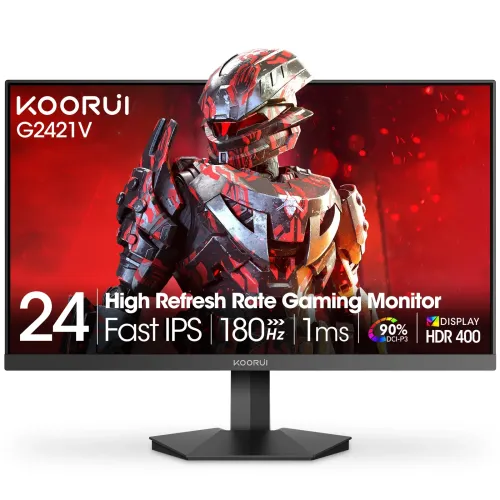
KOORUI G2421V 23.8-inch QHD 180Hz Fast IPS Gaming Monitor is a 23.8-inch Fast IPS gaming monitor with QHD 2560 × 1440 resolution and a maximum 180Hz refresh rate. KOORUI lists 1ms GTG, 350 cd/m², 1000:1 contrast, 90% DCI-P3, Adaptive Sync, HDR400, no built-in speakers and 75 × 75mm VESA. Local sellers list dual HDMI 2.0, DisplayPort 1.4 and audio out; confirm stand and local warranty details for the delivered unit.
QHD density in a compact 23.8-inch screen
The G2421V places 2560 × 1440 pixels on a 23.8-inch Fast IPS panel. This compact QHD format offers fine pixel density for text, interfaces, detailed games and multi-window work. Compared with a Full HD screen of similar size, QHD provides more pixels for sharp edges and additional desktop space. Native-resolution content is important to see this detail; lower-resolution input can be scaled and may look softer. The 16:9 ratio supports common PC, console and video formats.
At a close viewing distance, interface scaling may help keep text comfortable while preserving the native image. Adjust operating-system scaling or application font sizes instead of forcing an unsupported resolution. QHD workloads require more graphics processing than Full HD, especially when targeting high frame rates in demanding games. For documents and browsing this resolution can show more content; for gaming, tune image settings to balance detail and frame rate.
Fast IPS viewing and stated colour range
KOORUI describes the panel as Fast IPS and lists 178-degree viewing angles, 8-bit colour depth and 16.7 million colours. Wide viewing angles are useful when shifting position or sharing the screen. The manufacturer states 90% DCI-P3 coverage, which describes a colour gamut range and does not by itself prove factory calibration accuracy, panel uniformity or unit-to-unit consistency. Flat-screen geometry suits typical desk work and can simplify alignment with another monitor.
Use a calibrated workflow for colour-critical photo, print or video work. A published gamut percentage is not a measurement of colour error. Picture modes, brightness and source colour management can affect what appears on screen. For ordinary gaming and media, a broad stated gamut can produce vivid colour, while accurate work needs a known profile and suitable measurement. Compare settings in normal room lighting and avoid judging colour from saturated demo imagery alone.
180Hz refresh and compatible connection
A maximum 180Hz refresh can make supported motion look smoother than 60Hz or 120Hz while gaming, scrolling and moving windows. KOORUI cautions that the maximum rate depends on the connection, cable, graphics hardware and display settings. Select a supported resolution/refresh combination in the computer’s display menu and check the graphics driver. The manufacturer lists HDMI and DisplayPort; local Bangladesh listings specify dual HDMI 2.0 and a DisplayPort 1.4 input.
A display cannot create frames that the source does not render. High refresh in a demanding QHD game needs sufficient GPU performance. If 180Hz is unavailable, confirm the correct port and cable, update the GPU driver and test a direct connection instead of an adapter or dock. Some consoles may not support QHD at 180Hz even if the monitor can accept a high-refresh PC signal. Verify the source’s actual output modes before buying.
1ms GTG and motion settings
KOORUI specifies 1ms GTG response time. Grey-to-grey values describe pixel transitions under a measurement method and do not mean every transition is always exactly 1ms. Overdrive can accelerate transitions, but a very strong setting may create overshoot or inverse ghosting. Response behaviour depends on the shade transition, refresh rate, panel sample and chosen setting. Treat the published value as the manufacturer’s claim rather than a guarantee that all motion blur disappears.
Try OD settings in the games you use and compare moving edges against the default mode. If trails appear, use a less aggressive option. Variable refresh and frame pacing can also influence perceived smoothness. Keep the display at a supported high refresh and ensure the computer is actually sending the selected mode. Motion clarity combines panel transitions, refresh rate, game frame rate and human perception; one response-time figure does not summarize every viewing condition.
Adaptive Sync and graphics compatibility
KOORUI lists Free-Sync and G-Sync modes alongside OD acceleration and gaming features. Variable refresh can reduce tearing when a compatible graphics card and monitor synchronize within an active range. Enable the feature in the monitor menu or driver if needed, use a suitable HDMI or DisplayPort cable and confirm the driver recognizes the display. The exact support path depends on the source GPU, driver version, port and refresh mode; seller compatibility labels do not ensure identical operation in every configuration.
If flicker or blanking occurs, update the graphics driver, try another cable, reduce the refresh temporarily or disable variable refresh to isolate the issue. Check the monitor’s on-screen settings and application frame-rate behaviour. Consoles and laptop docks can expose fewer options than a desktop GPU. Adaptive Sync helps coordinate source frame output; it does not increase the number of frames a game can render or guarantee that demanding software remains at 180fps.
HDR400 label and realistic image expectations
The manufacturer specification lists HDR 400 together with 350 cd/m² brightness and 1000:1 contrast. The HDR label should be understood in the context of those panel figures and the absence of a listed local-dimming system. HDR appearance depends on source mastering, tone mapping, brightness, contrast and playback path. A monitor accepting HDR modes does not by itself establish strong highlight intensity or deep local contrast. Confirm regional documentation if certification status matters to the purchase.
When viewing HDR content, compare the same material in SDR and HDR and adjust operating-system calibration where available. Some desktop modes can make SDR content appear different while HDR is enabled globally. The source needs actual HDR content, and the application must support the format. Avoid interpreting the HDR400 wording as a promise of a premium television-like effect. The 350-nit and 1000:1 values help set more realistic expectations for bright scenes and dark-room contrast.
Ports, audio output and accessories
KOORUI’s current product page identifies HDMI and DisplayPort, and local retailers list two HDMI 2.0 inputs, one DisplayPort 1.4 input and a 3.5mm audio output. This gives a desktop and another source a place to connect, subject to the regional unit. The official page lists a DP 1.4 cable as an included accessory. Check the box contents with the Bangladesh seller, since bundled cables and adapters may vary by market.
The G2421V has no built-in speakers according to KOORUI. Use headphones or powered external speakers through the audio output or source device. For audio routed over HDMI or DisplayPort, set the computer’s output device appropriately and check volume. If a port is missing or arranged differently on delivery, use the product label and manual for the exact version. Do not assume USB-C, a USB hub or laptop charging; those are not listed for this model.
Stand, VESA and desk planning
The official KOORUI page lists 75 × 75mm VESA mounting with M4 × 8mm screws and a 3.07kg weight without packaging. The retailer-supplied dimension is approximately 541.93 × 427.80 × 229.17mm with stand, but some seller measurements vary. Stand adjustment is described differently across sources: tilt or an up/down angle range around -5° to +20°. The manufacturer page does not clearly document a height-adjustment mechanism, so the content avoids claiming one.
Before attaching a wall or desk arm, check the delivered guide for screw length and verify the mount’s load rating. Support the panel during installation and do not overtighten hardware. Measure the desk footprint and rear cable clearance. If ergonomic height adjustment is important, confirm the stand mechanism in person or plan for a VESA arm. A 75mm pattern is smaller than the common 100mm format, so ensure the bracket includes the correct plate or adapter.
Eye-comfort claims and daily setup
Local listings mention Flicker-Free and Low Blue Light. These modes can offer display preferences for long study or work sessions, but they do not guarantee that eye fatigue will be avoided. Ambient light, screen distance, text size, reflections, brightness and posture all affect comfort. Keep brightness appropriate for the room and position the panel to avoid glare. The flat 23.8-inch size can work well on a compact desk, but viewing distance should still allow a relaxed posture.
Low-blue-light settings may shift white balance and colour appearance, which may be unsuitable for colour-critical tasks. Choose a neutral mode when evaluating images and a comfortable mode for general reading if preferred. Take regular breaks and increase interface text size if needed. If discomfort persists, adjust the workstation and seek appropriate professional advice. These are general display-use suggestions rather than medical claims about the product.
Competitive play and productivity
The combination of QHD detail and 180Hz refresh may suit gamers who want a sharper image at a compact screen size while keeping motion smooth when the PC can render enough frames. IPS viewing angles and a flat panel also work for everyday browsing, code, documents and streaming. The higher pixel density can make fine text crisp, while screen scaling can make interface elements more comfortable. A fast-refresh mode is most useful when both the game and graphics hardware can take advantage of it.
QHD 180Hz can be demanding. In graphically intensive games, reducing quality settings or using a lower frame target may produce a more consistent experience. For productivity, the additional pixels can show more content, though the 23.8-inch size may need operating-system scaling. The monitor is not a substitute for GPU performance and does not upscale every source perfectly. Consider your viewing distance, desk depth and the source devices before choosing this display over a larger QHD monitor.
Power, packaging and care
KOORUI lists an external 19V/2.58A power requirement, a weight of 3.07kg without packaging and a packaged weight around 4.7kg. Regional seller data may report slightly different packed dimensions or net weights. Keep ventilation clear, place the adapter securely and route the cable where it will not be pulled or tripped over. Clean the screen with a soft microfiber cloth and avoid pressing on the LCD panel or spraying liquid directly onto it.
Inspect the display, stand, ports, adapter and included DisplayPort cable on delivery. Keep the packaging and invoice until the seller return window has passed. Test native QHD, 180Hz if supported, each input you plan to use, audio out and variable refresh. Record the serial number and contact the seller promptly about dead pixels, damage or missing accessories according to the written return policy. Package details can vary by region, so check the actual contents rather than relying on generic photos.
Bangladesh price and warranty checks
Ryans listed ৳22,500 for the G2421V; Rose Tech showed ৳22,400 and ৳22,600 pricing on its page, and UltraTech listed ৳23,300 when checked. These figures are independent seller snapshots and can change with stock, payment terms and delivery. They are not a BiponiBD offer. Confirm the exact model suffix, final payable amount and availability before ordering. Check whether the stated warranty is handled by the seller, distributor or service centre.
Retail pages advertise three-year warranty coverage, but the individual serial’s local eligibility, exclusions and claim process require written confirmation. Ask which service centre handles the unit, what proof is required and whether panel/dead-pixel rules differ from general hardware coverage. Retain the invoice, warranty card and serial details. An advertised period alone does not prove authorized distribution or guarantee that every failure is covered.
Who should choose the G2421V
The G2421V can suit a buyer who wants a compact 23.8-inch QHD Fast IPS display, up to 180Hz refresh, variable-refresh claims and VESA mounting. It offers more pixel density than a typical Full HD screen of the same size and a high refresh ceiling for compatible PCs. Dual HDMI, DisplayPort and audio out are useful for a multi-source desk setup, while the lack of built-in speakers keeps audio external.
Choose another screen if you need integrated audio, a confirmed height-adjustable stand, USB-C, a larger viewing area, high-brightness HDR or verified warranty service for a particular serial. Make sure your computer can drive QHD at the refresh you expect. Confirm the regional port and stand details from the actual manual. The product’s capabilities depend on the delivered version, source hardware, cable quality and settings.
Specification source notes
The KOORUI product page confirms G2421V model, 23.8-inch class size, Fast IPS, QHD resolution, 180Hz maximum refresh, HDMI/DisplayPort, 75 × 75mm VESA and M4 × 8mm screws. It also lists 350 cd/m², 1ms GTG, 90% DCI-P3, 1000:1 contrast, no integrated speakers and 19V/2.58A power. Bangladesh retailer specifications were cross-checked for local ports, price and warranty claims. Manufacturer documentation is prioritized when seller descriptions conflict.
Exact stand range and dual-HDMI implementation are retained as seller-reported where the manufacturer page is less specific. This copy does not claim a BiponiBD offer, customer review, serial-specific local warranty, in-hand gallery audit, GTIN, origin or box contents beyond the manufacturer’s stated DP cable accessory. Price and stock snapshots are date-sensitive. Confirm any purchase-critical detail with the seller and delivered manual.
Bangladesh price observations and sources
Checked 2026-11-08 against KOORUI product documentation, Rose Tech, Ryans and UltraTech. Published seller prices ranged ৳22,400–৳23,300, with Rose Tech listing ৳22,400/৳22,600 and Ryans listing ৳22,500. These are market snapshots, not a BiponiBD offer. Confirm current stock, final price, exact port/stand version and written warranty terms.