Pros
- Large curved QHD display gives an immersive centered view.
- 165Hz native refresh supports smooth gaming.
- 3000:1 VA contrast and FreeSync Premium are listed.
- QHD resolution offers detailed gaming and broad workspace.

All categories
 New condition
Monitors
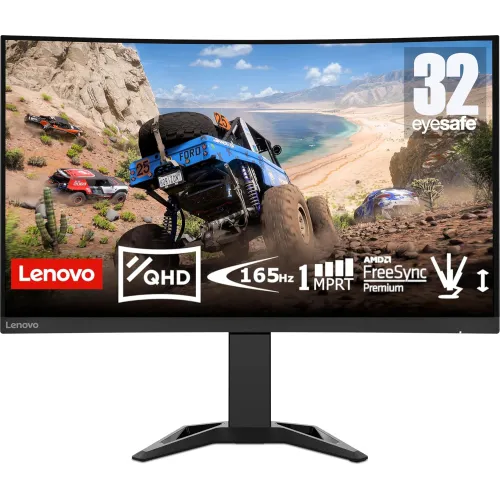
Lenovo · G32qc-30 31.5-inch QHD 165Hz Curved
31.5-inch 1500R QHD VA monitor with 165Hz native DisplayPort, 170Hz overclock, HDR10 and FreeSync Premium.
Price unavailable
Price range updating
No verified price is available yet. Store offers will appear when merchants publish them.
Compare store prices
No live offers for this variant
Offers will appear when merchants publish them.
Loading history…
Product story
Lenovo PSREF identifies the G32qc-30 as a 31.5-inch QHD VA monitor with a 1500R curve, anti-glare surface and 2560 × 1440 resolution. The DisplayPort refresh rate is 165Hz, with an optional 170Hz overclock; HDMI supports up to 144Hz. Lenovo lists 350 nits typical brightness, 3000:1 contrast, HDR10, 1ms MPRT and AMD FreeSync Premium. Confirm the exact regional package, cables and local warranty before purchase.
The panel measures 31.5 inches diagonally and uses native 2560 × 1440 QHD resolution in a 16:9 aspect ratio. This creates a large workspace for games and productivity, with less pixel density than a 27-inch QHD display. Set the source to native resolution and adjust scaling for text readability. Graphics output, connection and cable determine whether 1440p at the target refresh is available.
The 1500R curve brings the sides of the large screen toward a centered viewer. Lenovo pairs this with a VA panel, which is specified at 3000:1 typical contrast. Dark-scene appearance and pixel transitions vary by content and unit. Curvature suits a single user sitting in front of the display but is less ideal for group viewing from the sides. Position the monitor centrally at a comfortable distance.
Lenovo specifies 165Hz over DisplayPort and an overclock option to 170Hz. The 170Hz mode is based on laboratory testing and Lenovo warns that it may cause display irregularities. Use 165Hz for the normal mode and enable 170Hz only if stable. HDMI is limited to 144Hz at QHD. Confirm the active signal in the operating system and check the connection timing table.
Lenovo lists 1ms MPRT. MPRT is a motion-picture response measurement, not gray-to-gray response or input lag. Clarity depends on refresh, frame rate and any motion reduction setting. Strong overdrive may create artifacts, and blur-reduction features can change brightness. Compare settings in real games and select a stable, clear image. The rated response does not mean every pixel changes in one millisecond.
The product specification lists AMD FreeSync Premium, which can synchronize compatible monitor refresh to graphics output over a supported range. Enable it in the display and GPU settings and test games at typical frame rates. Compatibility depends on the graphics card, driver, connection and timing. VRR can help reduce tearing but cannot improve rendering speed. Confirm the exact feature support on the local model and current driver.
Lenovo lists HDR10 support and 350 nits typical brightness. HDR10 indicates compatible signal handling; it is not the same as a VESA DisplayHDR certification tier. Do not infer local dimming from the HDR label. Use HDR with supported media and games, and compare with SDR for desktop use. Actual appearance depends on source, picture mode and room lighting.
The PSREF specifies 3000:1 contrast and 8-bit color, with approximately 90% DCI-P3/122% sRGB area coverage in regional documentation. Gamut measurements can differ in method and region and do not establish calibration accuracy. Use a calibrated profile for color work. For standard web or office content, select an appropriate sRGB or neutral preset to avoid oversaturated colors.
The G32qc-30 offers HDMI and DisplayPort inputs. Lenovo PSREF lists QHD up to 144Hz over HDMI and 165Hz over DisplayPort, with 170Hz as an overclocked DP mode. For PC high-refresh use, connect directly to a compatible graphics card over DisplayPort. If the desired mode is unavailable, check the cable, adapter, GPU output, driver and monitor OSD.
The monitor includes a headphone output for audio routed from a connected source. Lenovo’s specification does not establish built-in speakers, so plan external audio equipment. HDMI or DisplayPort can carry audio from a computer or console. Select the monitor as the playback device if using its headphone jack. Check the operating-system volume and monitor audio settings if sound is missing.
The included stand supports ergonomic positioning according to regional product descriptions. Verify its exact height, tilt, swivel and pivot range in the shipped manual before planning a desk layout. Check VESA pattern, screw length and monitor-arm capacity if mounting separately. A 31.5-inch curved panel needs room for its base and cable movement. Avoid pressing the screen while adjusting the stand.
The monitor uses an anti-glare surface and regional listings identify low-blue-light/flicker reduction features. These can help manage reflections and comfort, but settings are personal and may change color temperature. Set brightness for the room and take breaks during long sessions. Low-blue-light modes are not medical treatment. For color assessment, use a calibrated neutral picture mode.
Use the on-screen display to select input, refresh, picture mode and response settings. Start with QHD at 165Hz over DisplayPort. Enable the 170Hz overclock only after confirming the system remains stable. For HDR content, configure both the source and monitor mode. Change one enhancement at a time and compare motion and color; avoid stacking sharpening or contrast filters that create halos.
QHD at 165Hz or 170Hz asks more of the graphics card than 1080p at 60Hz. Competitive titles may achieve high frame rates with tuned settings, while demanding games may require lower quality or a frame cap. Use FreeSync Premium if supported and aim for stable frame pacing. The monitor’s maximum refresh is a ceiling, not a promise that the PC can deliver that many frames.
Consoles can use the monitor over HDMI but are generally limited to their own supported frame rates and the monitor’s HDMI timing, up to 144Hz QHD according to Lenovo. The 170Hz DisplayPort overclock is a PC-oriented mode. Check console support for 1440p and 120Hz, game compatibility and HDR output. Use the correct HDMI input and cable.
A large curved QHD screen works best when centered at a distance that lets the user see the whole panel comfortably. Keep the top edge near eye level and adjust tilt to reduce reflections. On a shared desk, the curve can make side viewing less consistent. Allow space for the stand and avoid direct light on the anti-glare surface. Check that the desk can safely support the assembled monitor.
170Hz is an overclocked mode and Lenovo warns it may cause irregularities; 165Hz is the normal DP maximum. HDMI QHD refresh is listed at 144Hz. QHD at 31.5 inches is less dense than 27-inch QHD. HDR10 is signal support, not proof of a high-tier HDR certificate. Confirm stand range, local package and serial warranty rather than relying on retailer text alone.
Lenovo’s global PSREF does not define warranty coverage for a specific Bangladesh unit. Ask the seller to confirm authorized channel, warranty duration, service location, dead-pixel policy and invoice requirements. Match the model and serial on the monitor, carton and purchase record. Confirm included HDMI/DisplayPort cables, stand and power adapter. Test refresh modes and panel uniformity during the seller’s return period.
Connect DisplayPort for QHD at 165Hz, select the correct input and choose 2560 × 1440 at 165Hz in the operating system. Enable the 170Hz overclock only if the image remains stable. If the screen flickers or shows errors, return to 165Hz as Lenovo cautions. HDMI QHD is specified up to 144Hz. If FreeSync does not appear, check GPU support, driver settings and the selected input.
This monitor suits buyers who want a large 31.5-inch curved QHD screen with strong VA contrast and high PC refresh. Compare it with 27-inch QHD if text sharpness is more important, and with a higher-resolution panel if denser work space is needed. Check that the curve, stand and desk dimensions fit your setup. Verify GPU, input, cables, serial warranty and the behavior of the 170Hz overclock before buying. A useful pre-purchase test is to confirm which graphics output and cable support the target mode, then review the exact timing table for HDMI or DisplayPort. Ask the seller to confirm that the supplied unit is G32qc-30 and not an earlier G32QC or another size variant. Confirm the local return period and whether the monitor has been imported through an authorized channel. On arrival, inspect the curve and panel for damage, test the 165Hz native mode, and try 170Hz only after the base mode is stable. If image artifacts appear, follow Lenovo’s caution and return to 165Hz. Check whether HDR10 looks correct in a supported game and whether FreeSync behaves as expected with your graphics card. Consider the viewing distance: the 31.5-inch screen has a large image, while QHD gives less pixel density than the same resolution on a smaller display. These checks help balance screen size, text clarity, gaming smoothness, warranty and physical fit instead of choosing from refresh rate alone.
Helpful answers
Product-specific answers maintained with the catalog information.
Lenovo lists QHD 2560 × 1440 on a 31.5-inch screen.
DisplayPort supports up to 165Hz; 170Hz is an optional overclock.
No, Lenovo warns the overclock may cause display irregularities.
Lenovo lists QHD up to 144Hz over HDMI.
It uses a VA panel with a 1500R curve.
HDR10 signal support is listed; this is not a VESA DisplayHDR tier.
AMD FreeSync Premium is listed by Lenovo.
Built-in speakers are not established; the monitor includes headphone output.
Confirm serial-specific Lenovo warranty and service terms with the seller.
Customer community
Become a merchant
Join BiponiBD, publish accurate offers and start free.