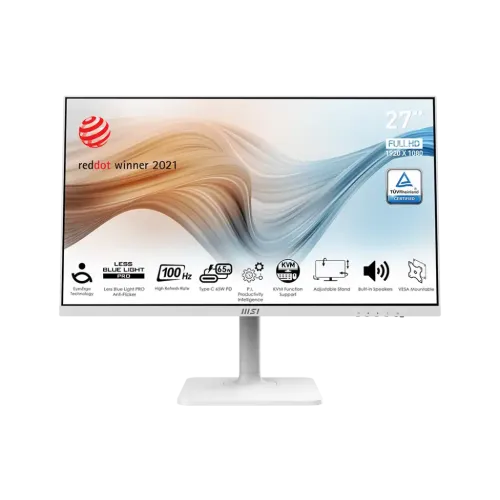
MSI Modern MD272XPW overview
The MSI Modern MD272XPW is a white 27-inch business and productivity monitor with a Full HD 1920 × 1080 IPS panel, 100Hz refresh rate and a four-way adjustable stand. It is designed for office desks, study spaces, home workstations and users who regularly switch between computers. The connection set includes HDMI 1.4b, DisplayPort 1.2a and USB-C with DisplayPort Alt Mode and up to 65W power delivery. MSI also lists a USB hub connection, 2 × 3W speakers, headphone output, adaptive sync and HDR Ready. Its white finish, slim three-side frame and cable-management accessories suit a clean multi-device desk. This page covers the exact MD272XPW white model; confirm the model label because closely named MD272 variants have different specifications.
Resolution, panel and workspace
The 27-inch display has a native 1920 × 1080 resolution and a 16:9 aspect ratio. The active area measures 597.888 × 336.312mm, with 0.3114mm pixel pitch. Full HD is widely supported by office PCs, laptops and everyday media sources. At 27 inches, text and interface elements may appear less dense than on a QHD panel of the same size; choose scaling and viewing distance to suit your eyesight and applications. The flat IPS panel has 178-degree horizontal and vertical viewing angles, which helps the image remain consistent when viewed from off-centre positions. The anti-glare surface can reduce distracting reflections, though direct windows and strong lamps can still affect visibility.
100Hz refresh and Adaptive-Sync
MSI specifies a 100Hz refresh rate, and lists HDMI, DisplayPort and USB-C input compatibility at Full HD up to 100Hz. A higher refresh can make pointer motion, scrolling, window movement and supported games look smoother than a 60Hz screen when the connected device supplies the matching signal. Adaptive-Sync is supported over a stated 48–100Hz activated range. Actual refresh depends on the computer, graphics output, cable, operating system and selected display mode. Set 1920 × 1080 and select 100Hz in system display settings after connection. If an input initially runs at a lower rate, check the cable, graphics driver and chosen port timing. This is an office-oriented 100Hz monitor, not a high-refresh QHD gaming display.
Response time and motion expectations
MSI lists 1ms MPRT and 4ms GtG. These are different measurement methods and are not interchangeable. The 1ms MPRT figure may depend on a specific motion-blur-reduction setting and should not be read as a promise that every pixel transition takes one millisecond. For daily browsing and work, the 100Hz refresh and IPS response are useful context; for competitive gaming, also consider the game frame rate, overdrive behavior, input latency and GPU. Adaptive-Sync can help reduce tearing when frame rates vary within the supported range and the source configuration is compatible. Test the available image and motion settings with your own applications to balance clarity, brightness and artifacts.
Color reproduction and brightness
MSI rates typical SDR brightness at 300 nits and contrast at 1000:1. The specification lists 16.7 million colors and 8-bit output using 6-bit plus FRC. MSI lists sRGB gamut area at 108% under CIE 1976 and 114% under CIE 1931, with 99% overlap in both measurements; gamut area and overlap are different calculations. These figures describe the product specification and do not replace calibration or a measured report for an individual unit. The wide viewing angles and vivid color modes can suit documents, online learning, presentations and general content. For print or color-critical production, use a calibrated display workflow and verify that the selected picture mode matches the intended color standard.
HDR Ready label explained
MSI identifies the monitor as HDR Ready. This label indicates a supported HDR-related capability, but it does not mean the screen has a VESA DisplayHDR certification or local dimming; those features are not identified in the cited model specification. The listed SDR brightness is 300 nits and typical contrast is 1000:1. HDR appearance also depends on the content, source device, operating system, cable and display settings. Treat HDR Ready as a compatibility feature and keep expectations aligned with the published panel brightness and contrast. Compare supported HDR and SDR modes in the applications you use, and return to SDR if the result looks washed out or unsuitable.
USB-C connection and 65W power delivery
The USB-C port supports DisplayPort Alternate Mode and up to 65W power delivery according to MSI. With a compatible laptop USB-C port and suitable cable, one connection can carry video and provide power to the laptop. The laptop must itself support video output and charging over that port; USB-C connector shape alone does not guarantee either feature. The monitor is not a replacement for a high-wattage laptop power supply if the computer requires more than 65W under load. Confirm the laptop requirements and cable rating before relying on single-cable docking. MSI lists USB-C display input at Full HD up to 100Hz.
USB hub, KVM and multi-computer use
The monitor includes two USB 2.0 Type-A ports and one USB 2.0 Type-B upstream connection. Connect the monitor’s USB-B upstream cable to one computer to make the downstream USB ports available to that host. MSI describes a KVM workflow using the Productivity Intelligence app and compatible connections: one computer can use USB-B upstream with HDMI or DisplayPort, while a second compatible computer can use USB-C for display and data. KVM lets one keyboard and mouse serve multiple connected computers when configured correctly. The exact switching behavior depends on the connected devices, cables, app version and input configuration; USB-C data and video capability must be supported by the computer.
Productivity Intelligence software
MSI Productivity Intelligence, also called P.I., is the companion application for supported productivity controls, display and color modes, and KVM workflows. MSI directs users to its support page for the current app download. Software availability, operating-system support and feature behavior can change, so check the current official support listing for MD272XPW before installation. Connect the relevant USB upstream cable when using controls that rely on the monitor’s USB link. The monitor remains usable as a display without relying on every software feature. Do not assume all KVM or color-management functions are available on every operating system or through every adapter.
Eye-care tools and comfortable setup
MSI identifies EyesErgo features including TÜV-certified Anti-Flicker, Less Blue Light PRO, an anti-glare panel and Eye-Q Check exercises. These tools can help users adjust the display and notice visual comfort, but they do not guarantee prevention or treatment of eye strain. Eye-Q Check includes visual exercises and posture reminders; follow the manufacturer’s instructions and take regular breaks. Set brightness to a comfortable level for room lighting, avoid reflections, keep the screen at a suitable distance and position its top edge near eye level. If discomfort persists, stop using the screen and seek appropriate professional advice.
Four-way ergonomic stand
The included stand supports tilt from -5 to +20 degrees, swivel from -30 to +30 degrees, pivot from -90 to +90 degrees and height adjustment up to 110mm. Pivot can help when working with long documents or portrait-oriented content. Adjust the screen while keeping its base stable and allow cable slack for rotation. The stand is white to match the MD272XPW finish. Dimensions with stand are approximately 613.5 × 413.3 × 200.8mm, while MSI lists a net weight of 5.85kg and gross weight of 8.1kg. Check desk depth and monitor-arm clearance before placement.
VESA mounting and desk arrangement
MSI’s official specification lists 75 × 75mm VESA mounting for this model. The catalog previously contained 100 × 100mm, which is corrected here to the manufacturer value. Check the mounting plate and screw requirements before buying an arm or wall mount, and ensure its load rating exceeds the monitor’s weight. Remove the stand following the instructions and support the panel during installation. The stand’s four-way adjustment may be sufficient for many desks without a separate arm. The included cable-management design can help route power, video and USB leads, but leave enough slack for height, swivel and pivot adjustments.
Ports, audio and included accessories
Available connections are one HDMI 1.4b input, one DisplayPort 1.2a input, one USB-C DP Alt Mode input with 65W power delivery, one USB-B 2.0 upstream port, two USB-A 2.0 downstream ports and one headphone output. Two built-in 3W speakers support basic system audio, meetings and media; headphones or external speakers may provide a more suitable listening experience. MSI’s specification sheet lists an HDMI cable, USB-A-to-USB-B cable, power cord, AC adapter and quick guide in the box. Regional packages can vary; check the sealed retail package. The 19V 5.79A external adapter and 100–240V, 50/60Hz input are specified for this monitor.
Power, dimensions and daily operation
MSI lists 17W on-mode consumption, 0.5W standby and 0.3W off-mode consumption in its specification sheet; actual use changes with brightness, connected USB devices and operating conditions. The adapter is rated 19V 5.79A. Dimensions with stand are 613.5 × 413.3 × 200.8mm; the sheet gives 613.5 × 362.5 × 57.5mm without the stand. Listed net weight is 5.85kg on the product specification page, while the datasheet lists 5.7kg; that small source discrepancy should be confirmed on the product label and package. Keep ventilation unobstructed, use the supplied adapter and route cables so they are not pinched by the adjustable stand.
Compatibility and connection checklist
MSI lists PC, Mac, PS5, PS4, Xbox, mobile and notebook compatibility, subject to the source device’s output and adapter support. For a laptop single-cable setup, confirm USB-C video output and 65W charging compatibility. For desktop use, choose HDMI or DisplayPort and connect USB-B upstream if you need the USB hub or KVM workflow. For any source, select 1920 × 1080 at up to 100Hz and check that the operating system recognizes the monitor correctly. The included HDMI cable may suit a basic setup; a compatible USB-C or DisplayPort cable may need to be sourced separately depending on the device. Do not assume a phone supports external display output simply because it has USB-C.
Advantages and practical trade-offs
Key strengths include a 27-inch IPS panel, Full HD resolution, 100Hz refresh, wide viewing angles, USB-C with up to 65W power delivery, four-way ergonomic stand, KVM workflow, USB hub, two built-in speakers and eye-care tools. The white finish can suit a coordinated workspace. Practical trade-offs are the Full HD pixel density at 27 inches, USB 2.0 hub speed, and the need for compatible USB-C video and charging support to use one-cable laptop docking. HDR Ready should not be mistaken for a certified high-brightness HDR display. VESA is 75 × 75mm according to MSI, not the 100 × 100mm previously listed in the catalog.
Warranty and Bangladesh purchase details
The existing product record lists a three-year warranty, and MSI’s datasheet states 36 months. This does not establish the local seller’s serial-specific coverage, authorized service location, panel exclusions or warranty start date. Ask for the Bangladesh warranty terms and invoice requirements before purchase, and retain the serial number and packaging. No current BiponiBD price, stock, delivery fee or local offer was verified during this content review; confirm those details on the live product page or with the seller. This description avoids promising current price, availability, local service coverage or package contents beyond the cited manufacturer information.
Setup and troubleshooting
Attach the stand on a protected flat surface, connect the power adapter, and connect the selected video cable. For USB-C laptop docking, use a cable and host port that support DisplayPort video and confirm that the laptop’s charging needs fit within 65W. Select the matching input from the monitor controls. In the operating system, set native Full HD resolution and select 100Hz if the source supports it. If the USB hub or KVM does not respond, connect the USB-B upstream cable or verify the second computer’s USB-C data capability, then check the current MSI P.I. software instructions. If charging is slow, verify laptop power requirements and cable support. Reset the input or graphics mode if an unsupported signal appears.
Buyer checklist and summary
Before ordering, confirm the exact white MD272XPW model, 27-inch Full HD IPS panel, 100Hz timing, USB-C DP Alt Mode with up to 65W power delivery and the included cable package. Check the computer’s USB-C video and charging support if you want one-cable docking. Confirm the 75 × 75mm mount pattern before choosing an arm. Ask the seller to document the local serial warranty, service and return terms. In summary, MSI Modern MD272XPW is a business monitor built around a 27-inch FHD IPS display, 100Hz refresh, ergonomic adjustments, KVM-capable USB hub, USB-C charging, speakers and eye-care features. Its best fit is a productivity workstation that values connectivity and adjustability over QHD pixel density.