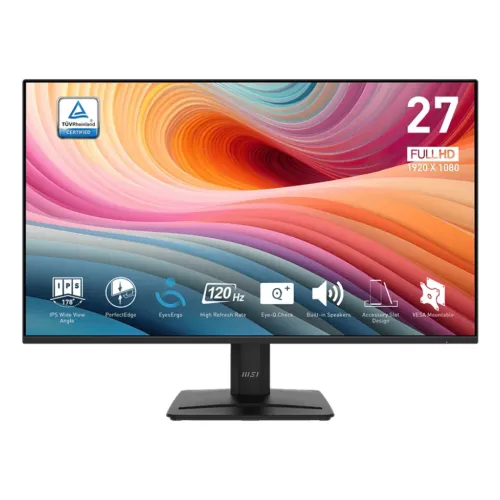
MSI PRO MP275 E2 is a 27-inch Full HD IPS monitor with 120Hz refresh, Adaptive-Sync, built-in 2W × 2 speakers, HDMI 2.0, DisplayPort and VGA. It is designed for home and office work with smoother motion than a standard 60Hz screen. MSI specifies 1ms MPRT and 4ms GTG as separate response measurements; the included stand tilts and the monitor supports 100 × 100mm VESA mounting.
27-inch Full HD IPS work monitor
MSI PRO MP275 E2 is a 27-inch IPS display with a native resolution of 1920 × 1080 and a 16:9 aspect ratio. The broad format supports common office applications, web browsing, video and games. MSI lists 178-degree viewing angles in both directions. The anti-glare surface is intended to reduce reflections, but the monitor can still reflect bright windows or direct room lights.
Full HD is less demanding on the graphics system than QHD or 4K. At 27 inches, however, it has lower pixel density than a QHD screen of the same size. This can make menus comfortably large but may show less fine detail in small type. If dense spreadsheets, detailed design or sharp text are important, compare QHD displays before selecting a 27-inch Full HD model.
120Hz refresh and Adaptive-Sync
MSI specifies a refresh rate up to 120Hz and an Adaptive-Sync activated range of 48–120Hz. With a compatible PC and supported output, the screen can update more often than a 60Hz display, making cursor movement, scrolling and many games appear smoother. The monitor does not render frames itself; the computer and application determine frame rate and pacing.
Connect the computer directly, choose 1920 × 1080 and select 120Hz in the operating system. If the option is missing, check the selected input, cable, graphics driver, dock and source output. Adaptive-Sync behavior depends on graphics hardware, driver support and the active mode. It does not raise the refresh ceiling or guarantee a particular frame rate.
MPRT and GTG response measurements
MSI lists 1ms MPRT and 4ms GTG. Motion Picture Response Time and grey-to-grey transition time describe different aspects of display motion and should not be presented as the same measurement. MPRT does not guarantee that every pixel transition completes in one millisecond. Actual clarity depends on refresh, frame rate, overdrive and scene content.
Use the monitor settings with the type of content you watch. Stronger motion reduction or overdrive can create artifacts and may affect brightness or image behavior. If trails are visible, compare settings at the refresh rate you actually use. For competitive games, review independent response testing rather than relying on one headline number.
Brightness, contrast and HDR Ready
MSI lists 300 cd/m² SDR brightness and 1500:1 typical contrast. The monitor also carries an HDR Ready feature label, but the specification sheet does not list a separate HDR peak-brightness value. HDR input signaling does not establish premium HDR image quality. This product is better described by its Full HD IPS and 120Hz features than as a high-brightness HDR display.
Set brightness to suit the room and avoid direct reflections. For HDR content, compare the actual image and source settings rather than assuming a particular peak brightness. Typical contrast and brightness are specifications, not guaranteed measurements for every unit. Colour and luminance can vary with picture mode and settings.
Video ports and supported timing
The official MSI specification lists one HDMI 2.0 input, one DisplayPort 1.2a and one D-Sub/VGA. MSI states HDMI and DisplayPort can support 1920 × 1080 up to 120Hz, while VGA is listed up to 60Hz. The monitor also has a headphone output and a line-in connection. Adapter, cable and source capability determine the mode available in practice.
For maximum refresh, use a direct HDMI or DisplayPort connection and verify the output setting. VGA is useful for some older devices but is not the connection to choose for 120Hz operation. If using a dock, confirm its supported video bandwidth. Audio can be routed via the computer or monitor connections according to source settings.
Integrated speakers and audio input
MSI lists two integrated speakers rated 2W each, plus headphone-out and line-in. Built-in speakers can provide basic sound for calls, alerts or casual viewing without setting up external audio. Their small size and rating limit bass and volume compared with desktop speakers or a dedicated headset. The line-in connection is separate from the headphone output.
Set the monitor as the audio output when sound is sent over HDMI or DisplayPort, and check the operating system’s selected device and volume. If using the headphone jack, confirm the source routing. For richer sound in a larger room, use powered speakers or a headset connected to the computer or monitor.
Colour depth and gamut figures
MSI lists 16.7 million colours and 8-bit output implemented as 6 bits plus FRC. Its gamut figures vary depending on the colour-space standard and measurement method: for example, sRGB can be reported by CIE1976 area and overlap or by CIE1931. A single percentage without its standard can be misleading, so this description does not present an unqualified “sRGB 116%” as calibrated coverage.
This monitor can be used for everyday images and office work, but gamut coverage does not establish colour accuracy or factory calibration. For print, photo editing or client work, check the desired colour space and use a calibration workflow. Keep comfort modes off when judging colour, since they can shift white balance.
Anti-glare and viewing comfort
The anti-glare finish can help reduce reflections, and MSI lists a 178-degree viewing angle. Lighting, seating position and panel settings still influence comfort. A large, bright screen can feel tiring if placed too close or used at excessive brightness. Use a comfortable font size and set the display height so that the viewing posture feels natural.
The bundled stand tilts from -5 to +20 degrees. MSI does not list height, swivel or pivot adjustments for this stand. Users who need a specific eye-level position may use a compatible VESA mount, after confirming the mount and desk or wall can support the monitor. Take breaks during extended work and adjust room lighting to avoid glare.
Stand adjustment and VESA mount
The MP275 E2 stand is listed with tilt adjustment from -5 to +20 degrees. A 100 × 100mm VESA pattern is specified for wall or arm mounting. The VESA pattern provides mounting compatibility but does not mean a bracket is included. Check screw type and insertion depth in MSI’s manual and confirm the mount’s load rating before installation.
Keep the monitor supported while installing a bracket and route cables so that they do not pull when the panel moves. A monitor arm can add height adjustment and swivel, but those movements come from the arm, not from the included stand. Use hardware suited to the wall or desk and follow the manufacturer instructions.
Power, lock and connectivity details
MSI lists an internal power board with 100–240V, 50–60Hz input. Its specification sheet gives 21 kWh per 1000 hours on-mode consumption and 0.5W standby under standard test values. A Kensington lock slot can help secure the display in shared offices, classrooms or retail counters when paired with a compatible lock.
Use the supplied power cable and leave room around the display for airflow. Energy consumption depends on brightness and usage. The lock slot is a deterrent accessory point and does not make the monitor theft-proof. For multi-screen setups, check the monitor’s dimensions, bezel, base placement and cable routing before arranging the desk.
Work, study and casual gaming
The MP275 E2 can suit office documents, study, web meetings and casual gaming. Its 27-inch IPS panel and 120Hz mode provide more room and a faster refresh than a basic office display. The speakers, headphone output, line-in and multiple video inputs can support a simple desk or shared workstation without external devices for every function.
Choose a different monitor if you need QHD detail at 27 inches, USB-C charging/docking, a height-adjustable supplied stand, a higher gaming refresh rate or higher-grade HDR. Confirm the computer can deliver 120Hz at Full HD over the chosen input. A monitor cannot make a game run faster than the connected system can render.
Bangladesh price and warranty checks
Bangladesh retailer snapshots showed Skyland ৳21,800 and in stock, Star Tech ৳22,000 and in stock, and Creatus ৳23,000 and in stock when reviewed. Prices and availability can change. These observations help compare sellers; they are not a BiponiBD selling price or guarantee. Confirm the exact model and final payable price before ordering.
MSI’s global specification page does not establish the warranty for a Bangladesh serial number. Local sellers may advertise three years, but verify the distributor, service channel, duration, exclusions and serial eligibility in writing. Ask whether the product is new and sealed and confirm return conditions. Keep the invoice, serial number and warranty documentation.
Delivery inspection and care
Place the monitor on a stable surface, keep vents clear and clean the screen with a soft microfiber cloth. Do not spray liquids directly onto the panel. Support the frame when moving the unit and avoid pressure on the LCD. Connect HDMI, DisplayPort or VGA only after confirming the source and selected input. Keep cables clear of the stand and other equipment.
On delivery, inspect the screen, stand, speakers, ports, power cable and included accessories. Test 1920 × 1080 at 120Hz over HDMI or DisplayPort and check audio output. Record the serial number and retain the invoice and packaging. If an expected mode is absent, check the cable, graphics settings and driver before seeking service. Follow seller return instructions.
Source and Bangladesh price notes
Core specifications were checked against MSI’s official product specification page and product sheet. Local sellers checked 2026-11-08 showed ৳21,800–৳23,000 with stock states reported in the page snapshot. Price and stock can change; these are seller observations, not a BiponiBD offer. Confirm local serial warranty with the seller.