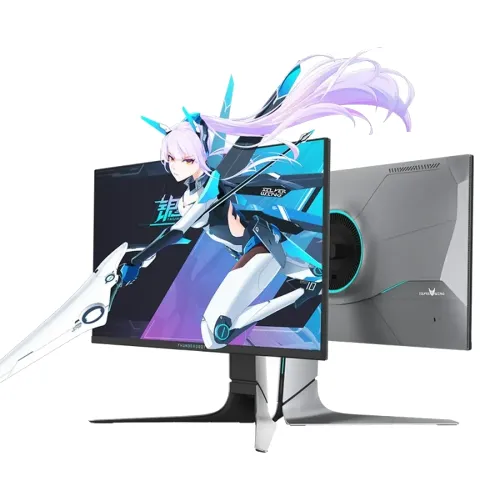
Verified product identity
ThundeRobot’s official page identifies the KQ27F240L as a 27-inch 2K/ QHD 240Hz Fast IPS monitor with hardware low-blue-light and a height-adjustable, rotating stand. It is the Silver Wing KQ27F240L model. Keep this suffix distinct from other Thunderobot products with similar letters, including OLED LQ27 models and overclocked ZQ27 variants. The official page’s title supports the principal features; regional ports, brightness, color gamut and warranty should be verified against the exact unit.
27-inch QHD resolution
The product is listed as 27 inches and QHD, commonly 2560 × 1440 pixels with 16:9 proportions. QHD provides a balance between detail and GPU load compared with 4K. Set the source to native resolution for clear text and images. A cable, GPU or adapter may limit the available mode. “2K” is a common product label, but 2560 × 1440 is the precise mode to confirm in the manual and display information panel.
Fast IPS display
The manufacturer calls the panel Fast IPS, a technology intended to combine wide viewing with gaming-oriented response tuning. It can make the monitor suitable for both action games and desk work. Fast IPS does not guarantee identical response on every pixel transition or perfect uniformity. Exact color depth, brightness and gamut depend on the model specification and picture mode. For color work, calibrate the actual unit and avoid relying on a marketing gamut figure alone.
240Hz refresh rate
ThundeRobot’s product title lists 240Hz, without describing it as an overclocked value. Confirm the native supported timing and input conditions from the unit manual. Set QHD and 240Hz in the operating system or GPU panel, then confirm the active signal. Cable, adapter, dock and graphics output all affect the available refresh. The monitor cannot make a game render at 240 frames per second; the source must supply frames at that rate.
Frame rates and competitive play
A 240Hz refresh can make motion feel smoother and reduce display wait between frames in supported games, especially when the computer delivers high frame rates. At QHD, demanding games require a capable GPU. Competitive titles may reach higher frame rates with tuned settings. If the system cannot sustain very high frame rates, use a stable cap and select image quality settings that avoid inconsistent frame pacing. Use the monitor as one part of a complete responsive system.
Response-time interpretation
Regional retail pages may advertise 1ms response, but the manufacturer title does not state the measurement method or mode. Confirm if the figure is GtG or MPRT, and which overdrive setting is required. Response time is not input lag. Strong overdrive can create bright inverse trails, while motion blur reduction can affect brightness. Compare settings in motion and choose the cleanest image for the games and refresh range you use.
Color gamut and picture quality
Some regional listings report wide color coverage such as 95% DCI-P3 and 99% sRGB. These values require confirmation from the exact KQ27F240L technical sheet. Color gamut measures the range of colors and does not prove calibration accuracy. If editing photos or video, use a calibrated profile and color-managed applications. For gaming, choose a mode that keeps skin tones and shadow detail natural instead of using excessive saturation or contrast enhancement.
Brightness and HDR claims
Check the specific regional specification for brightness and HDR support; the official product title available here does not establish a numeric brightness or certification tier. Do not infer HDR certification from QHD or a high refresh rate. If a reseller page mentions HDR or a peak-nit value, compare it with the manufacturer documentation for the full model code. Adjust brightness for room conditions and avoid treating peak figures as a standard everyday setting.
Hardware low-blue-light feature
The official model title advertises hardware low-blue-light technology. Hardware implementation can reduce blue output as a display feature, while exact certification and OSD behavior need the manual. Warm picture modes may change color appearance. Use a comfortable setting for long sessions and a neutral calibrated mode for color evaluation. Eye comfort also depends on screen position, brightness, ambient light and breaks; a monitor feature is not medical treatment.
Height-adjustable and rotating stand
The official listing describes height adjustment and rotation. This supports ergonomic desk placement and can help when using portrait orientation. Confirm the exact stand travel, tilt range, swivel range, pivot capability and VESA pattern from the package documentation. Adjust the screen slowly while holding the frame. If mounting on an arm, verify the mount pattern, supported weight and clearance. Do not assume the stand features of a similar KQ or ZQ model apply here.
Ports and cable setup
The regional seller specification should be checked for the exact KQ27F240L port versions and count. Thunderobot gaming displays commonly use DisplayPort and HDMI, sometimes with an audio output, but the manufacturer page summary does not confirm this unit’s precise I/O. Select a connection that supports QHD at 240Hz, and use a direct cable from the GPU while testing. Do not assume USB-C, USB hub, speakers or headphone output without model-specific confirmation.
Adaptive sync support
Regional product information may identify Adaptive Sync or compatibility with variable refresh technologies; verify the specific official documentation before making a guarantee. When available, enable the feature in both monitor and GPU settings. It can help synchronize the refresh with compatible GPU output over a supported range, reducing tearing. It does not increase game performance, and behavior depends on cable, GPU, drivers, frame rate and game. Test with the actual computer setup.
On-screen controls
Use the monitor’s on-screen display to select input, picture preset, brightness and any refresh or response options. Start with native QHD and a stable refresh mode, then adjust overdrive only as needed. Avoid applying multiple image enhancements at once because they may introduce halos or oversharpening. Check the manual for button and joystick layout. Some features may only appear when a compatible input timing is active.
Gaming and everyday work
The KQ27F240L is aimed at gaming but can also serve for coding, office work and general media. QHD offers usable desktop space, while Fast IPS may retain broad viewing. The 240Hz benefit is strongest in games that can sustain high frame rates. At a typical office workload, resolution, text scaling, stand positioning and comfortable brightness are more noticeable than the maximum refresh headline. Choose settings for the task rather than leaving every enhancement enabled.
Compatibility with consoles and laptops
Console maximum refresh varies by console generation, game and HDMI implementation. A console may not use the monitor’s full 240Hz capability. Laptops also need a supported display output and enough graphics performance for QHD gaming. Check the source’s maximum resolution and refresh, connector version and any dock limits. The model’s product title does not establish USB-C input or laptop charging. Confirm specific capabilities before planning a single-cable setup.
Setup and high-refresh troubleshooting
Place the monitor on a stable desk, connect the GPU directly, select the correct input and set 2560 × 1440 at a supported refresh. If 240Hz is missing, check the cable, source port, driver, monitor OSD and operating-system display settings. A dock or adapter may cap refresh. If the screen blanks or flickers, lower the refresh and retest before changing other variables. Confirm game settings separately because desktop and in-game modes can differ.
Limitations and specification care
The manufacturer page confirms the headline model and core features, while some numeric and connector details come from region-specific seller pages. Brightness, color gamut, response method, HDR, ports and local stand ranges need exact-unit confirmation. The product must not inherit features from related KQ27F240E OLED or ZQ27F240L overclocked models. Match every claim to KQ27F240L documentation and label before the product page asserts it as guaranteed.
Bangladesh warranty and purchase checks
The manufacturer’s China-market listing does not determine warranty coverage for a Bangladesh unit. Ask the seller to confirm local authorization, warranty period, service center, dead-pixel policy and invoice requirements. Match the serial and model suffix on the display and carton, and keep proof of purchase. Confirm current stock, delivery condition, included stand and cable set at checkout. Warranty terms should be specific to the serial and seller channel.
Care and placement
Keep the panel away from impact, pressure and moisture. Power off before cleaning and use a soft cloth following the manufacturer’s care guidance. Do not spray liquid directly on the panel. Route the display cable so it does not pull on the port when the stand is raised, rotated or pivoted. During transport, use the original packaging or suitable padding. Test the screen and stand operation during the retailer’s stated return window.
Choosing this monitor
Choose the KQ27F240L if you want QHD and a 240Hz Fast IPS gaming display with a height-adjustable rotating stand. Confirm your GPU can render the games you play at high frame rates and check that its output supports the desired mode. Compare the exact price and local warranty with alternatives. Verify response measurement, brightness, gamut, ports, VESA and included cables against the regional technical sheet so the purchase matches your setup.