Verified product identity
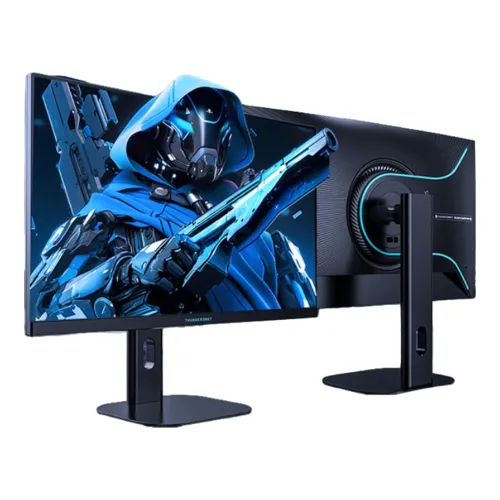
ThundeRobot’s official product listing identifies the ZQ27F340L as a 27-inch flat Fast IPS monitor with 2560 × 1440 resolution and 340Hz overclocked refresh. The official title also calls out hardware low-blue-light technology. The word overclocked matters: the seller should verify the base refresh and the exact supported modes for the unit, input and firmware. Keep it distinct from the similar ZQ27F340 variant, whose suffix and HDR claims are different.
27-inch QHD resolution
The official listing specifies 2560 × 1440 pixels on a 27-inch, 16:9 screen. QHD offers more detail and workspace than Full HD at the same diagonal size. Set the computer to native resolution for sharp text and choose scaling based on viewing distance. A graphics card, cable, adapter and input must all support the chosen refresh mode. The “2K” retail label is commonly used for QHD but can be ambiguous; 2560 × 1440 is the precise resolution.
Fast IPS panel
The manufacturer identifies a Fast IPS panel. IPS technology is designed for broad viewing angles and consistent color visibility across a desk; “Fast” signals gaming-oriented pixel response tuning. It does not mean every transition is instant or that motion artifacts are impossible. Exact brightness, contrast, bit depth and color gamut should be confirmed against the full regional specification. For content creation, calibrate the actual unit rather than relying only on a gamut percentage.
340Hz overclocked refresh
The manufacturer’s official product name explicitly describes 340Hz as overclocked. Treat that as a maximum mode, not a guaranteed native default. Check the monitor’s OSD for an overclock option, then confirm the supported timing in the graphics settings. Availability can depend on DisplayPort/HDMI, GPU, cable and firmware. If the display is unstable or shows artifacts, return to a lower supported refresh. High refresh improves motion only when the source supplies suitable frame rates.
Frame rate and graphics requirements
QHD at very high refresh demands substantial GPU performance. A 340Hz display does not create frames; the game and graphics card must render them. Competitive titles with lower graphics settings may reach higher frame rates than demanding single-player games. Choose a realistic frame cap and resolution, then balance image quality and smoothness. Check the GPU output specification before buying, including whether it can drive the monitor at the desired overclocked mode.
Response-time claims
Retail listings advertise 1ms response, but the official product page’s brief title does not specify whether this is MPRT, GtG or a particular overdrive mode. Do not interpret 1ms as input lag or a guarantee for every pixel transition. Check the manual and OSD options for the measurement method and tuning. Strong overdrive can cause inverse ghosting. Compare settings in real games and choose the clearest image without distracting trails.
Color and brightness information
Regional listings report 95% DCI-P3 and 99% sRGB, with some specifying 450-nit peak brightness. These details are not fully confirmed by the official page content available for this model, so treat them as region-specific until checked against the unit documentation. Gamut percentages describe color coverage, not accuracy. For photo or design work, use calibration and color-managed software. For ordinary gaming, choose a neutral preset and set brightness for the room.
Hardware low-blue-light feature
The official product title advertises hardware low-blue-light technology. Hardware-level implementation can reduce blue-light output without relying solely on a software overlay, but exact certification and mode details should be checked in the manual. Use the setting that feels comfortable, while maintaining good room lighting and breaks. Low-blue-light features do not diagnose or prevent eye conditions and may change the display’s color appearance. Turn them off when evaluating color-critical content.
Adaptive Sync and variable refresh
Some regional listings describe Adaptive Sync or G-SYNC support, but confirm the exact feature and certification in the official regional specification before relying on it. If supported, enable variable refresh in the monitor and compatible GPU settings. The usable range depends on the graphics card, connection and frame rate. VRR can help reduce tearing within its supported range, but it does not improve rendering speed or guarantee uniform behavior on every system.
Inputs and cable selection
Regional listings commonly show two HDMI inputs, one DisplayPort input and a headphone output. The exact port versions are not established by the manufacturer listing excerpt, so check the rear panel and manual for the imported SKU. Use the connection recommended for the highest QHD refresh mode. Avoid unverified adapters and low-bandwidth cables. If the intended 340Hz mode is missing, first test a direct cable from a compatible GPU and review the monitor input settings.
Flat screen and desk positioning
The ZQ27F340L is listed as a flat 27-inch display, unlike curved gaming models. Place it centered in front of the user and set the height and tilt to reduce neck strain. Retail pages may describe height adjustment, but the official listing excerpt does not establish a full ergonomic stand feature set. Confirm tilt, swivel, height travel and VESA pattern for the specific regional package before choosing an arm or desk mount.
Image controls and game use
Use the on-screen display to choose the input, refresh-related settings, picture mode and response tuning supported by the unit. Start with native 2560 × 1440, then enable any overclock option only if the system remains stable. Avoid stacking driver sharpening and monitor enhancement without checking for halos. Test the selected configuration in games with moving objects and text, not only on static screens. Save a separate comfortable preset for everyday desktop work.
Gaming suitability
The combination of QHD and an unusually high overclocked refresh targets competitive PC gaming where fast motion and clear targets matter. Fast IPS technology is intended to balance response and viewing quality. The strongest benefit appears when the PC can sustain high frame rates. For story-driven games, image quality and stable frame pacing may matter more than approaching 340 frames per second. Compare realistic system performance before deciding whether the top refresh mode is useful.
Compatibility with consoles and devices
Console support for 2560 × 1440 and high refresh varies by generation and game. Many consoles prioritize standard HDMI modes and may not use the monitor’s highest overclocked refresh. Laptops may need a compatible high-bandwidth output and discrete GPU path. Check each source’s supported resolutions and refresh rates. A USB-C video input, speakers or webcam should not be assumed unless the exact unit’s ports and feature list confirm them.
Package contents and setup
The precise package contents can change by region. Seller pages list a stand, power cable, DisplayPort cable and documentation, but verify the official carton list for the local unit. Inspect for panel damage on delivery and compare the model and serial labels with the invoice. Connect the power supply specified for the monitor, attach the stand securely and avoid pressing the LCD. Keep the packaging until the display is tested at native resolution.
Limitations and tradeoffs
The 340Hz headline is overclocked, and the official summary does not establish the native baseline, port versions or every advertised number. Achieving very high QHD frame rates requires a powerful PC. Regional pages differ on brightness, gamut, adaptive-sync, connection and stand details. The product should not inherit specifications from the related ZQ27F340 model. Match the suffix on the actual box to the manufacturer’s documentation before publishing claims or purchasing.
Bangladesh warranty and service
The Chinese manufacturer product page does not define warranty coverage for a Bangladesh serial. Ask the seller whether the unit is officially distributed, the warranty duration, service location, dead-pixel policy and documentation needed for a claim. Record the serial number and retain the invoice. Confirm stock, delivery condition, return terms and included accessories at checkout. Warranty details should be verified for the actual imported unit rather than inferred from another country.
Troubleshooting high refresh
If 340Hz is not available, update the graphics driver, connect directly to a supported output, use the appropriate cable, select the correct monitor input and inspect OSD overclock settings. Confirm Windows or the operating system is set to QHD and the intended rate. If the screen blanks or flickers, lower the refresh and retest. Keep the GPU, cable and monitor specifications aligned; an adapter or dock may be the limiting link.
Care and long-term use
Keep the flat panel away from impact, pressure, heat and moisture. Power off before cleaning and use a soft cloth according to manufacturer guidance; do not spray liquid onto the screen. Route cables so they do not pull on the ports or snag the stand. Check for dead pixels, backlight behavior and stable high-refresh operation during the seller’s return period. Save the original serial and invoice details for future service.
Buying checklist
Before ordering, confirm the full ZQ27F340L model code, native refresh and overclocked mode, supported inputs, response measurement, brightness and gamut from the manufacturer’s local documentation. Verify the monitor’s stand and VESA options, included cable, power adapter and warranty. Ensure the PC can render QHD at a frame rate that benefits from the display. This checklist avoids confusing the monitor with another ThundeRobot ZQ-series model.